Debug»
The Macro Manager Dialog provides debugger functionality to enable or
disable any macro, to enable or disable the tracing of a macro when
“stepping”, as well as to view or change the settings of system
variables that enable or disable the processing of startup and shutdown
macros (these variables are grayed out if their corresponding
startup/
The Macro Manager also has check-box options to hide or show composite
post-processor component macros that do not belong to the currently
active component, external before/
Changes made in the Macro Manager are applicable for the current GENER
session only. They will be remembered on a Run»
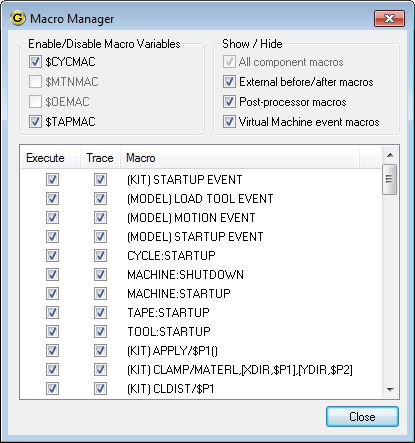
Enable/
You can disable all cycle startup/
shutdown macros by clearing the $CYCMAC check box. This is equivalent to setting the $CYCMAC variable in a macro to $FALSE. When a macro sets $CYCMAC= $TRUE, then this box will appear as checked. You can disable all motion startup/
shutdown macros by clearing the $MTNMAC check box. The $MTNMAC variable can also be set from within a macro. You can disable the operation event macro by clearing the $OEMAC check box. The $OEMAC variable can also be set from within a macro.
You can disable the register macro by clearing the $REGMAC check box. The $REGMAC variable can also be set from within a macro.
You can disable the tape macro by clearing the $TAPMAC check box. The $TAPMAC variable can also be set from within a macro.
Show/
Filters can help to reduce the number of macros listed in the window to a particular group. This will help to examine the list in case there is a large number of macros active in the session.
Enable/
The check box in the ‘Execute’ column is used to disable-enable execution of any listed macro.
Enable/
The check box in the ‘Trace’ column is used to disable-enable tracing of a given macro in the Macro Listing window. When tracing of a particular macro is disabled, it will be not possible to Step-In, ..., and examine how the macro executes. Tracing status of a macro does not affect its execution flow.
Close button
Close the macro list dialog.