Data Macro View (Control Emulator only)
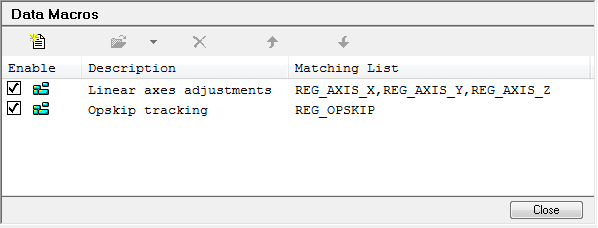
The Data Macro View is used when adding, modifying and deleting Data macros. The Data Macro View can be activated in two ways. The first is by double clicking on the Data Macros section in the Control Emulator Navigator. All macros are listed. The second is by double clicking on one of the top level macro names listed in the Data Macros section.
To add a new data macro, click on the Add button and the New Data Macro dialog will appear.
To modify a data macro, first select a macro and then click on the Modify button to bring up the Macro Editor View.
To modify the matching expression of a data macro, first select a macro and then click on the small arrow on the right of the Modify button to bring up the Data Properties dialog.
To delete a macro, select a macro and click on the Delete button.
To reorder a macro, either select it and use the arrow buttons, or select and hold the mouse button down to drag and drop the macro to its new position (macros sharing the same command name must remain in groups).
Close: Closes the Data Macro View.