Macro View
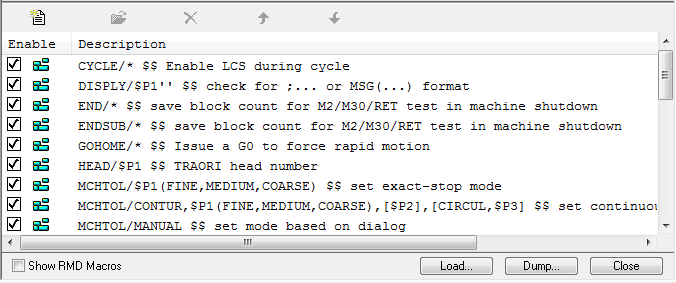
User Defined Syntax macros
The Macro View is used when adding, modifying and deleting User Defined Syntax macros. The Macro View can be activated in two ways. The first is by double clicking on the User Defined Syntax Macros section in the post processor navigator. All macros are listed, as are the Load and Dump buttons. The second is by double clicking on one of the top level macro names listed in the User Defined Syntax Macros section. In this case, just those macros that match that command will appear.
To add a new macro, click on the Add button and the New Macro dialog will appear. To modify a macro, first select a macro and then click on the Modify button to bring up the Macro Editor View. To delete a macro, select a macro and click on the Delete button. To reorder a macro, either select it and use the arrow buttons, or select and hold the mouse button down to drag and drop the macro to its new position (macros sharing the same command name must remain in groups).
It is possible to select multiple macros in the list to be edited at the same time. When used, all selected macros will be shown in the same macro editor, separated by ENDMAC command. This is very useful when doing a global search and replace.
Show RMD Macro: (User Defined Syntax Macros section only) When checked, RMD macros that are defined will be shown in the list. This provides the possibility to look at and to modify RMD macros as if they were regular custom macros.
Load...: Loads macros from a file, optionally replacing macros already in the post processor.
Export: Writes all User Defined Syntax macros to a file.
Close: Closes the Macro View.
User Function macros
The macro view is also used for the User Function macros. The view can be activated by double clicking on the User Function Macros section in the PP, CE and Model navigator.
To add a new macro, click on the Add button and a dialog asking for the new function macro name will appear. The name of the macro has the same limitation as the user variable name through the DECLAR syntax. To modify a macro, first select a macro and then click on the Modify button to bring up the Macro Editor View. To delete a macro, select a macro and click on the Delete button.
Load...: Loads macros from a file containing function macros.
Export: Writes all User Function macros to a file.
Close: Closes the Macro View.