Data Customization View (Control Emulator only)
Just like the CODE customization section, the DATA customization one is showing the list of data registers that can be matched by the Control Emulator.
It is important to distinguish a DATA from a CODE register. Both are identified from the block text, then the CODES are executing actions and those actions are using the DATA registers as their parameters. For example, the CODE_LINEAR code is using all the axis REG_AXIS_X, REG_AXIS_Y, ... as its values.
The original list is built by parsing the questionnaire data. Specific customization to the data register can then be done.
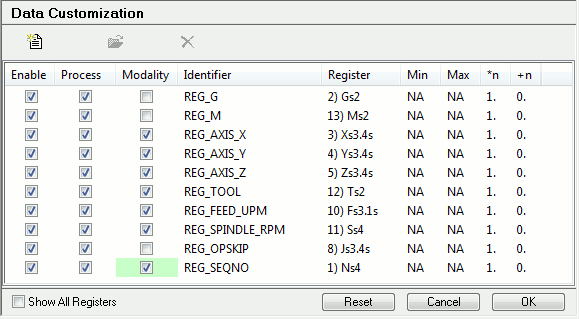
Just like with the CODE customization section, you can also create user defined DATA entries and make aliases of data identifiers.
Column Definition
Enable: All data registers having this column checked will be recognized by the CE processing engine. Disable if you want to ignore a specific register, even if it was added by the questionnaire data.
Process: Having this column checked means that the register will be processed normally. If unchecked, the register will be recognized by the CE but will be ignored and discarded. This is a way to prevent specific actions for firing without outputting errors and warnings related to the register being unmatched.
Modal: A modal data register is a register that has its value saved so that actions can access it at anytime even on blocks where the data register do not appear.
Identifier: This show the text identifier representing the data register. This field cannot be modified.
Register: This field identify the register that is in use by the data register entry.
Min: For a data register, the min and max values can be used has a range validation.
Max: For a data register, the min and max values can be used has a range validation.
*n: This is a factor that will be multiplied to the data register value after being matched.
+n: This is a number that will be added to the data register value after being matched.
Context menu (right mouse button)
Right-clicking on a selected entry will show the context menu which gives you multiple operation choices beside the standard Ok, Cancel and Reset.
Create Alias: By default, you can only have one register per data identifier. For example, let’s say you have the REG_AXIS_X identifier set with the X register. You would be able to catch values like X2.3 but if you would encounter X=
2.3, you would need a register with X= as the name. So you can create an alias and choose the X= register for the same identifier. Modify: Does the same as clicking the toolbar modify button. It will open the data identifier modification panel.
Reset to: If the cursor was on a modified cell (colored background) when right-clicking to show the context menu, this choice will reset that cell to its default value.
Reset...: Will show a small panel which allows you to reset certain fields on the selected items.
Reset All: Reset all fields on the selected items.
Cancel: This button closes the Data Customization View, discarding any changes that were made (this action can not be undone).
OK or Close: This button closes the Data Customization View saving all changes.