Code Customization View (Control Emulator only)
The CODE customization section contain the list of Codes that will be used during the simulation. The original list is built by parsing the questionnaire section data so when modifying any CODE question, this section will be automatically updated.
A CODE is basically a register or text that will be matched on the block and that will fire actions. Like G01 is a register used as a CODE to fire the linear interpolation action.
It is important to distinguish a CODE from a DATA register. Both are identified from the block text, then the CODES are executing actions and those actions are using the DATA registers as their parameters. For example, the CODE_LINEAR code is using all the axis REG_AXIS_X, REG_AXIS_Y, ... as its values.
Customizing a code here means changing one or more of its settings without affecting the questionnaire data. Every field can be customized except the MCD column since its only a sample that shows what the code would look like. The identifier column also cannot be changed.
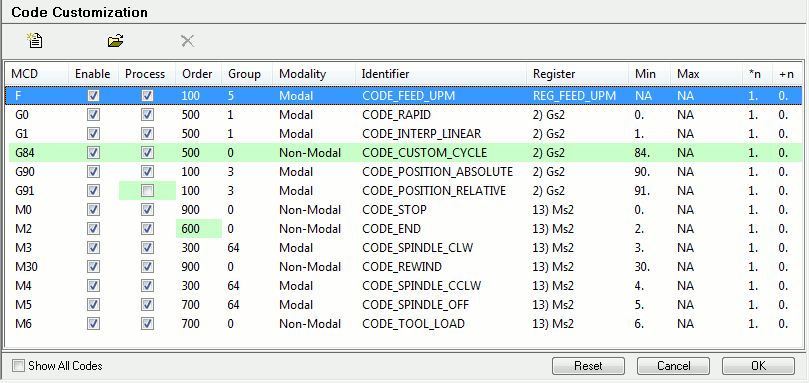
Column Definition
MCD: This column is only use to show you what the code look like as the register name and value are formatted together. Disable if you want to ignore a specific code, even if it was added by the questionnaire data.
Enable: All codes having this column checked will be recognized by the CE processing engine. Disable if you want to ignore a specific code, even if it was added by the questionnaire data.
Process: Having this column checked means that the code will be processed normally. If unchecked, the code will be recognized by the CE but will be ignored and discarded. This is a way to prevent specific actions for firing without outputting errors and warnings related to the code being unmatched.
Order: This number is the processing priority order of the codes being in the list. Lower numbers will be processed first. If two or more codes have the same order number and appear on the same block, then they will be processed by a standard left-to-right rule.
Group: The code grouping ID is used to identify which codes are in the same group. The groups are mainly used to manage the modality of the codes. Within each group, there can be only one active modal/
persistent code. (see next point below) Modality: This field identify the modality type of the code. The types are:
Non-Modal: Codes being non-modal will only fire an action on the blocks where they are physically coded.
Modal: Modal codes will fire action on blocks where they physically appear and will stay has the active code in their group. If a non-modal code of the same group is fired, the next block where no more code of the same group are present, the active modal code will re-fire its action.
Persistent: Persistent codes work like modal ones has they also become the active code of the group when they are fired. But also they keep firing the corresponding action on each subsequent blocks until another code from the same group take over. Usually, these are all the motion and cycle codes.
Identifier: This show the text identifier representing the code. These identifiers can be used inside macros to represent the codes. This field cannot be modified.
Register: This field identify the register that is in use by the code. If the code is using an alternate string instead of a register, the string will be shown there. If the code is using itself also as a value (a DATA register), the REG_* identifier will be shown there.
Min: This show the register value used to represent the code. For example, the linear interpolation code is using the G register and has a value of 1.
Max: This show the maximum value that the code can match when a range value is used. For example, the fixture compensation G54-59 have the min value set to 54 and max to 59. Other value outside that range won’t be matched has being this code. If two or more codes have conflicting value/
range, the code with the lower order number will always be the one matched. *n: This is a factor that will be multiplied to the code value after being matched.
+n: This is a number that will be added to the code value after being matched. Again, if used with the G54-59 range has a “-53” value. Then the value of the matched code that would be passed internally to the code macro for example would be 1-6.
Cells having a light green background are cells that have been modified and do not have the default value anymore.
To modify an entry, either double-click on it or highlight it and then click the “Modify” button (Top middle button). Only user defined entries can be deleted (top right button).
Show All
The Show All Codes button at the bottom left of the list is to show the entire list of questionnaire supported codes. They will show as light-gray since they are not enabled by the questionnaire current answers. To enable those codes without having to do it in the questionnaire, just click the “Enable” checkbox on the left of the code. It is important to distinguish non-enabled codes and user defined codes.
User Defined Entries
User defined entries are codes that have been created manually instead of the ones provided by the questionnaire. User custom entries added by using the “Add” button (top left button) will have the whole line background as light green.Those codes can be deleted from the list using the toolbar button with the red X picture.
Context menu (right mouse button)
Right-clicking on a selected entry will show the context menu which gives you multiple operation choices beside the standard Ok, Cancel and Reset.
Create Alias: By default, you can only have one register per code identifier. For example, let’s say you have the CODE_STOP identifier set with the M register and 0 value (M0). This value is coming from the questionnaire section where you answered the code question about the stop command. Now, let’s say you can also code the word STOP on your tape and its doing the same thing as a M0. The Control Emulator can only use one identifier of each type but an alias allows you to make a copy of the identifier just like it was a different one and modify its settings.
Modify: Does the same as clicking the toolbar modify button. It will open the code identifier modification panel.
Reset to: If the cursor was on a modified cell (colored background) when right-clicking to show the context menu, this choice will reset that cell to its default value.
Reset...: Will show a small panel which allows you to reset certain fields on the selected items.
Reset All: Reset all fields on the selected items.
Reset: This button reset the section to what it was when opened, discarding any changes that were made (this action can not be undone).
Cancel: This button closes the Code Customization View, discarding any changes that were made (this action can not be undone).
OK or Close: This button closes the Code Customization View saving all changes.