Time Line Options |
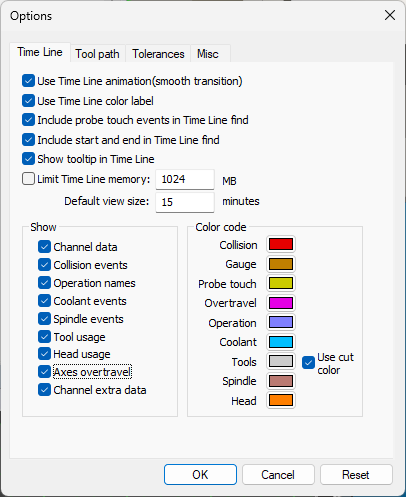 These options control the behavior, display and contents of the Time
Line window.
These options control the behavior, display and contents of the Time
Line window.
Use Time Line animation when set causes the Time Line window
to smoothly interpolate when changing the time-scale or when using
F3, Shift F3 or the Synchronize feature to jump from one moment in
time to another. Use Time Line color label when set causes the Time Line window
labels to be shown in various colors depending on the type of
data. Clear this checkbox to have labels appear in a uniform high
contrast color. Include probe touch events in Time Line find affects the
behavior of the F3 and Shift F3 search function in the Time Line
window. When set, searching for collisions will stop at probe
touch events. When the checkbox is cleared, probe events are
ignored for search purposes. Include start and end in Time Line find affects the behavior
of the F3 and Shift F3 search function in the Time Line window.
When set, searching forward past the last event of the type being
searched will position to the end of the Time Line window;
searching backwards before the first event will position to the
start of the Time Line window. When the checkbox is cleared,
attempts to search beyond the last (or before the first) event
will result in no action. Show tooltip in Time Line when set enables the display of
tooltips, which describe events of interest under the cursor
(e.g., collision, tool…). Tooltips identify the start and ending
time of the event as well as other pertinent information. Limit Time Line memory and its associated input field can be
used to avoid out-of-memory conditions on very large programs. If
set, the Time Line window will only use the specified amount of
memory to track the events of the model. Once the limit has been
reached, events earlier in the program will no longer be
accessible via the Time Line window. Default view size sets the minimum width (in minutes) of the
Time Line display at the start of a new process. The Show check-boxes list the types of information desired in
the Time Line window. This can also be done in the Time Line
window itself, using the right-mouse button context menu. Color code controls define the color to use for the horizontal
bars in the Time Line window. A “Use cut color” setting for Tools
will use the same color in the Time Line as is used for material
removal simulation on the in-process stock.
|
|
Tool Path Options |
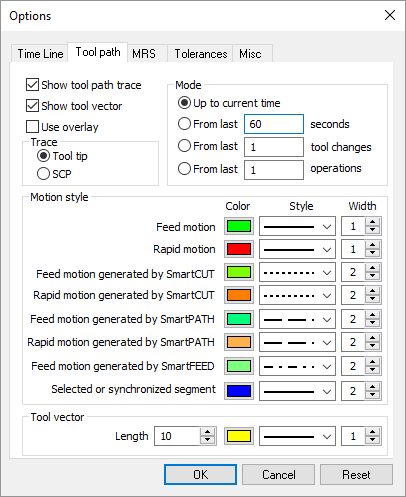 These options control the display of the tool path trace in the
simulation window. The trace appears as a thin line, with different
colors representing interpolation and positioning. Many of the tool
path options can be also be controlled from the Tool Path toolbar.
These options control the display of the tool path trace in the
simulation window. The trace appears as a thin line, with different
colors representing interpolation and positioning. Many of the tool
path options can be also be controlled from the Tool Path toolbar.
Show tool path trace shows or hides tool-path tracing. Show tool vector shows or hides tracing of the tool-axis
vector when tool path tracing is active. When the Use overlay checkbox is selected, the tool path trace
will not be hidden by objects that might be between you (the
viewer) and the tool path. Tool tip and SCP settings select whether the trace will be
drawn at the tool tip or at the spindle control point (SCP).
Tooling must have a length to see a difference between tool-tip
and SCP traces. This setting has no effect on a tool path that is
already drawn. Mode settings select the extent of the tool path trace.
Up to current time: Traces the entire tool path from the
start of the program. seconds: Traces the tool path for the specified last number
of seconds. tool changes: Traces the tool path for the specified last
number of tool changes. operations: Traces the tool path for the specified last
number of operations.
Tool path trace mode settings are also available from the VM Tool
Path toolbar. Clear the 3 rightmost toggles to trace the entire
tool path from the start of the program.
Motion style settings provide the ability to set the color,
line style and line width of tool path traces for various types of
motions. Tool vector settings provide the ability to set the color,
line style and line width of the tool axis vector trace.
|
|
MRS Options |
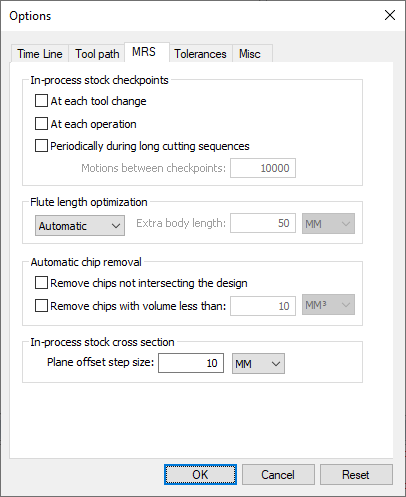 These options provide control over the in-process stock;
functionality that requires a Material Removal Simulation (MRS)
license.
These options provide control over the in-process stock;
functionality that requires a Material Removal Simulation (MRS)
license.
The In-process stock checkpoints settings control the
visualization of the in-process stock when moving Time Line
backwards and forwards. If checkpoints are enabled and
Simulation»Show»Filters»Stock Checkpoints is toggled on, then the
in-process stock will update to show its state at earlier moments
in time when moving Time Line backwards and forwards. The
frequency of checkpoints can be controlled as follows.
At each tool change: Creates a checkpoint at every tool
change. At each operation: Creates a checkpoint at the start of
every operation. Periodically during long cutting sequences: Creates a
checkpoint after the specified number of motions have been
processed.
The Flute length optimization settings control the analysis
and reporting of optimal tool flute lengths during the simulation.
If active, the defined and maximum required flute lengths will be
reported in the listing file at the end of GENER and CERUN
processing.
On: Enables flute length optimization. Off: Disables flute length optimization. Automatic: Flute length optimization is under control of
the ADAPTV/DEPTH command and of the $FMSADPT('DEPTH') macro
function. Extra body length: For “ON” only, specifies an extended
flute length to use for analysis purposes. The maximum
detectable flute length is the sum of the actual flute length
and this value.
The Automatic chip removal settings control the automatic
removal of disconnected in-process stock chips (i.e., fragments)
during the simulation.
Remove chips not intersecting the design: When the
in-process stock is fragmented, independent fragments that do
not intersect the part are removed. Remove chips with volume less than: When the in-process
stock is fragmented, independent fragments with a volume less
than the specified amount are removed.
Plane offset step size sets the amount to offset the cross
section plane when selecting Push Plane or Pull Plane on the Cross
Section toolbar.
|
|
Tolerances Options |
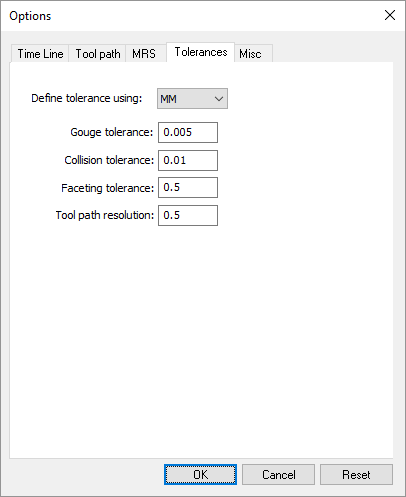 These options control tolerances values used by the simulation.
Define tolerance using specifies the units of measure for all
tolerance values listed. Gouge tolerance specifies an acceptable collision tolerance
between the cutting portion of the tool and the part model. Some
gouging is to be expected, which is normally a function of the
manufacturing tolerance used by the CAM system. When the Material
Removal Simulation (MRS) license option is enabled, the gouge
tolerance also defines the cutting tolerance to use when computing
the in-process stock. The actual cutting tolerance used is a
function of the gouge tolerance and tool usage. Collision tolerance specifies the accuracy in space of the
beginning and end of a collision event between two objects. Faceting tolerance specifies the accuracy of mesh objects
generated at run-time from swept profiles. A tighter tolerance
produces more accurate results, but at the cost of increased
memory and CPU. One of the key uses of the faceting tolerance is
in the generation of 3D tooling given either a 2D profile or tool
definition parameters (i.e., diameter, corner radius, length…). Tool path resolution defines the tolerance to use when
approximating curved motions by short straight-line segments.
|
|
Miscellaneous Options |
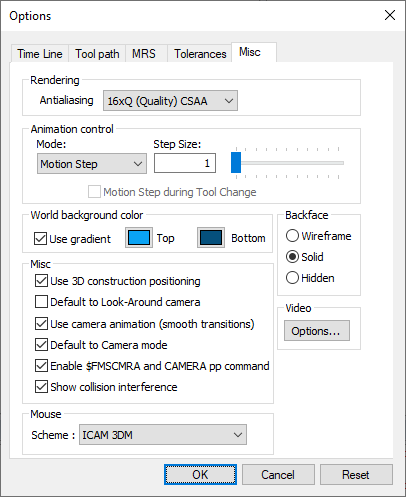 Other options controlling the simulation are defined here.
Rendering settings affect the simulation graphic quality. This
has no effect on collision and overtravel checking. The settings
are dependent upon the computer’s GPU: Animation control settings affect the simulation display
speed:
Continuous: Select this method to slow the simulation down
to some Scale factor of real time (within the limitations of
the CPU and graphics capabilities of your computer). Select
Motion Step during Tool Change to speed up the animation of
tool changes. Motion Step: Select this method to update the Virtual
Machine window at the end-point of every Step Size motions. Time Interval: Select this method to only update the
Virtual Machine window at a set Interval in seconds. This
method has the least impact in terms of CPU requirements.
Animation control settings are also available from the VM
Animation toolbar. When in continuous animation mode, extremely
slow motions may give the impression that the software is no
longer operating. If unsure, activate the HUD motion display,
which will show if axes are in fact moving. Animation control
settings can be changed while the simulation is running (and even
mid interpolation).
World background color settings control the underlying color
of all simulation windows.
Use gradient can be selected to use a two-color smooth
gradient background. Top defines the background color if gradient fill is not
selected, or the color to use at the upper edge of the
simulation windows when using a gradient fill background. Bottom defines the color to use at the lower edge of the
simulation windows when using a gradient fill background.
Backface settings control how the backside of a surface should
be shown. VM uses a mesh of triangles to represent objects. Each
triangle has a concept of in and out, which is used in the drawing
process to correctly color and shade the triangle. When an object
is viewed from the inside looking out, VM provides the following
choices on how the backside surface should be displayed:
Wireframe: An object’s surface will be drawn in wireframe
mode when viewed from the inside. This setting may result in
faint lines appearing at the edges of objects. Some graphic
cards exhibit poor performance in this mode. Solid: An object’s surface will be drawn as a solid when
viewed from the inside (this setting is only valid when not in
Simulation»Show»Wireframe mode). Hidden: An object’s surface will be hidden when viewed from
the inside.
Misc settings include the following:
Use 3D construction positioning controls the operation of
the left-mouse button when constructing objects. When set, it
takes two mouse clicks to define a point in space: the first
defines the XY location and the second defines the Z. When the
3D checkbox is clear, the first mouse-click defines the XYZ
coordinates. Default to Look-Around camera sets the default mode of
camera rotation. When set, camera rotation by default rotates
around the current camera position (like turning your head) and
the Shift key must be pressed to rotate around a point in space
in front of the camera. When this checkbox is clear, the
default is the reverse. The camera will rotate around a point
in space in front of the camera the Shift key will cause the
camera to rotate around the current position. Use camera animation when set causes the camera to smoothly
interpolate between any two user-defined viewpoints sharing the
same type (i.e., perspective vs. orthogonal). When this
checkbox is cleared, the camera jumps directly to each new
viewpoint. Default to Camera mode sets the default functionality of
the left-mouse button. When set, the default is “Camera” mode;
meaning that the left-mouse button controls the orientation of
the camera and the Ctrl key must be held down to select
objects. When this checkbox is clear, the default is
“Selection” mode; meaning that the left-mouse button is used to
select objects and the Ctrl key must be held down to orient the
camera. The Camera and Selection mode defaults can also be set
using the camera and pointer buttons on the VM Mode toolbar.. Enable $FMSCMRA and CAMERA pp command when set allows the
active simulation window viewpoint to be changed under program
control, using the CAMERA post-processor command (GENER only)
or the Virtual Machine $FMSCMRA macro function. Clear this
checkbox to inhibit viewpoint changes under program control.. Show collision interference when set will dynamically show,
as a yellow line, the intersection between colliding objects.
Computing the intersection takes considerably more CPU than
simply detecting if a collision has occurred. You can disable
the viewing of collision interference if you encounter
unacceptable performance with colliding objects on complex
scenes.
The Video Options button calls up a Video Compression dialog
listing the various Compressor methods that can be used for
recording the contents of the simulation window when selecting the
Simulation»Annotation»Record menu function. These compressor
methods, called “codecs” (short for compressor/decompressor), use
various techniques to reduce the size of the final recording file.
Links to a selection of codecs that have been tested by the Icam
Support team can be found on the customer portal section of the
Icam web site. The Mouse Scheme selection overrides Virtual Machine’s
selection, panning, rotation and zoom features, and uses instead
the mouse and keyboard controls of the selected CAM system.
|