RMD View
RMD is an acronym for Rapid Macro Development. The RMD View as activated
from the Startup/
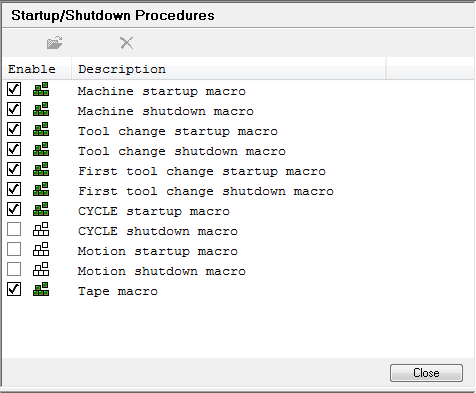
To create or modify an RMD macro, first select an event type from the
Startup/
Close: Closes the startup/
A typical RMD view follows:
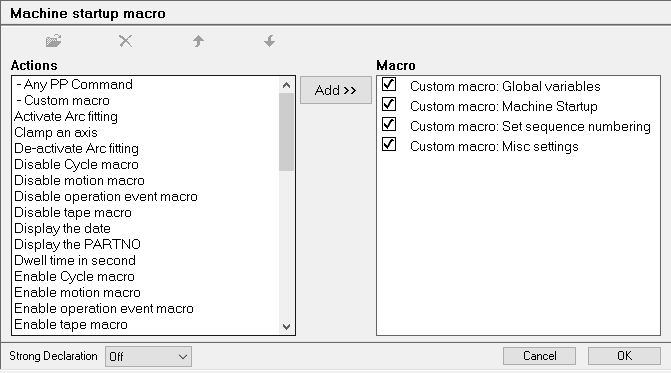
RMD macros consist of a series of modular operations or actions. A large choice of available actions is listed in the Actions window. The Macro window lists the actions that have already been selected.
To add an action, select it, optionally select where in the Macro list it should follow, then click on the Add>> button. Some RMD actions require additional information. If so, an RMD Prompt dialog will appear. When adding a custom macro, the Macro Editor View will appear so you can create the macro. To modify one of the actions in the Macro list, select it and then click Modify (the same RMD Prompt or Macro Editor View will appear). To delete one or more actions, first select them, then click Delete. To reorder an action (actions are listed in the order they are run), either select it and use the arrow buttons, or select and hold the mouse button down to drag and drop the action to its new position. To disable an action, uncheck the box left of the action name.
Cancel: Closes the RMD macro discarding all changes (can not be undone).
OK: Closes the RMD macro keeping all changes.