Register View
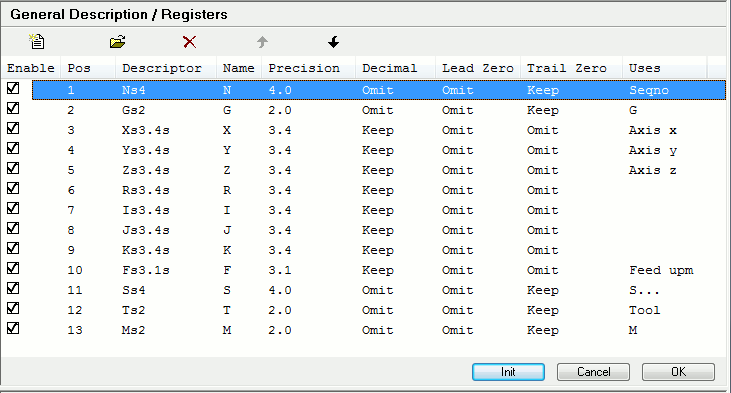
The Register View is used to create and modify the set the registers (words) recognized by the control. The Register View can be activated in two ways. The first is by double clicking on the General Description / Registers section in the post processor navigator. The second is by selecting the Panel response on any question that requests a register. In this case, the Init button will be replaced by a Select button, which is then used to select a register in response to the question.
To add a register, optionally select an existing register that is similar in format, click on the Add button, and the Register dialog will appear. Use this dialog to enter name and format information about the register. If a register is not selected before clicking Add, QUEST will suggest a register name and format based on industry standards. To modify a register, select it and then click Modify (the same Register dialog will appear). You can select multiple registers for modification at the same time (useful when changing register precision or other format details). To delete one or more registers, first select them, then click Delete. To reorder a register (registers are listed in the order they should be output on a block), either select it and use the arrow buttons, or select and hold the mouse button down to drag and drop the register to its new position.
The Enable state of any register can be set or cleared, to enable or disable the output of the register to the tape file.
Infinite level Do and Undo is available while you are in the register section. Once you exit the section, however, you can not undo individual changes.
Init: This button deletes all existing registers in the table and reinitializes the register table using the Initialize Registers dialog. Use with caution.
Select: First select a register and then click Select to close the Register View and return to the original Question View. The selected register will be taken as the response to the register question.
Cancel: This button closes the Register View, discarding any changes that were made (this action can not be undone).
OK or Close: This button closes the Register View saving all changes.