View»
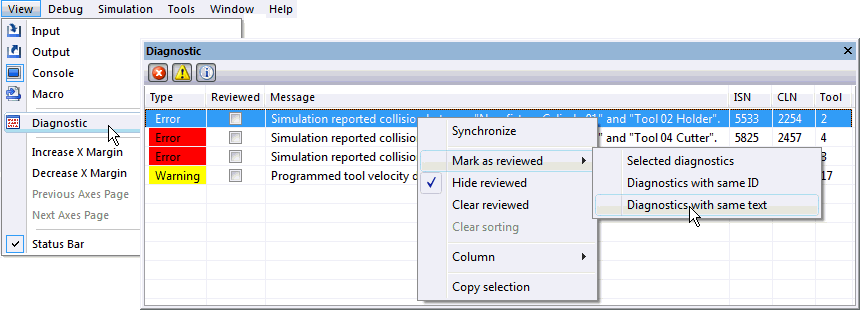
This toggle shows or hides the Diagnostic window (Windows systems only). The Diagnostic window records all diagnostic messages output since the start of processing, regardless of whether or not the window was visible or not.
The diagnostic window provides “filter” toggle buttons that can be used
to hide/
Mark as reviewed marks individual diagnostics as reviewed, as an aid to a systematic review of the NC program. Various options permit marking of similar diagnostics. Diagnostics can also be marked reviewed by selecting them and checking the Reviewed box.
Hide reviewed toggle shows or hides all diagnostics marked as reviewed.
Clear reviewed clears the “reviewed” state of all diagnostics. The reviewed state of diagnostics can also be cleared by selecting them and clearing the Reviewed box.
Clear sorting causes diagnostics to be listed in the order they were originally output. Clicking on a diagnostic column header causes diagnostics to be sorted in increasing or decreasing order by that column’s information.
Column settings indicate the type of information to be listed.
Diagnostic window settings are remembered with other user preferences in the Windows Registry