The Group Dialog 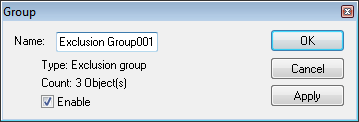
Collision Groups
All objects that are enabled for collision testing are also listed in
one of the collision groups that can be found in the navigator window
under the Groups»
Multiple collision groups can be created for your own organizational purposes, but an object can only appear in a single collision group at a time. Objects can be easily dragged from one collision group to the next.
Delete an object from the collision group to disable collision testing
on that object. You can also delete the collision group itself, which
disables collision testing on all objects that were in that group.
Finally, you can open the Properties of a collision group and disable
the collision property of the group. This has the same effect as though
the group was deleted (i.e., collision testing will be disabled on all
objects listed), without actually affecting the collision
enabled/
Collision Exclusion Groups
When collision testing is enabled on objects that are physically touching, they are then displayed as colliding. One way to avoid this problem is to change the physical definition of objects such that they do not overlap or touch, but this may not always be practical or even possible. VM has a “collision exclusion” feature that provides a much better way of handling this problem.
With collision exclusion, you can tell VM to ignore collisions between groups of related objects. VM will not test for collisions between any objects that reside in the same group, but it will continue to test for collisions between those objects and all other collision enabled objects.
Collision exclusion groups can be found in the navigator window under
the Groups»
GENER and CERUN automatically perform collision exclusion on any objects that are colliding when the model is first loaded. However, it is better practice to not rely on this feature, but instead create exclusion groups based on your own understanding of how the model behaves.
Selection Groups
Selection groups are used to combine various objects into a group, so that selecting any one object in the group has the same effect as selecting all of the objects in the group. Grouping related objects in selection groups makes it easier in GENER and CERUN to select and hide (or unhide) a component of the machine.
Selection groups can be found in the navigator window under the
Groups»
The grouping of objects can make it impossible to select and edit the
properties of a particular object in the simulation window if it is
grouped with other objects. For that reason, in QUEST only, selection
grouping can be toggled on and off using the Simulation»