The Parts/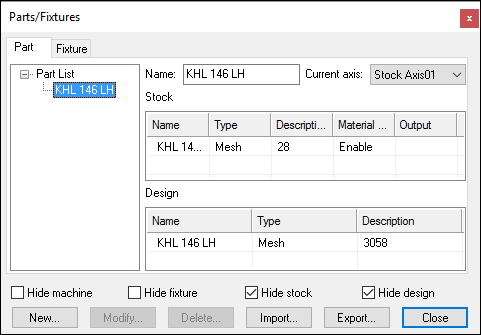
This dialog provides the ability to add rough stock, fixtures and final parts to the simulation.
This information is stored in a 3D model (.m3d) file, in the same directory and with the same name as the verification setup (.vsw) file. These two files are automatically saved when the program is completed. They will be reused on subsequent runs to quickly reestablish the material conditions necessary for an accurate simulation.
Parts can be composed of both a rough stock, used for material removal
simulation, and the design part, to which it can be compared using the
Simulation»
Part»
Stock: Represents the uncut material at the start of an operation. Stock definitions are ignored for collision testing purposes unless running with the Material Removal Simulation (MRS) license option enabled. Part»
Design: Represents the final shape expected to be produced. Collision testing is always enabled, with an additional allowable gouge tolerance on the cutting portion of the tool. Fixture: Represents the part holding device. Two forms of collision testing are enabled, depending on whether the fixture is machinable or not.
Objects are maintained in two lists, accessible by selecting one of the Part or Fixture tabs at the upper left corner of the dialog. For each type, a navigator along the left hand side of the dialog lists all of the objects defined for that specific type. For example, a fixture might consist of many parts, such as a base plate, clamps, spacers and so on. Select Import to bring in the part and fixture definitions from a different part program. Select Export to save the current part and fixture definitions to a named file for use in a different part program.
Select the top entry in the navigator to see list of objects for the selected type. Select New followed by New Part or New Fixture to create a new object. The object's name is used by VM when reporting collision diagnostics. The object's current axis defines the stock axis (or mounting point) where the object will be attached to the machine model at the start of the program. Machine models with multiple tables or pallets may define multiple stock axes. Click on an entry in the table to change the object's name, its default axis (used when the program starts) or the current axis (the association in force at this point in the program). Setting the current axis value to "None" removes the part or fixture from the simulation, but not from the list of objects. You can select one or more objects in the right hand list and press the Delete button to completely remove them.
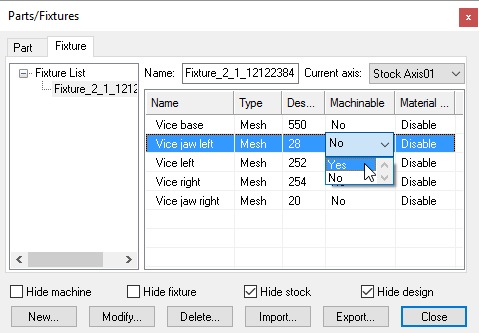 Each object can consist of one or more physical components,
which are listed when you select an object name in the left hand list
box, or when you select an object in the right hand object list and
press the Modify button. Each component of an object can be given a
name, which will be reported during collision diagnostics (e.g., "KHL
146 LH"). Fixture components can be tagged as machinable or not. Part
components are never machinable; stock components are ignored for
collision testing purposes.
Each object can consist of one or more physical components,
which are listed when you select an object name in the left hand list
box, or when you select an object in the right hand object list and
press the Modify button. Each component of an object can be given a
name, which will be reported during collision diagnostics (e.g., "KHL
146 LH"). Fixture components can be tagged as machinable or not. Part
components are never machinable; stock components are ignored for
collision testing purposes.
Select the New button to add a new component. The following component types can be added:
Cube: Defines a cubic (i.e., box) entity given the XYX coordinates of one corner and the width, length and height (XYZ).
Cylinder: Defines a cylindrical or conical entity given an XYZ coordinate of the center, an initial radius, a final radius and the overall height. The surface of the cylinder is approximated by a number of faces, which can be specified. The light rendering at the edg-es between faces can be set smooth or sharp, allowing shapes like a hexagon to be defined.
Cone: Defines a conical entity given an XYZ coordinate of the center, an initial radius, a final radius and the overall height. The Cone and Cylinder definitions are identical; they differ during construction only.
Sphere: Defines a spherical entity given an XYZ coordinate of the center and a radius. The surface of the sphere is approximated by a number of faces, which can be controlled by the subdivision size (0 produces a 20 face icosahedron and each increase in subdivision value increases the faces by a factor of 3). The light rendering at the edges between faces can be set smooth or sharp.
Import STL: Imports an STL file relative to a specified XYZ location in the model.
Components are created interactively in the simulation window. The
various Hide... checkboxes can be selected to reduce the visual clutter
in the simulation window during component creation. When a component is
being created, its type and required parameters are listed at the bottom
of the simulation window. You can enter the parameters using the
keyboard, or you can move the mouse to an appropriate position and click
the left-mouse button. Each click of the mouse can supply values for one
or two parameters. You can change the camera position, standard view or
user-defined viewpoint at any time. Use the Tab key and Shift-Tab key to
move forwards and back through the required parameters to make changes.
When creating new objects with the mouse, the pointer might be locked to
a fixed grid size. You can temporarily toggle the grid setting by
pressing the Shift key. Select Simulation»
Existing objects can be selected from the component list and modified by pressing the Modify button, or removed from the object by pressing the Delete button.
When the Material Removal Simulation (MRS) license option is enabled,
stock and machinable fixture components can be enabled or disabled for
MRS simulation using the object's Material Removal column setting. The
MRS in-process stock result can be compared to the design part using the
Simulation»
When running VM with a Manufacturing Extractor, the association between stock and design part will automatically be set, and stock will be enabled for MRS and output at completion.