The Picture Property Dialog
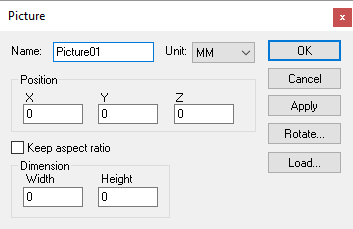 Defines a bitmap image, given the point in the model for the
lower left corner of the image, and the X-axis width and Y-axis height
of the image in model coordinates. The picture can be rotated to its
required orientation using the Rotate button.
Defines a bitmap image, given the point in the model for the
lower left corner of the image, and the X-axis width and Y-axis height
of the image in model coordinates. The picture can be rotated to its
required orientation using the Rotate button.
Width: Specifies the length of the image measured along the X-axis.
Height: Specifies the length of the image measured along the Y-axis.
Keep aspect ratio: If checked, the image will retain its original shape, which may result in the length or height being smaller than intended. Clear this check box to stretch the image into the space defined.
Load button: Select this button to choose the bitmap image (.bmp) to load into the model.
Bitmap images must be compatible for OpenGL graphic texturing, and therefore have some important restrictions. Also note that Textures can place a heavy CPU burden on the rendering (image drawing) process, and can take up a lot of space in the Icam database.
Bitmaps must be constructed in 16-color or 256-color mode.
Bitmaps must not use RLE compression (i.e., they must be uncompressed).
The length and height of the image must be evenly divisible by a power of two.
In addition to the parameters listed above, all entities share the common parameters, listed below:
Name: Entity names are used in the Model Navigator in QUEST, and in collision diagnostic messages in CERUN and GENER. VM assigns default names when objects are created. You should change the default to something that is both short and meaningful.
Unit: Specifies the unit of measure for all non-rotary values (angles are always specified in degrees).
Position: Specifies the X, Y and Z axis position of the origin of the current object in relation to the origin and rotational alignment of the parent object. When world coordinates are selected (Simulation»
Use World CS), the position of the entity is shown in world coordinates instead of relative to the parent object. When constructing an entity, the mouse pointer can be used to define the entity start position (and other parameters as well). OK button: Creates the entity as defined.
Cancel button: Ignores this entity creation request.
Apply button: Updates the simulation window to show the effects of the latest changes.
Rotate button: Use this button to rotate the entity to its required final orientation. When an entity is rotated, anything attached below this entity in the Navigator will be defined in the new frame of rotation.
Material button: Use this button to define the appearance (color) of the object. Material properties are described later under the topic “Materials Dialog". Objects are by default created using the material of the last object created or selected using the Materials Dialog (Ctrl Alt M shortcut).
Note: Collision testing is not performed on picture entities.