Macro Editor View
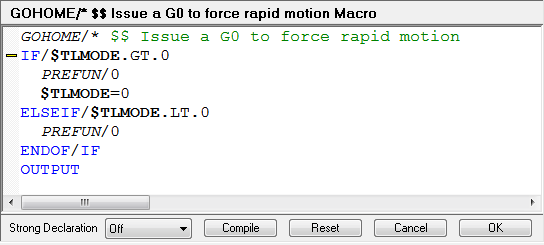
The Macro Editor View is used to edit macros. It works like a text
editor. You can use copy, paste and other typical editing functions. You
can change the look and feel of the macro editor by selecting
Tools»
Editing Features/
F1: Pressing the F1 function key while the cursor is placed over a system variable or function name will bring up the on-line help with more information about the selected item.
Zoom: Press and hold the SHIFT or CTRL key while rolling the wheel mouse button to zoom in and out, causing the text font to increase or decrease. The zoom is only remembered for the current editing session -- the text font size reverts back to the default when you edit a macro again.
Automatic brace matching: While browsing through the macro source, if you place the cursor beside one of the { }, [ ] or ( ) character pairs, the corresponding character will be highlighted. If there is no matching character, the unmatched character will be highlighted in red. This feature is useful to find matching parentheses in complicated nested expressions.
Conditional block folding: Use the block folding feature as an editing aid to collapse and expand conditional blocks of macro source. This may make it easier to navigate the structure of the macro. The Block folding feature is available on structured macro blocks that end with an ENDOF/... command (i.e., IF, CASE, WHILE and DO). Click on a ‘-’ marker in the left margin to collapse a block. Click on the + marker in the left margin to expand a collapsed block. Hold the SHIFT or CTRL key when expanding to expand all nested blocks.
BookMark: A bookmark can be used to mark a line so as to easily find it again. Bookmarks are only remembered for the current editing session -- they will not be remembered when you edit a macro again. The bookmark will appear in the left margin as a blue rectangle with rounded corners. Bookmarks are used as follows:
Section Controls
Available section controls are:
Strong Declaration: There are 3 settings that control how strict the macro processor is concerning where and when variables are declared.
OFF: Variables can be declared when and wherever desired, in the same way as they always have.
PARTIAL: GLOBAL, OBJECT and FUNCTION variables can only be declared in the new Declaration Macro. LOCAL variables do not have to be declared.
FULL: Same as PARTIAL, but LOCAL variables must be declared in a macro before being used.
Compile: Compiles the macro without exiting. Error messages, if any, will appear in the Build window.
Reset: Used to ignore any changes made since you entered the macro editor.
Cancel: Exit the editor without saving any changes made to the macro.
OK: Compiles the macro and closes the Macro Editor View if there are no diagnostics. Error messages, if any, will appear in the Build window.