Source
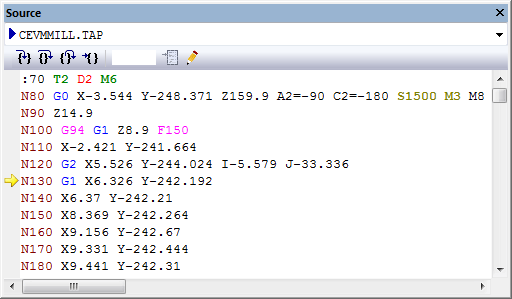
The Source window shows the MCD input source file, including subprograms, with a marker identifying the block about to be processed. The Source window also shows the contents of code and other macros. Any macro can be examined in the window, regardless if active or not. Four buttons in the Source window single-step through the macro or MCD file in various ways.
Step into: Processes the current record (either macro or MCD), stopping at the very next record (again, either macro or MCD). If the current record matches a macro, then Step-in will stop at the first executable line of the matched macro. If the current record does not match a macro, then Step-in acts the same as Step-over.
Step over: Processes the current record (either macro or MCD), stopping at the next record of the same macro or MCD file. Unlike Step-in, if the current record matches a macro, then Step-over will not stop in the matched macro.
Step out: This is applicable when stepping inside a macro. Step-out continues processing past the last record of the current macro. After Step-out, processing will be paused at the next record to processed by the caller (either a macro or MCD).
Run to cursor: Continues processing to the selected macro line or MCD block. Select the macro line or MCD block first, before selecting the “Run to cursor” feature.
Go to line: Use the edit box to enter a line number you want to go at and then press the Goto button next to it.
A drop down list showing all sources that can be look at. This includes the MCD input file as well as any macros defined inside the post-processor.
You can set or remove a break point by clicking in the margin next to
the line where you want to set or remove a break point. You can also use
the context popup menu to set/
The “Edit Source” button in the Source window toolbar enables editing of the input MCD data. Edits can be made at any time, but are only effective if made before the edited block is processed by CERUN. If file permissions do not permitting editing of the MCD file, then edits can still be made in an “in-core” copy of the file, but you will be warned that any changes cannot be saved. You will be prompted at the end of control emulation, whether exiting or rewinding, to save all files that were edited.
When debugging a control emulator that supports multiple independent
kernels, the Source window will show only those MCD files and macros
that are associated with the “active” kernel. The active kernel can be
set using the CERUN»