Dialog Editor View
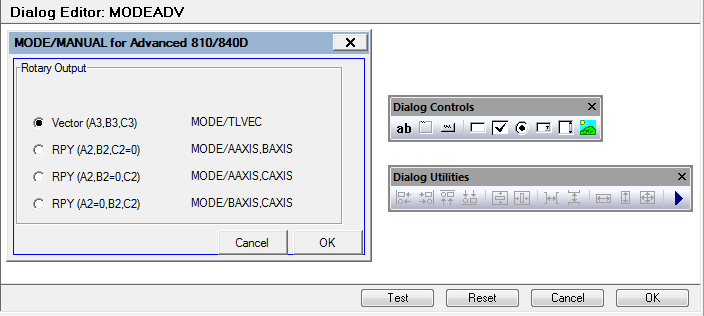
The Dialog Editor is used to interactively create or modify a dialog. Two toolbars are available to simplify dialog editing.
|
Static text control (Not editable) |
|
Static frame control |
|
Button control |
|
Check control |
|
Radio control |
|
Editbox text control |
|
Combobox control (Drop-List only) |
|
Listbox control |
|
Picture control |


A Control Properties dialog will appear when creating a control, or when double-clicking on an control in the dialog (with Motif, use the middle mouse button to modify a control). Use the Control Properties dialog to define the GENER macro variable associated with the control, its initial value, et cetera.
Utilities Toolbar: This toolbar contains helper gadgets to arrange the layout, size, alignment and position of your dialog controls.
|
Left align two or more controls |
|
Right align two or more controls |
|
Top align two or more controls |
|
Bottom align two or more controls |
|
Center control(s) horizontally |
|
Center control(s) vertically |
|
Horizontally space three or more controls evenly |
|
Vertically space three or more controls evenly |
|
Make two or more controls the same width |
|
Make two or more controls the same height |
|
Make two or more controls the same size |
|
Test the dialog (popup a real dialog) |


Test: Test the dialog (popup a real dialog).
Reset: Used to ignore any changes made since you entered the dialog editor
Cancel: Exit the editor without saving any changes made to the dialog
OK: Exit the editor and save all changes made to the dialog