Graphical Questionnaire View
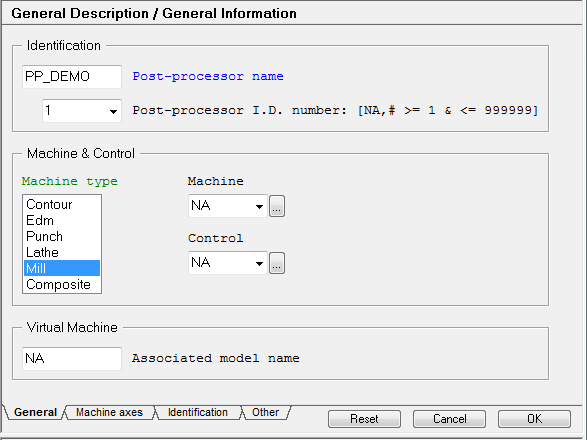
The Graphical Questionnaire View is used when providing answers to questions about the post processor. The Graphical Questionnaire View is raised when you double click on a section name in the post processor navigator and the “Graphical View” mode is enabled. All questions related to the section are shown as normal graphic controls and part of a section layout.
Sections can be displayed with questions grouped under multiple tabs. The tabs will appear at the bottom of the Questionnaire View. Clicking on a tab will bring those questions associated with the tab to the foreground. Sometimes it is more convenient to look at all the questions of a section together. To do this, use the context popup menu (right mouse button click) and disable tabbed output by unselecting Use Tab.
You can select a question with the mouse, or you can use the tab and shift-tab keys ti navigate through the dynamic graphical question layout like in a normal dialog. The selected question is displayed in blue (unless you have customized the display color). The Help window shows detailed information about the question. To respond to a question, you can type the full or abbreviated answer at the question prompt, or you can select a preset response found in hot-spots between the [ ]brackets. The current default answer is shown in the question control. The [ ] brackets inside the prompt text describe or list the type of response allowed. A calculator is available to help you answer questions that require a calculated result.
As you change answers to some questions, you might notice that other questions in the section become inactive. This is normal. QUEST is designed to eliminate questions that no longer apply. The next time you enter the section, the inactive questions will no longer appear. You can select Clear using the right mouse context menu to clear inactive questions at any time or you can select Auto Clear (in the context popup menu) to automatically clear inactive questions (this is the default).
Question for which you gave an answer that differ from the default one are displayed in green (unless you customized the display color). Using the context popup menu (right mouse button click) on those questions will give you the option of resetting the answer back to it’s default value.
Infinite level Do and Undo is available while you are in question sections. Once you exit the section, however, you can not undo individual changes.
Reset: This button resets the section to an initial "never answered" state (this action can be undone).
Cancel: This button closes the Question View, discarding any changes that were made (this action can not be undone).
OK: This button closes the Question View saving all changes. Sometimes the OK button is not available. This occurs when there is a question in the section that requires a response and a default one was not available. These are called "stopper" questions and are generally shown in red.