Simulation»
Simulation»
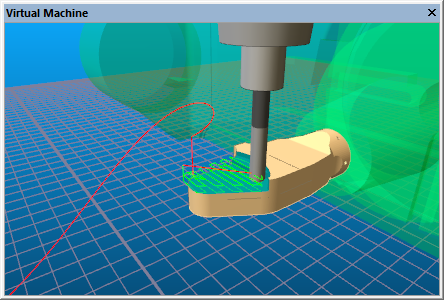
The Hide in View function makes the currently selected object or objects invisible in the currently active simulation window. Compare this to the Hide in All Views function below. Once an object is hidden, it is no longer shown in the simulation window.
To select an object, press and hold the Ctrl key (if you are in Camera mode), move the mouse pointer to the object to be selected, then press the left-mouse button. The selected object will become transparent. You can deselect an already selected object, or add more objects to the list of selected ones, by holding the Shift key down when making a selection. Press Ctrl B to make the selected objects invisible.
In the image shown above, the machine enclosure has been hidden (it is longer visible), and the tables and fixtures have been selected (they are shown transparent). Hiding and selecting are two methods you can use to get an unobstructed view of the manufacturing process.
Simulation»
The Hide in All Views function makes the currently selected object or objects invisible in all of the simulation windows. Compare this to the Hide in View function above.