Debug»
The Breakpoint Manager dialog is used to define places in the program where processing should pause. Breakpoints can be set, removed or temporarily disabled. Breakpoints can also be saved and restored from a file using the “File Open” and “File Save” buttons on the dialog. Breakpoints can be remembered from one run of GENER to the next by selecting the “Remember breakpoints” heck-box at the bottom of the dialog.
When GENER encounters a breakpoint, it outputs a message that identifies
the breakpoint (since there can be many) and gives you the option to
either pauses the post-processor or to continue to the next breakpoint
or end of program. If you choose to pause processing, select
Run»
On a macro line, to break before executing the macro command.
On a CL record line identified by its CL number or ISN number.
When a specific post-processor command is encountered.
After a NC program block is output identified by a sequence number (N block).
After a selected macro variable is assigned a new value.
It is easier to set macro line and CL record breakpoints using the Listing window. First select the CL file or macro using the drop down list in the upper right corner of the Source window. Then click with the mouse in the left-hand border beside the CL record or macro line where a breakpoint is desired. A solid red circle will appear to show that a breakpoint has been set. Hollow red circle symbols indicate breakpoints that are disabled. Click on the circle icon to delete an existing breakpoint.
Open button
Use this button to load a list of breakpoints saved in a previous session. Normally, this makes sense only when the current session uses the same settings and CL file as the one from which the breakpoint list was saved.
Save button
Use this button to save the current list of breakpoints so it can be reused in a future session.
Macro tab
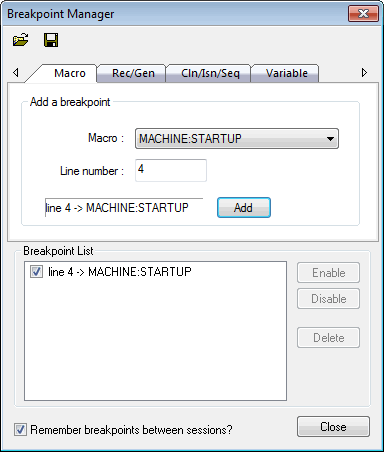
You can define breakpoints on a particular line of a macro using the macro tab. To do so, select one of the macros contained in the post processor by selecting it from the macro drop down list, and then select the line number on which you want to break. Use the Add button to actually set the defined breakpoint.
Rec/
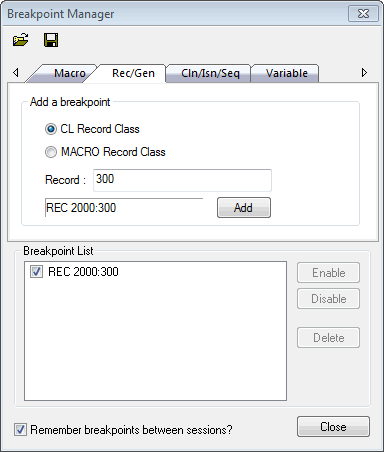
Use this tab to define breakpoints on CL records in the CL file or on those generated by macros. o do so, first select if you want to break on a CL record or macro record. Then, enter the record using one of the following formats:
You can type the command name (e.g., COOLNT)
You can type the subclass number of a 2000 class post processor command (e.g., 1043)
You can type the class and subclass of a record, separated by a colon (e.g., 13000:1)
Use the Add button to actually add the breakpoint to the breakpoint list.
Cln/
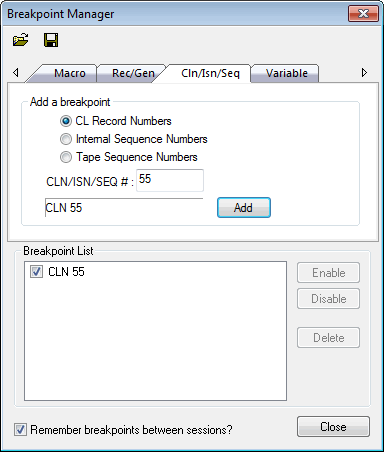
CL record number, Internal sequence number and tape sequence number breakpoints can be defined from this tab. First select the type of breakpoint, then type the record, source statement or block number on which you want to break. Use the Add button to actually add the breakpoint to the breakpoint list.
Variable tab
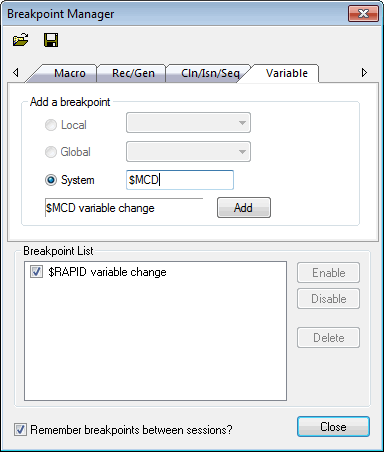
Variable breakpoints can be defined from this tab. First select the type of variable (Local, Global or System), then specify the array element if applicable. Use the Add button to actually add the breakpoint to the breakpoint list.
Enable/
Enable selected breakpoints from the breakpoint list. You can use the check box next to the breakpoint in the list to do the same thing. Disable (but do not remove) the selected breakpoints from the breakpoint list. You can use the check box next to the breakpoint in the list to do the same thing.
Delete button
Remove selected breakpoints from the breakpoint list.
Close button
Close the breakpoint manager