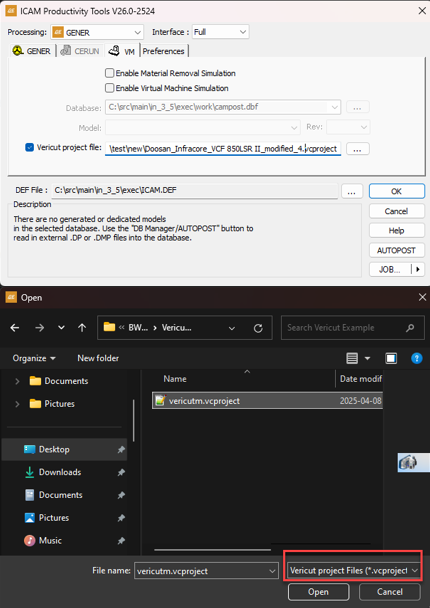
Virtual Machine Settings
The VM tab is used to associate a Virtual Machine model with the
selected post-processor and/
Integrated post-processing with machine model simulation is a feature of the Virtual Machine product from Icam, available as a separately licensed vmr product. Integrated post-processing with material removal simulation is available as a separately licensed xmr product. The VM tab will only be available if at least one of these licenses are present.
Enable Material Removal Simulation
Select this checkbox to enable the simulation of the material removal process with respect to the stock model. Material removal simulation (MRS) shows the effect of the cutting action of the tool on the stock model. MRS also improves the collision detection process when used with a model (see below), using the in-process stock for collision testing. If this checkbox is not checked, it will not be possible to start MRS once the program has started.
MRS is an add-on licensed option to VM. This checkbox will only be available for selection if you have an xmr product license.
Enable Virtual Machine Simulation
Select this checkbox to enable the simulation of the CNC machine using a Virtual Machine model. Machine simulation shows the effect at the CNC machine as the MCD is read and also provides axes over-travel checking and collision detection. If this box is not checked, it will not be possible to start machine simulation once the program has started.
This checkbox will only be available for selection if you have a vmr product license.
Database
This input field is used to select the database that contains the model to use. You can browse for a database using the square browse button […] located immediately to the right of the text window, or you can drag and drop a database (dbf, dmp or dp) file onto the launch panel Simulation tab. The last four database selections are remembered. They can be re-accessed by selecting them from the drop-down list. The browse database panel remembers the last directory browsed for a database, unless the icam_dbf environment variable is set.
Model and Revision (Rev)
Use these input fields to choose a model from the selected database. The model drop-down presents a list of all models in the selected database. The revision field lists the latest revision of the selected model and the drop-down lists other revisions, if any. Information about the selected model will appear below the input field.
One of the available model choices is “Use associated”, which when selected will use the model associated with the selected post-processor. You cannot choose a specific revision of a model that is selected by association.
GENER cannot run a model created with a version of QUEST that is higher than the GENER version.
Verification setup file
This file contains part program specific setup information such as tooling, part, stock, fixture, compensation, lighting adjustments and a variety of other settings unique to each NC program. This field is automatically set to the same name as the MCD file, with a file extension of “.vsw”. You can change the name for a single execution of the post-processor; either by typing a file name, using the […] browse button or dragging a dropping a vsw file into the launch panel Simulation tab, but the settings will not be remembered the next time GENER is launched.
A verification setup file that has been created with GENER during post processing can later be reused by CERUN during MCD verification and vice versa.
Vericut project file
In the launcher, the user can select a vcproject file as a verification setup file. Then, i will convert to Icam's verification file and it will be loaded.
Note
there are some limitation on the conversion, such as sile format for parts, and also the tool type, which currently probe and milling is supported. In the launcher, the user can select a vcproject file as a verification setup file. Then, it will be converted to Icam's verification file and loaded.
PP to use Vericut verification project file (.Vcproject) to provide fixture and tool length compensation when not using VM
Gener uses fixture and tool length compensation only when a virtual machine (VM) is running. However, the new updates allow customers who have Vericut and Icam software to use the Vericut project file in the VM tab. Then, the Gener will run in a special case that first converts the Vericut verification file to an Icam verification file (.vsw) and then uses this data for compensation values.
Note
that the Postprocessor should have the logic to utilize the compensation values and use this data accordingly.