Tape Editor View
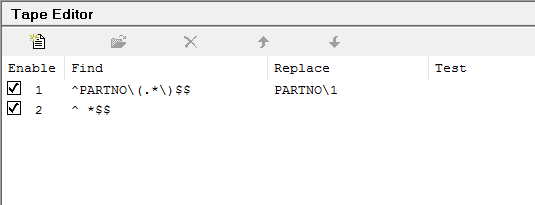
The Tape Editor View is used to create regular expression substitution
strings, which can be used to perform rudimentary editing of tape files.
The Find column lists regular expression strings. The Replace column
lists the corresponding substitution string, if any. The Test column
shows the result of applying each Find/
To add a Find/
Infinite level Do and Undo is available while you are in the tape editor. Once you exit the section, however, you can not undo individual changes.
Reset: This button resets the section to an initial "never answered" state (this action can be undone).
Cancel: This button closes the Tape Editor View, discarding any changes that were made (this action can not be undone).
OK: This button closes the Tape Editor View saving all changes.