Console View
The console view appears at the lower right portion of the window. It is divided into 4 tabs, as follows:
Help
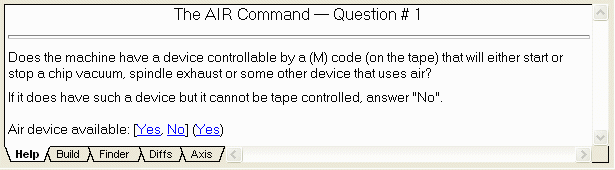
The Help tab provides descriptive text about the question or panel displayed in the upper right corner of the window. You may select a link in this window to provide a response to a question.
The Help tab also provide quick information and review when you single click a database entry in the database tab or any section on the document tab.
Build
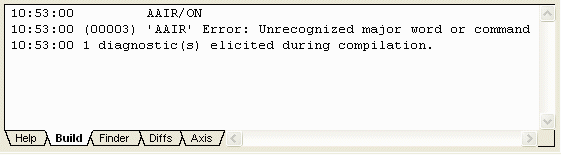
The Build tab contains diagnostic message text and other information that is output when you exercise the software. Double clicking on text in this window will, at a minimum, bring the associated object to the foreground if it is still loaded in memory. Double clicking on an error message will often open the problem section for correction. A right mouse button context menu is available in the Build tab with the following functions:
Copy: Copies selected text to the Clipboard buffer.Clear: Erases all text in the window. Helpful before the start of a new operation.Go to Error/Tag: Same as double clicking. Brings selected item into the foreground Save as: Saves text in window to named file.
Consistency
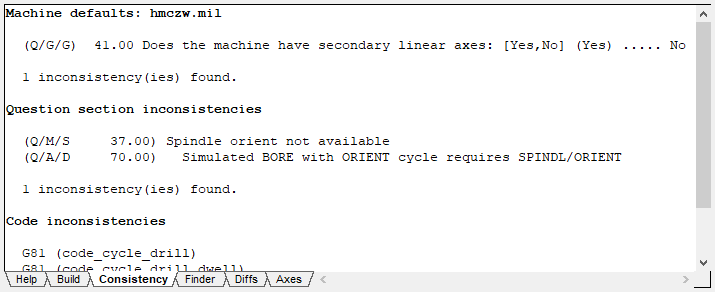
The Consistency tab lists inconsistencies found in the post-processor
or control emulator. Select Tools»
Differences in question responses as compared to the General Description/
General Information question 4 “Machine defaults” selection. The expected response is shown on the line within parentheses; the actual response is shown at the end of the line. Differences in question responses as compared to the General Description/
General Information question 5 “Control defaults” selection. The expected response is shown on the line within parentheses; the actual response is shown at the end of the line. Inconsistencies between question responses from different sections. This is shown in the same way as during a Generate, with the root question listed first and those with inconsistent responses listed with a slight indent below it.
Out-of-date RMD actions (post processor only). When an RMD action is added to a post processor, the macro text associated with that action is added to the post along with the action identifier. The RMD consistency check compares the macro text stored in the post against the macro text of the RMD action and indicates an inconsistency if different. To update an RMD macro, delete the old action and replace it with a new one. A Diff between the original and updated post will show the changes. Out-of-date RMD actions are also listed during a Generate.
Code inconsistencies, which are the result of two or more functions sharing the same G or M code. These are also listed during a Generate.
Data inconsistencies (control emulator only), which are typically caused by custom DATA identifiers that reference deleted registers. These are also listed during a Generate.
Double click on a line to review or correct the inconsistency. This opens the appropriate section with the problematic item in focus. The F4 and Shift+F4 keys can be used to move forwards and backwards through the list of inconsistencies. A right mouse button context menu is available with the following functions:
Copy: Copies selected text to the Clipboard buffer.Clear: Erases all text in the window.Go to Error/Tag: Same as double clicking. Save as: Saves text in window to named file.
Finder
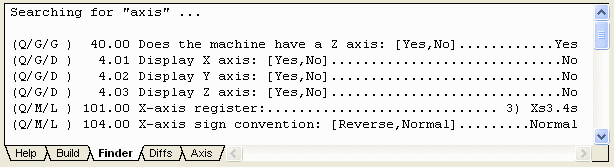
The Finder tab shows the results of searching questions for matching text using the Finder dialog. Double click on a result to open the appropriate section with the selected result in focus. The F4 and Shift+F4 keys can be used to move forwards and backwards through the list of found results. A right mouse button context menu is available with the following functions:
Copy: Copies selected text to the Clipboard buffer.Clear: Erases all text in the window.Go to Error/Tag: Same as double clicking. Save as: Saves text in window to named file.
Diffs
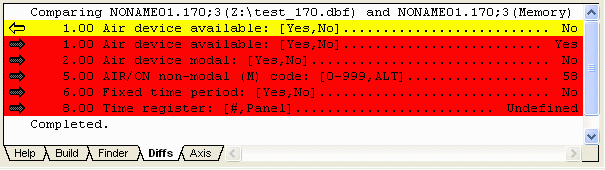
The Diffs tab shows the results of comparing two post processors using the Diffs dialog. The first line in the window lists the two files that are being compared. Each line appears with either a left or right arrow, signifying that the text shown belongs to the first or second file listed at the top. A bold arrow signifies that the entry can be double clicked to open the associated section and set the focus to the item. This can not be done when comparing a post in the database (the arrow will not be bold). A right mouse button context menu is available in the finder window with the following functions:
Show left: Show only lines from the left hand file (left arrow)Show right: Show only lines from the right hand file (right arrow)Show both: Show both left and right hand lines when they differShow diffs only: Only show lines which are different.Use left: On lines which are the same, show the text as found in the left hand file.Use right: On lines which are the same, show the text as found in the right hand file.Clear: Erases all text in the window.Go to Error/Tag: Same as double clicking. Brings selected item into the foreground