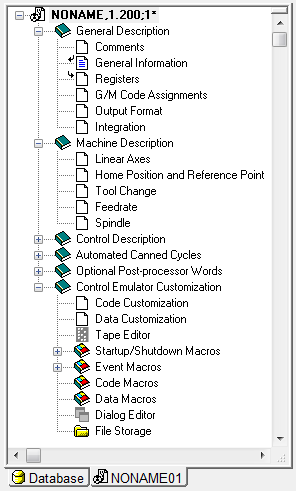
Navigator
The navigator is used to quickly navigate through the databases and post processors.
Database Navigator
At the bottom of the navigator, click on the Database tab to see a list of all open databases.
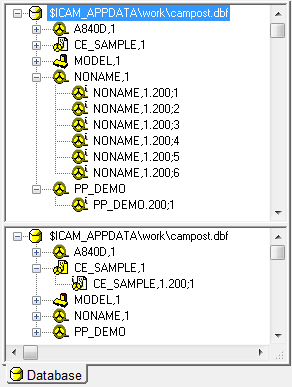
Double click on a database name to obtain a Database
View listing details about the post
processors in the database. Click on the +/
Double click on a post processor name to load the latest revision of the
post processor into memory. Doing so switches the navigator
automatically to the Post Processor navigation view. Click on the +/
The navigator can be split into 2 views to allow you to see different items at the same time.
Post Processor Navigator
At the bottom of the navigator, click on a Post tab to bring a post processor into the foreground. If you leave your mouse over a post tab, the post name will be displayed in a tooltip.
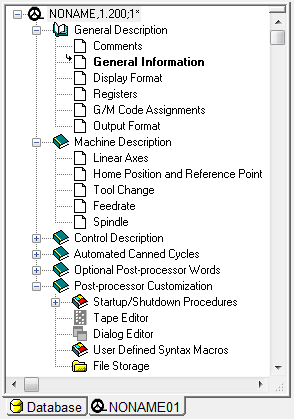
Double clicking on the post name (identified by a tape reel symbol) or a
section name (identified by the book symbol) will expand or collapse the
entries contained under that post or section. You can click on the +/
Question section that have yet to be answered or generated will appear as blank pages in the list. Once answered, a blue page implies that the feature has been answered and is available. A grayed out page indicates a feature that is disabled for this particular post processor. A grayed out page with a lock indicates a section that you are not licensed to enter. Double click on a section name to open it for modification. The small arrows show the last section entered and the next suggested section.
The Post-processor Customization section is a little different from the question sections, but follows the same principles. The icon symbols are grayed for inactive macros and features, and dark otherwise.
Control Emulator Navigator
Working the same way as the post-processor navigator, the CE also has its own version of the navigator.