VM Controller / Fixture Compensation Tab
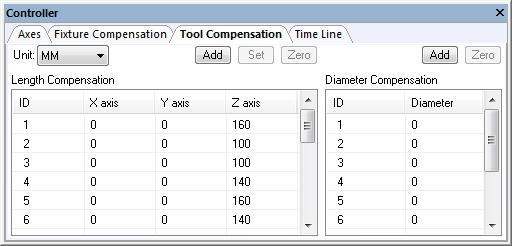
This tab provides control of fixture compensation (also known as work piece compensation). It is important to accurately set appropriate fixture compensation amounts if non-zero fixture compensation amounts will be used at the machine.
Fixture compensation offsets are identified by an integer ID number ranging from 1 up to the number of different offsets available on the CNC. For example, on a CNC with G54 through G59 codes defining fixture compensation, ID number 1 would represent G54, ID number 2 would represent G55, and so on, up to ID number 6 for G59. Select the Add button to define the compensation amounts for a particular ID. Fixture compensation is defined by the control emulator or post-processor, not the model. If fixture compensation is not defined in the CE or PP, then the Add button will not be available.
The offset amounts are entered and listed in the units specified in the Unit drop-down list. Double-click on an axis entry to change its value. Use the Tab and Shift Tab keys to quickly move between entries. Press the Set button to set the offset values of the selected ID lines to the current Axes positions (as set via the Axes tab). Press the Zero button to quickly zero the offset values of the selected ID lines. You can completely remove an offset ID by selecting the entire line and pressing the Delete key.
By default, only the primary linear axes are listed. Select the Advanced button if it is necessary to choose other axes that can be offset using fixture compensation on the CNC. For example, if the CNC has the ability to offset rotary axes, you should select the Advanced button, choose the rotary axis from the list of available axes, and then press the center Add button to include that rotary axis in the list of axes that can be compensated. You can later disable compensation for any axis other than a primary linear, by first selecting it in the list of axes in use and then pressing the center Remove button (the center button label dynamically changes between Add and Remove depending on the axis selected).
Base compensation is always available, whether fixture compensation is supported or not. The base compensation amounts are added to the axes position, regardless of the fixture compensation state in effect on the CNC. Base compensation should to be used to handle the case where the machine operator must manually reset the zero point of the machine to match some reference point on the fixture or part. This is common on older controls that do not have fixture compensation abilities.
The currently active fixture compensation ID can be seen in simulation
window heads-up display by activating the “Active Compensations” check
box in the Simulation»
Fixture compensation data is automatically saved in the verification setup (.vsw) file when the program is completed. This setup file will be reused on subsequent runs to quickly reestablish the workpiece compensation settings necessary for an accurate simulation.