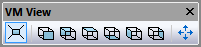
VM View Toolbar

image1

The 6 middle buttons on the VM View toolbar lock the Simulation window camera rotation to one of 6 standard views, with respect to the axis selected in the VM Grid toolbar. While any one of these 6 buttons is selected, camera rotation functions are disabled and the camera can be panned only.

image18

Simulation»Camera»Perspective: Switches to a 3D Perspective view of the simulation window. When deselected, switches to an Orthogonal view of the simulation window.

image19

Simulation»Camera»Front: Switches to a front view of the simulation window.

image20

Simulation»Camera»Back: Switches to a back view of the simulation window

image21

Simulation»Camera»Top: Switches to a top view of the simulation window.

image22

Simulation»Camera»Bottom: Switches to a bottom view of the simulation window.

image23

Simulation»Camera»Left: Switches to a left side view of the simulation window.

image24

Simulation»Camera»Right: Switches to a right side view of the simulation window.

image25

Simulation»Camera»Fit: Fits the selected object(s) in the simulation window view.

"Virtual Machine Toolbars"