|
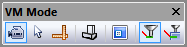
Simulation»Mode»Camera: Selects “camera” mode,
which is equivalent to selecting the “Default to camera
mode” check box in the Simulation»Options (Ctrl Alt O)
Misc settings. The left-mouse button will subsequently
control the orientation of the camera. The mouse
pointer will appear as a four-way arrow. Hold the Ctrl
key down to temporarily (while the key is held) switch
to “selection” mode. |

|
Simulation»Mode»Selection: Selects “selection”
mode, which is equivalent to clearing the “Default to
camera mode” check box in the Simulation»Options (Ctrl
Alt O) Misc settings. The left-mouse button will
subsequently select objects. The mouse pointer will
appear as an arrow. Hold the Ctrl key down to
temporarily (while the key is held) switch to “camera”
mode. |

|
Simulation»Mode»Measurement: Selects “measurement”
mode. The left-mouse button will subsequently select
objects for measurement purposes. The mouse pointer
will appear as caliper/square combination. Hold the
Ctrl key down to temporarily (while the key is held)
switch to “camera” mode. |

|
Simulation»Show»Wireframe: Activates or deactivates
wire-frame rendering of the simulation window. |

|
Simulation»Show»Display: Activates or deactivates
the heads-up status display that floats above the
simulation window. The HUD is not available with QUEST. |

|
Simulation»Show»Tool Path (Ctrl T): Activates or
deactivates the display of the tool path trace in the
simulation window. Trace data is always recorded,
regardless of the display setting. Tool path trace
functions are not available with QUEST. |

|
Simulation»Show»Tool Path as Overlay (Ctrl Shift
T): When selected, the tool path trace is always
visible, even when the tool path is behind objects that
would normally obscure the trace. Tool path trace
functions are not available with QUEST. |