|
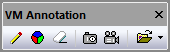
Simulation»Annotation»Annotate: Toggles the
left-mouse action between annotate and non-annotate
modes. When in annotation mode, the cursor will appear
as a small pencil that will draw in the simulation
window when the left-mouse button is held down. Drawing
is equivalent to marking a glass pane that appears on
top of the simulation window. |

|
Simulation»Annotation»Color: Opens a dialog that
selects the drawing color. |

|
Simulation»Annotation»Erase: Clears the drawing
pane (this cannot be undone). |

|
Simulation»Annotation»Snapshot: Takes a PNG image
of the simulation window, including annotation data if
present. Picture files are stored in the folder
identified by the VM_PICTURE_DIR configuration (i.e.,
DEF file) variable. If this variable is not defined or
is blank, then pictures are stored in the user’s
“Pictures\ICAM\270” folder. Picture files are named
“picnnn.png”, where nnn is a number automatically
chosen to avoid overwriting an existing picture. |

|
Simulation»Annotation»Record: Starts or stops the
recording of the contents of the simulation window,
including annotation data if present. Video files are
stored in the folder identified by the VM_VIDEO_DIR
configuration variable. If this variable is not defined
or is blank, then videos are stored in the user’s
“Videos\ICAM\270” folder. Video files are named
“videonnn.avi” where nnn is a number
automatically chosen to avoid overwriting an existing
video. Recording options can be set by selecting the
Video button in the Simulation»Options dialog Misc tab. |

|
Simulation»Annotation»Open: This provides quick and
easy access to the user’s pictures and videos folders. |