Simulation»
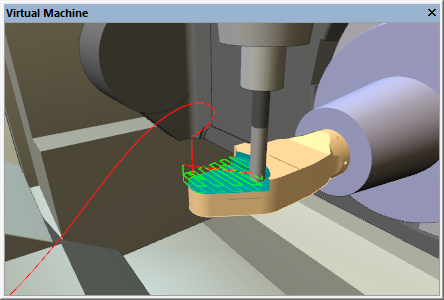
The Show Tool Path function activates or deactivates tool path tracing in the simulation window. Tracing can also be toggled from the VM Mode toolbar. Tracing shows the path of the tool with respect to the part. Rotary motions may cause linear tool paths to appear as curves; this is natural and reflects the actual path of the tool with respect to the part.
The tool path trace shows different colors for rapid and feed motions.
The default is red for rapid positioning motions and green for all feed
interpolated motions. When using the Trace window and Time-Line
“Synchronize” feature, the corresponding motion is traced in blue. The
trace can appear at the tool-tip or the spindle control point. The trace
can be limited to a specified elapsed time, or it can show the tool path
for the entire program. Trace options are set by selecting
Simulation»