The Stock Axis Property Dialog
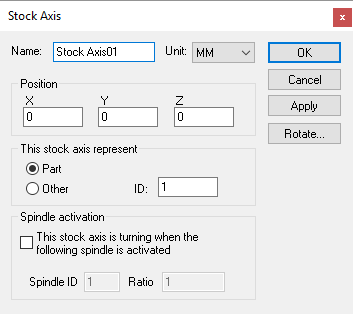 Defines a stock axis given an XYZ origin. Stock axes define the
table control point (TCP) of the machine. When stock, fixtures and parts
are loaded onto the machine (using CERUN or GENER), they are mounted
relative to a predefined stock axis.
Defines a stock axis given an XYZ origin. Stock axes define the
table control point (TCP) of the machine. When stock, fixtures and parts
are loaded onto the machine (using CERUN or GENER), they are mounted
relative to a predefined stock axis.
Part: Specifies that this stock axis defines a table control point (TCP) of the machine. The ID should be set to 1 (one) for the most common mount point used on the machine. Other stock ID’s can be used if there are additional part mount points on the machine, for example, if there are multiple work areas. Use the CERUN and GENER Simulation»
Stock, Simulation» Fixture and Simulation» Part menus to import or define stock, fixture and part objects relative to stock axes. Other: Specifies a location where stock, fixtures and parts can be held. The current active part can be set using the $PART macro variable.
Spindle activation: Select the “This stock axis is turning when the following spindle is activated” check box if the stock axis represents a spindle. This is common for the turning spindle on lathe machines. You would normally not select this for an Other stock axis type. VM uses the Spindle ID to differentiate between the different spindles that might be available on a machine. For mill/
turn machines, use the Axes mapping tab page of the machine properties dialog to identify the spindle as milling or turning. For lathes without a C controllable axis, the spindle ID should be 1 (one) for the main turning spindle of the machine. The choice of current active spindle can also be controlled using the $FMSMSP macro function.
You can define multiple stock axes if there are different places where stock and fixtures might be loaded. For example, a tombstone with 4 faces might define 4 stock axes; each positioned and rotated (using the Rotate button) to establish a part normal vector away from the surface. If your model simulates pallet changing, you should define a stock axis at the part reference point for each pallet.
Note that, for QUEST at least, the stock axis represents one end of the kinematics chain. You cannot attach any other axis or entity to a stock axis. CERUN and GENER on the other hand allow stock fixtures and parts to be attached to a stock axis at run-time.
In addition to the parameters listed above, all axes share the common parameters, listed below:
Name: Axis names are used in the Model Navigator in QUEST. Linear, Rotary and Curve axis names also appear in (and can be controlled from) the QUEST lower right Axes window as well as the VM Controller Axes window in CERUN and GENER VM assigns default names when objects are created. You should change the default to something that is both short and meaningful.
Unit: Specifies the unit of measure for all non-rotary values (angles are always specified in degrees).
Position: Specifies the X, Y and Z axis position of the origin of the current axis in relation to the origin and rotational alignment of the parent object. When world coordinates are selected (Simulation»
Use World CS), the position of the axis is shown in world coordinates instead of relative to the parent object. When constructing an axis, the mouse pointer can be used to define the axis origin. OK button: Creates the axis as defined.
Cancel button: Ignores this axis creation request.
Apply button: Updates the simulation window to show the effects of the latest changes.
Rotate button: Use this button to rotate the entity to its required final orientation. When an entity is rotated, anything attached below this entity in the Navigator will be defined in the new frame of rotation.