The Compare Dialog
 Comparison between the design part and the in-process stock is
only available with a MRS (Material Removal Simulation) license
available and enabled via the VM pane on the GENER and CERUN launch
panels. The MRS license provides the added functionality to compute the
effect of the cutting process of the tool on the rough stock. The
resultant shape is called the “in-process stock”.
Comparison between the design part and the in-process stock is
only available with a MRS (Material Removal Simulation) license
available and enabled via the VM pane on the GENER and CERUN launch
panels. The MRS license provides the added functionality to compute the
effect of the cutting process of the tool on the rough stock. The
resultant shape is called the “in-process stock”.
The Boolean excess and overcut results can sometimes be misleading,
since it can be difficult to judge the thickness of the excess or gouge
material. VM provides a Simulation»
The comparison is done by sampling the surface of the gouge and/
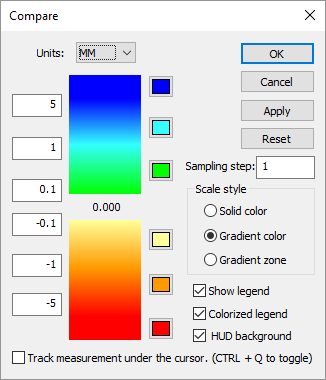
The settings of note on the Compare dialog are:
Units: Specifies the units of measure for all numeric values in the dialog.
Sampling steps: Specifies the maximum distance along the surface between comparison measurements. Using a small value may greatly increase the computation time and complexity of the resulting colorized object.
Scale style: Defines how the excess and gouge distances will be colorized. Three excess and three gouge zones are available, at increasing offsets from the part. With the Solid color and Gradient color settings, each zone is represented by a single user definable color (using the color buttons to the right of the scale). With the Gradient zone setting, the inner two zones can individually be color graduated between two colors.
Track measurement…: If selected, the measured distance between stock and part under the cursor will be shown and dynamically updated as the cursor moves. You can also toggle this feature on and off using Ctrl Q.
Those surfaces on the colorized in-process stock that are neither gouged
or excess will not be shown, unless the
Simulation»
When viewing the gouge material in combination with either the part or the in-process stock, it helps to select the part with the mouse so that its surface becomes transparent, allowing the gouged material surface to be seen.
The Simulation»