New CODE Macro (Control Emulator only)
The new CODE macro dialog is shown when creating a new macro from the Code Macro section. It allows you to build or explicitely specify the matching expression that will fire the macro.
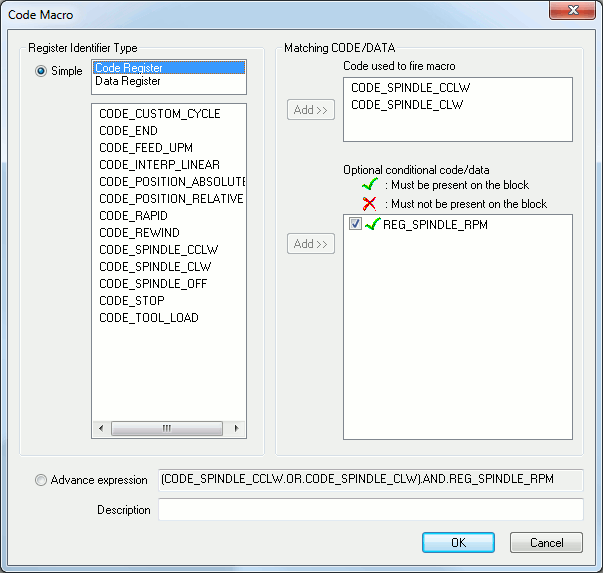
There is two method for specifying the matching expression. The Simple type which allows you to add the CODE or DATA identifiers that are to match or not match on the block. And the Advance type which allow you to type in the logical macro expression yourself.
Its recommended to use the Simple method since it is more intuitive and easier. Unless the matching expression is to be quite complicated therefore, would need to be typed in the Advance text box.
Building the expression (Simple method)
Both the CODE and the DATA identifier lists are available from the left side. These two lists have exactly the same content as the customization sections.
On the right side, the upper list labeled "Code used to fire macro" will contain the list of codes that can fire the macro. Anyone of the codes in that list can fire the second part of the expression matching (lower list). Only codes can be added to the upper list.
The lower right list can accept both CODE and DATA identifiers. This is the second part of the expression matching process. After one of the base codes have been matched, entries within the lower list are checked against the content of the block. Every item with a green check image need to be found on the block and every item with a red X should not be found on the block.
After those two checks have been made, the macro will be fired if everything matched correctly.
Building the expression (Advance method)
Just type a logical expression that can contain any of the CODE_ and REG_ identifiers, any logical operators and parenthesis for priority cases.