Test
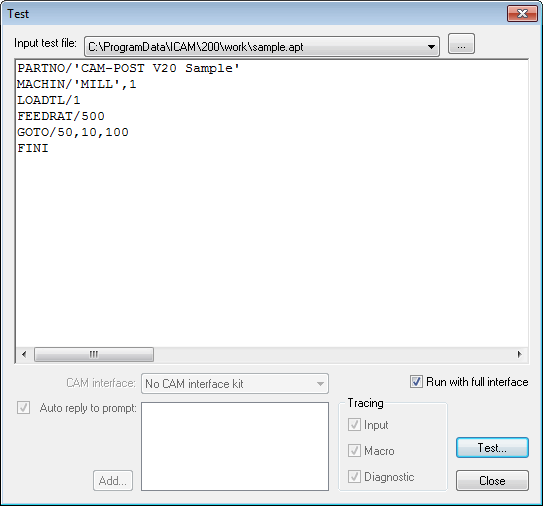
GENER Test
The Test feature can be used to test a short APT (or APT-like) program against one of the post processors out for editing. The sample APT program can be typed or pasted directly into the edit window, or selected from an existing file. When you are ready to test, QUEST will write the sample file to disk and post process it using the currently selected post processor and selected interface kit. Result are displayed in the Test Result dialog.
Input test file: This is the cldata file used for testing. By default QUEST uses sample.apt in its work subdirectory. You can select another file by using the browse button. The contents of the file are displayed in the edit box so you can modify them.
CAM interface: Select the CAM interface that you want GENER to use when testing your CL test file. Installed interface kits are available from the drop down list.
Auto reply to prompt: If your post processor prompts the user (ex: PID, resolution...) then you may want to use the AutoReply feature to automatically answer prompts. When enabled, you can add answers to the answer list box by using the add button. When GENER prompts for information, it will first use answers from the answer list starting with the first one and going in the same order as they appear in the answer list box. You can reorder answers by using drag and drop. You can delete an answer by selecting it and pressing the DEL key. To modify an existing answer, double click on it.
Run with full interface: If you check this box, the GENER launch panel will be raised when you press the Test button. The current post processor will still be selected by default and the CL file box will point to the sample CL file. Using GENER’s full interface gives you more flexibility on how your test is post processed, but it may required more time to set up your test.
Tracing: The three tracing option allow a more detailed output to the test result window. Note that the generated MCD is always shown.
Input: Traces input CL records
Macro: Traces macro records
Diagnostic: Traces diagnostic messages and completion status
Test...: When you are ready to test, use this button. The result of post processing your test file will show up in the Test Result dialog unless you checked “Run with full interface”, in which case the GENER launch panel will be raised.
Close: Closes the test dialog and returns to QUEST.
CERUN Test
The Test feature can be used to test a short MCD (i.e., tape file) against one of the control emulators out for editing. The sample MCD program can be typed or pasted directly into the edit window, or selected from an existing file. When you are ready to test, QUEST will write the sample file to disk and simulate it using the currently selected control emulator. Result are displayed in the Test Result dialog.
Input test file: This is the MCD file used for testing. By default QUEST uses sample.tap in its work subdirectory. You can select another file by using the browse button. The contents of the file are displayed in the edit box so you can modify them.
CAM interface: This is used for GENER tests only.
Auto reply to prompt: If your control emulator prompts the user for input then you may want to use the AutoReply feature to automatically answer prompts. When enabled, you can add answers to the answer list box by using the add button. When CERUN prompts for information, it will first use answers from the answer list starting with the first one and going in the same order as they appear in the answer list box. You can reorder answers by using drag and drop. You can delete an answer by selecting it and pressing the DEL key. To modify an existing answer, double click on it.
Run with full interface: If you check this box, the CERUN launch panel will be raised when you press the Test button. The current control emulator will still be selected by default and the MCD file box will point to the sample MCD file. Using CERUN’s full interface gives you more flexibility on how your test is run, but it may required more time to set up your test.
Tracing: The three tracing option allow a more detailed output to the test result window. Note that the input MCD is always shown in the form “line-number! *mcd*” as each block is processed, as are the actions that the block generates, which are shown in the form “ *|* *action*”
Input: Traces MCD input edits, register values, and CODE and DATA identifiers
Macro: Traces macro records
Diagnostic: Traces diagnostic messages and completion status
Test...: When you are ready to test, use this button. The result of simulating your test file will show up in the Test Result dialog unless you checked “Run with full interface”, in which case the CERUN launch panel will be raised.
Close: Closes the test dialog and returns to QUEST.