⧉ All Products ICAM V27 User Interface

Table of Contents:

  • ICAM Configuration Panel
    • Overview
    • General
    • QUEST
    • GENER
    • CAM Interfaces
    • Tape & DNC
    • Output
    • Environment
    • All Entries
  • Launch Panel (GENER/CERUN)
    • Launch Panel
      • Center tab selections
      • Processing
      • Interface
      • Merged PSE Processing
      • DEF file
      • OK, Cancel and other buttons
    • JOB Button
      • Job Files
      • Review Files
    • DB Manager / AUTOPOST Button
      • Database Manager
      • AUTOPOST (requires "xqs" license)
    • GENER Settings
      • CL File
      • Database
      • Post processor and Revision (Rev)
      • Program ID
      • User Parameters
      • Options and CAM buttons
    • GENER CAM Dialog
      • CAM System
      • Settings
      • OK, Cancel and Reset buttons
    • GENER Options
      • Tape file
      • Listing file
      • Plot file
      • Log file
      • Trace in Listing
      • Also include information about…
      • OK, Cancel and Reset buttons
    • Optimizer/Force Options
      • Use Vericut Optimizer/Force on CL File
      • Project File
      • Optimized CL File
      • User Interface
      • Optimizer/Force launch button
    • CERUN Settings
      • Options
    • CERUN Options
    • Virtual Machine Settings
    • Preferences Settings
      • Enable launch panel tooltip help
      • Use common browse directory
      • Detect new/updated files on launch
      • Save for review
  • QUEST Developer
    • Welcome
    • QUEST Overview
      • GENER Overview
      • Control Emulator Overview
      • Virtual Machine Overview
    • Users Guide
      • Shortcuts
      • Main interface
      • Navigator
        • Database Navigator
        • Post Processor Navigator
        • Control Emulator Navigator
      • Console View
        • Help
        • Build
        • Consistency
        • Finder
        • Diffs
      • Workspace
      • Database View
      • Comment View
      • Questionnaire View
      • Graphical Questionnaire View
      • Register View
      • RMD View
      • Tape Editor View
      • Dialog View
      • Dialog Editor View
      • Macro View
        • User Defined Syntax macros
        • User Function macros
      • Macro Editor View
        • Editing Features/Functions
        • Right-Mouse Context Menu Functions
        • Section Controls
      • File Storage (Windows only)
      • Code Customization View (Control Emulator only)
      • Data Customization View (Control Emulator only)
      • Event Macro View (Control Emulator only)
      • Code Macro View (Control Emulator only)
      • Data Macro View (Control Emulator only)
      • Code Table View
    • Menu Bar
      • File
      • Edit
      • Database
      • View
      • Dialog
      • Tools
      • Help
    • Dialogs
      • About...
      • By Type
      • Calculator
      • Character Set
      • Test Result
      • Test
      • GENER Test
      • CERUN Test
      • Code Properties Dialog (Control Emulator only)
      • Copy
      • Data Properties Dialog (Control Emulator only)
      • Auto Refresh
      • Diffs
      • Dialog Control Properties
      • Dump Macros
      • Expression Evaluator
      • Finder
      • Generate
      • Generate As
      • G/M Code Question Panel (Graphical Questions & Wizard)
      • Answer Type:
      • Initialize Registers
      • Load
      • New CODE Macro (Control Emulator only)
      • New DATA Macro (Control Emulator only)
      • New Macro
      • Open
      • Add/Remove Password
      • QUEST Preferences
      • Preferences: Macro Editor
      • Preferences: General
      • Progress
      • Properties
      • Purge
      • Register
      • Rename
      • There are two ways of changing a post processor’s name.
      • Replace Macro
      • Replacement String
      • RMD Prompt
      • Save/Generate
      • Save As
      • Select Configuration
      • Select User
      • Spindle Table
      • Spindle Table
      • Startup Environment
      • Tip of the Day
      • Toolbars
      • Unlock database
      • Words Manager
      • Words Manager
  • Virtual Machine
    • Overview
    • Virtual Machine Dialogs
      • The Chip and Split Dialog
      • The Collision Dialog
      • The Compare Dialog
      • The Cube Property Dialog
      • The Curve Axis Property Dialog
      • The Cylinder/Cone Property Dialog
      • The Display Dialog
      • The Extruded Property Dialog
      • The Grid Dialog
      • The Group Dialog
        • Collision Groups
        • Collision Exclusion Groups
        • Selection Groups
      • The Head Axis Property Dialog
      • The Light Dialog
      • The Linear Axis Property Dialog
      • The Material Dialog
      • The Mesh Property Dialog
      • The Options Dialog
      • The Picture Property Dialog
      • The Reference Axis Property Dialog
      • The Revolved Property Dialog
      • The Rotary Axis Property Dialog
      • The Parts/Fixtures Dialog
      • The Sphere Property Dialog
      • The Statistics Dialog
      • The Stock Axis Property Dialog
      • The Tools/Holders/Heads Dialog
      • Tools
        • Lathe Tool Type
        • Mill Tool Type
        • Probe Tool Type
        • Additive Tool Type
      • Holders
        • Profile Holder Type
        • Generic Holder Type
      • Heads
      • The Tool Axis Property Dialog
    • Virtual Machine Specific Menus
      • Simulation Menu
      • Simulation»Camera»Attach
      • Simulation»Camera»Center (Ctrl+Shift+Space)
      • Simulation»Camera»Fit (Ctrl+Space)
      • Simulation»Camera
      • Simulation»Camera»Perspective
      • Simulation»Camera»Pivot (Ctrl+P) (Ctrl+Shift+P)
      • Simulation»Camera»Reset
      • Simulation»Camera»Front
      • Simulation»Camera»Speed Increase (Ctrl+'+')
      • Simulation»Camera»View Angle Increase (Shift+'+')
      • Simulation»Chip and Split (Ctrl+Alt+C)
      • Simulation»Compare... (Ctrl+Alt+Q)
      • Simulation»Controller
      • Simulation»Construct Axis»Curve Axis
      • Simulation»Construct Axis»Head Axis
      • Simulation»Construct Axis»Linear Axis
      • Simulation»Construct Axis»Reference Axis
      • Simulation»Construct Axis»Rotary Axis
      • Simulation»Construct Axis»Stock Axis
      • Simulation»Construct Axis»Tool Axis
      • Simulation Menu
      • Simulation»Construct Entity»Cube
      • Simulation»Construct Entity»Extruded
      • Simulation»Construct Entity»Mesh
      • Simulation»Construct Entity»Picture
      • Simulation»Construct Entity»Revolved
      • Simulation»Construct Entity»Sphere
      • Simulation»Display (Ctrl+Alt+D)
      • Simulation»Grid (Ctrl+Alt+G)
      • Simulation»Group Selection
      • Simulation»Hide Selection (Ctrl+B) (QUEST)
      • Simulation»Selection»Hide in View (Ctrl+B) (CERUN and GENER)
      • Simulation»Selection»Hide in All Views (CERUN and GENER only)
      • Simulation»Invert Hide State
      • Simulation»Lights (Ctrl+Alt+L)
      • Simulation»Manager
      • Simulation»Materials (Ctrl+Alt+M)
      • Simulation»Measure
      • Simulation»Mode»Camera
      • Simulation»Mode»Measurement
      • Simulation»Mode»Pause Gouge Detection
      • Simulation»Mode»Pause Material Removal
      • Mode»Selection
      • Simulation»Open Setup
      • Simulation»Options (Ctrl+Alt+O)
      • Simulation»Save Setup
      • Simulation»Show»Axes Marker
      • Simulation»Cross Section
      • Simulation»Show
      • Simulation»Filters
      • Simulation»Show»Kinematics
      • Simulation»Show»Plane Grid
      • Simulation»Show»Safety Zones
      • Simulation»Show»Tool Path as Overlay (Ctrl+Shift+T)
      • Simulation»Show»Tool Path (Ctrl+T)
      • Simulation»Show»Tool Reference
      • Simulation»Show»Tool Vector
      • Simulation»Show»Wireframe
      • Simulation»Show»Workpiece Coords (Ctrl+W)
      • Simulation»Show»Workpiece Reference
      • Simulation»Show All/Rehide (Ctrl+Alt+B) (QUEST)
      • Simulation»Selection»Show All/Rehide (Ctrl+Alt+B) (CERUN and GENER)
      • Simulation»Selection»Show All/Rehide in All Views (CERUN and GENER only)
      • Simulation»Statistics (Ctrl+Alt+O)
      • Simulation»Parts/Fixtures... (Ctrl+Alt+P)
      • Simulation»Tools/Holders/Heads (Ctrl+Alt+T)
      • Simulation»Use World CS
      • Simulation»Virtual Machine
      • Simulation Menu
      • QUEST Simulation menu
      • GENER/CERUN Simulation menu
    • Simulation Toolbars
      • VM Animation Toolbar
      • VM Annotation Toolbar
      • VM Construct Toolbar
      • VM Cross Section Toolbar
      • VM Grid Toolbar
      • VM Measure Toolbar
      • VM Mode Toolbar
      • View Toolbar
      • VM View Filter Toolbar
      • VM View Toolbar
    • Simulation Windows
      • VM Controller
      • VM Controller / Axes Tab
      • VM Controller / Fixture Compensation Tab
      • VM Controller / Time Line Tab
      • VM Controller / Tool Compensation Tab
      • Simulation Manager
      • Virtual Machine
    • Virtual Machine
      • Virtual Machine
        • Adding Parts, Fixtures and Stock to the Simulation
          • Differences between Part, Stock and Fixture Components
      • Virtual Machine Tooling
        • Adding Tooling Definitions to the Simulation
      • Virtual Machine Lighting
        • Adjusting the lighting
      • Virtual Machine Camera Manipulation
        • Navigating the Simulation Window
          • Camera Panning:
          • Camera Rotation:
          • Camera Roll:
          • Camera origin and attachment:
          • Camera viewpoint:
          • To summarize:
      • Virtual Machine
        • Simulation Input Controls
          • Standard Keyboard Mapping
          • Construction Keyboard Mapping
          • Mouse Mapping
          • Time Line Keyboard Mapping
      • Virtual Machine's Results
        • Monitoring Virtual Machine's Results
          • Animation Control
          • Head-Up Display
          • Tool Path Display
          • VM Controller Time-Line
          • Part vs. Stock Comparison
      • Virtual Machine Fixture Compensation
        • Setting Fixture Compensation
      • Virtual Machine Tool Compensation
        • Setting Tool Compensation
          • Length Compensation
          • Diameter Compensation
  • GENER User Interface
    • Welcome to GENER Help
    • CAM-POST GENER Interface
      • Dialogs
        • About
        • Find
        • Goto…
        • Preferences...
          • General tab
          • Debug tab
          • Trace tab
        • Progress Window
        • Seek
        • Toolbars
      • Menus
        • Debug
          • Debug»Breakpoint Manager
          • Debug»Enable/Disable Breakpoint (Ctrl+F9)
          • Debug»Jump to Cursor (Ctrl+Shift+F10)
          • Debug»Kinematics status
          • Debug»Source
          • Debug»Macro Manager
          • Debug»Remove All Breakpoints (Ctrl+Shift+F9)
          • Debug»Run to Cursor (Ctrl+F10)
          • Debug»Set/Clear Breakpoint (F9)
          • Debug»Stack
          • Debug»Step Into (F11)
          • Debug»Step Out (Shift+F11)
          • Debug»Step Over (F10)
          • Debug»Variables
        • File
          • File»New Job (Ctrl+N)
          • File»Save For Review
          • File»View Listing File
          • File»View Tape File
          • File»Exit (Alt+F4)
        • Help
          • Help Online
          • Help»Package Job
          • Getting Product Support
            • Before Calling...
            • To contact Icam support...
              • Headquarters
          • Help Topics
        • Run
          • Run»Details
          • Run»Fast (F8)
          • Run»Pause (F6)
          • Run»Play (F5)
          • Run»Restart (Shift+F5)
          • Run»Step (F7)
        • Tools
          • Tools»Configuration...
          • Tools»Preferences...
          • Tools»Find
          • Tools»Toolbar...
        • View
          • View»Input
          • View»Output
          • View»Macro
          • View»Console
          • View»Diagnostic
          • View
          • View»Previous axes page
          • View»Status bar
        • Windows
          • Window»Load Layout
          • Window»Save Layout
          • Window»Style
          • Window»Default Layout
      • Toolbars
        • Debug
        • Job
        • Layout
        • Run
        • View
      • Windows
        • Breakpoint Manager
          • The breakpoint list
          • Toolbar buttons
          • Enabling, disabling and editing
          • Breakpoint types
            • Post-processor (GENER) mode
            • Control Emulator (CERUN) mode
            • Source-line breakpoints
          • Persistence
        • Console Trace
        • Diagnostic
        • Input Trace
        • Kinematics status
        • Source
        • Macro Manager
          • The macro list
          • Enable / Disable button
          • Show / Hide button
        • Macro Trace
        • Output Trace
        • Stack
        • Variable
      • Synchronize
  • CERUN User Interface
    • Control Emulator
    • Control Emulator Pre-Processors
      • ABB Robot Pre-Processor
        • ABB Robot Pre-Processor Syntax
      • Fanuc Pre-Processor
        • Fanuc Pre-Processor Syntax
          • 1. Pre-processor setup
          • 2. Command Abbreviations
          • 3. Operators
          • 4. Arithmetic operators
          • 5. Unconditional branching
          • 6. Conditional branching
          • 7. Repetition
          • 8. Variables
          • 9. Sub-program related
          • 10. Other matching patterns
      • Heidenhain Pre-Processor
        • 1. Pre-processor setup
        • 2. Supported Syntax
        • 3. Selecting a default startup syntax
        • 4. Changing syntax during processing
        • 5. What are the configurable options?
          • Heidenhain Conversational Pre-Processor Syntax
            • 1. “FN” Functions
            • 2. Supported arithmetic operators & functions
            • 3. String variable declaration
            • 4. String functions
            • 5. Variables / Parameters
            • 6. Program / Label / Sub-program
          • Heidenhain ISO Pre-Processor Syntax
            • 1. “D” Functions
            • 2. Supported arithmetic operators & functions
            • 3. String variable declaration
            • 4. String functions
            • 5. Variables / Parameters
            • 6. Program / Label / Sub-program
      • Mazak EIA/ISO Pre-Processor
        • Mazak EIA/ISO Pre-Processor Syntax
          • 1. Pre-processor setup
          • 2. Command Abbreviations
          • 3. Operators
          • 4. Arithmetic operators
          • 5. Unconditional branching
          • 6. Conditional branching
          • 7. Repetition
          • 8. Variables
          • 9. Sub-program related
          • 10. Other matching patterns
      • Okuma Pre-Processor
        • Okuma Pre-Processor Syntax
          • 1. Pre-processor setup
          • 2. Operators
          • 3. Arithmetic operators
          • 4. Unconditional branching
          • 5. Conditional branching
          • 6. Variables
          • 7. Sub-program related
          • 8. Other matching patterns
      • Fanuc Pre-Processor
        • OSAI 10 Series Pre-Processor Syntax
          • 1. Pre-processor setup
          • 2. Register default value
          • 3. Operators
          • 4. Arithmetic operators
          • 5. Unconditional branching
          • 6. Conditional branching
          • 7. Repetition
          • 8. Variables
          • 9. Sub-program related
          • 10. Other matching patterns
      • Siemens Pre-Processor
        • Siemens Pre-Processor Syntax
          • 1. Pre-processor setup
          • 2. Supported operators
          • 3. Supported arithmetic operators & functions
          • 4. Unconditional branching
          • 5. Conditional branching
          • 6. Repetition
          • 7. Variables
          • 8. Sub-program related
          • 9. Other matching patterns
          • 10. Misc Functions
          • 11. System Variables
          • 12. Frame Support
      • Control Emulator Pre-Processors
        • Z32 Syntax
    • CERUN Interface
      • Dialogs
        • About
        • CERUN Option
        • Find
        • Goto…
        • Preferences...
          • General tab
          • Debug tab
          • Trace tab
        • Progress Window
        • Seek
        • Toolbars
      • Menus
        • Debug
          • Debug»Breakpoint Manager
          • Debug»Enable/Disable Breakpoint (Ctrl+F9)
          • Debug»Jump to Cursor (Ctrl+Shift+F10)
          • Debug»Source
          • Debug»Macro Manager
          • Debug»Remove All Breakpoints (Ctrl+Shift+F9)
          • Debug»Run to Cursor (Ctrl+F10)
          • Debug»Set/Clear Breakpoint (F9)
          • Debug»Stack
          • Debug»Step Into (F11)
          • Debug»Step Out (Shift+F11)
          • Debug»Step Over (F10)
          • Debug»Variables
        • File
          • File»New Job (Ctrl+N)
          • File»Save For Review
          • File»View Listing File
          • File»Exit (Alt+F4)
        • Help
          • Help Online
          • Help»Package Job
          • Getting Product Support
            • Before Calling...
            • To contact Icam support...
              • Headquarters
          • Help Topics
        • CERUN
          • CERUN»Code Groups
          • CERUN»MDI
          • CERUN»Opskip
          • CERUN»Option
        • Run
          • Run»Fast (F8)
          • Run»Pause (F6)
          • Run»Play (F5)
          • Run»Restart (Shift+F5)
          • Run»Step (F7)
        • Tools
          • Tools»Configuration...
          • Tools»Preferences...
          • Tools»Find
          • Tools»Toolbar...
        • View
          • View»Input
          • View»Output
          • View»Macro
          • View»Console
          • View»Diagnostic
          • View»Increase Margin
          • View»Previous axes page
          • View»Status bar
        • Windows
          • Window»Load Layout
          • Window»Save Layout
          • Window»Style
          • Window»Default Layout
      • Toolbars
        • Debug
        • Job
        • Layout
        • Run
        • View
      • Windows
        • Breakpoint Manager
          • The breakpoint list
          • Toolbar buttons
          • Enabling, disabling and editing
          • Breakpoint types
            • Post-processor (GENER) mode
            • Control Emulator (CERUN) mode
            • Source-line breakpoints
          • Persistence
        • Controller » Opskip tab
        • Controller » MDI tab
        • Controller » Code Groups tab
        • Console Trace
        • Diagnostic
        • Input Trace
        • Source
        • Macro Manager
          • The macro list
          • Enable / Disable button
          • Show / Hide button
        • Macro Trace
        • Output Trace
        • Stack
        • Variable
      • Synchronize
ICAM V27 User Interface
  • ⧉
  • QUEST Developer
  • Users Guide
  • Navigator

Navigator

The navigator is used to quickly navigate through the databases and post processors.

Database Navigator
Post Processor Navigator
Control Emulator Navigator

Database Navigator

At the bottom of the navigator, click on the Database tab to see a list of all open databases.
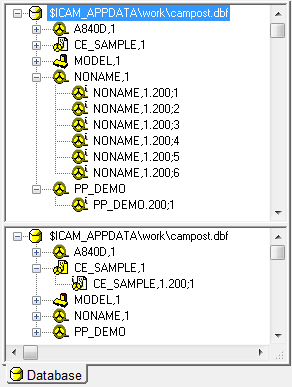
image1

Double click on a database name to obtain a Database View listing details about the post processors in the database. Click on the +/- box to expand or contract the list of post processors in the database. The right mouse context menu will perform the listed actions on the database as a whole.

Double click on a post processor name to load the latest revision of the post processor into memory. Doing so switches the navigator automatically to the Post Processor navigation view. Click on the +/- box to expand or contract the list of individual revisions of the post processor. The right mouse context window on an unexpanded post entry generally perform the listed action on all revisions as a group, where it makes sense. A right mouse context window on an expanded post entry performs the listed action on that specific revision of the post.

The navigator can be split into 2 views to allow you to see different items at the same time.

Post Processor Navigator

At the bottom of the navigator, click on a Post tab to bring a post processor into the foreground. If you leave your mouse over a post tab, the post name will be displayed in a tooltip.
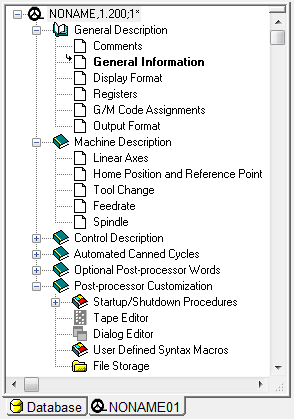
image2

Double clicking on the post name (identified by a tape reel symbol) or a section name (identified by the book symbol) will expand or collapse the entries contained under that post or section. You can click on the +/- box to get the same effect. Use the right mouse menu Expand/Collapse Branch context entry on the post name to quickly expand/collapse every section of the post processor.

Question section that have yet to be answered or generated will appear as blank pages in the list. Once answered, a blue page implies that the feature has been answered and is available. A grayed out page indicates a feature that is disabled for this particular post processor. A grayed out page with a lock indicates a section that you are not licensed to enter. Double click on a section name to open it for modification. The small arrows show the last section entered and the next suggested section.

The Post-processor Customization section is a little different from the question sections, but follows the same principles. The icon symbols are grayed for inactive macros and features, and dark otherwise.

Control Emulator Navigator

Working the same way as the post-processor navigator, the CE also has its own version of the navigator.
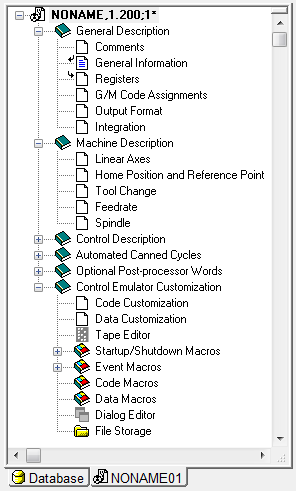
image3

Previous Next

© Copyright 2026, CGTech.