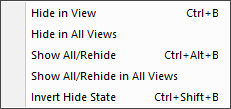
The menu selections provide the capability to hide objects (i.e., make them invisible), or make hidden objects visible again. Selecting an object in the simulation window with the right-mouse button will pop up context sensitive menu that can be used to hide the object in the current or all views. Note that hidden objects continue to be tested for collisions.
The QUEST model developer has a single simulation window, so there is no Selection submenu or “in All Views” functions.
(QUEST only) (Ctrl B)
(CERUN & GENER only) (Ctrl B)
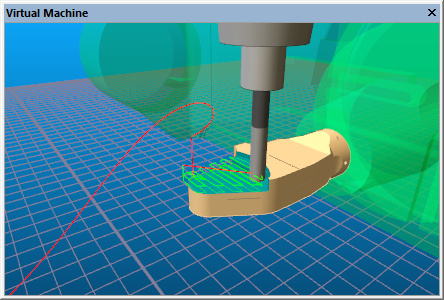
The (QUEST) and (GENER and CERUN) function makes the currently selected object or objects invisible in the currently active simulation window. Compare this to the function below. Once an object is hidden, it is no longer shown in the simulation window.
To select an object, press and hold the Ctrl key (if you are in Camera mode), move the mouse pointer to the object to be selected, then press the left-mouse button. The selected object will become transparent. You can deselect an already selected object, or add more objects to the list of selected ones, by holding the Shift key down when making a selection. Press Ctrl B to make the selected objects invisible.
In the image shown above, the machine enclosure has been hidden (it is longer visible), and the tables and fixtures have been selected (they are shown transparent). Hiding and selecting are two methods you can use to get an unobstructed view of the manufacturing process.
(CERUN & GENER only)
The function makes the currently selected object or objects invisible in all of the simulation windows. Compare this to the function above.
(QUEST only) (Ctrl Alt B)
(CERUN & GENER only) (Ctrl Alt B)
The function makes visible all hidden objects in the currently active simulation window. Compare this to the function below. Select this function a second time to again hide the objects that were just made visible.
(CERUN & GENER only)
The function makes visible all hidden objects in all of the simulation windows. Compare this to the function above. Select this function a second time to again hide the objects that were just made visible.
(QUEST only) (Ctrl Shift B)
(CERUN & GENER only) (Ctrl Shift B)
The function reverses the “hidden” state setting for all objects in the currently active simulation window. Objects that are hidden will now be shown; those that are shown will now be hidden. You can use this feature to unhide one or more selected objects, as follows:
Type Ctrl Shift B to show just the hidden (and any selected) objects
Select the objects you no longer want hidden
Type Ctrl B to remove them from view
Type Ctrl Shift B to return back to the original display