Event Macros
Event macros enable customization of model processing at certain key events, as follows:
Macro Type
When Executed
Called each time a block of tape is processed
Called at each motion
Called when transitioning from feed to rapid
Called at each change of feed
Called at a tool or head change
Double-click on the “Event Macro” heading in the Navigator to open the Event Macro view in the working window as shown below. Select a macro name and press the Modify button to create or edit it. Event macros can also be opened for editing by double-clicking on the macro name in the Navigator window. To ignore an event macro during VM processing, either uncheck the Enable box to disable it, or select the macro name and press the Delete button to remove it.
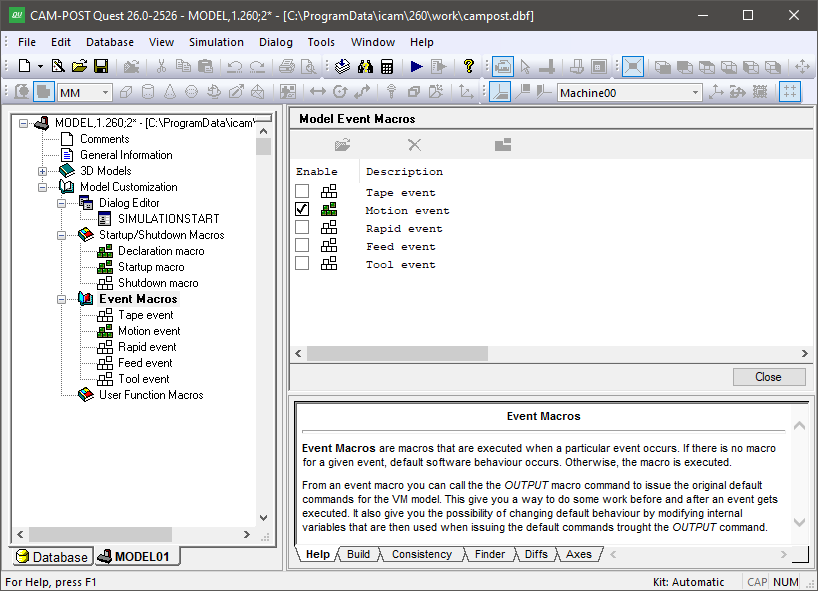
The Event Macros Facility
All event macros are passed information about the event that is about to happen. This information is passed in the form of $P arguments, named after the variable type that is used within the macro to access the data. Some $P arguments can also be set inside the macro to change the outcome of the event. Tables listing the $P arguments for each of the different macro types can be found below. The available $P arguments are also listed in the lower right Help window when you edit a macro.
Event macros are very similar to the startup/
actions before eventOUTPUTactions after event
The actions before and/
The designers of Virtual Machine chose to use startup and shutdown macros for some types of events and event macros for other events. For events that are separated by a potentially large gulf in time (e.g., model startup and model shutdown), it didn’t seem proper to have a “Model Event” macro that would remain active throughout the entire program, therefore separate Startup and Shutdown macros were implemented. For those events where macro intervention is likely to be brief, the designers chose to use Event macros.
Event Macro Types
The Tape Event Macro (GENER only)
This macro is called each time a block of NC code is output by the post-processor. Use a tape event macro to catch and process (for model purposes) NC instructions that cannot be easily caught using other methods.
The tape macro has a single $P variable.
$P
Description
$P1
Tape block string.
The OUTPUT command in a tape macro is ignored.
The Motion Event Macro
This macro is called as each motion is processed by GENER or CERUN, before the Tape event macro. Use a motion event macro to handle any special requirements that are related to axis motion.
The following $P variables are available with a motion event macro:
$P
Description
$P1
Motion type. Set this variable to 0 on exit to inhibit simulation of the motion. On input, the value is set as follows:
- 1:
Circular interpolation
- 2:
Threading
- 3:
FROM motion
- 5:
Linear motion
- 9:
Spline motion
$P2
End position. This is a sequence variable with 6 positions representing up to 6 active axes. Use the $AXES system variable to determine which axes are active.
$P3
Circle center (for $P1=1). This is a sequence variable containing the circle center XYZ location.
$P4
Circle plane vector (for $P1=1). This is a sequence variable containing the circle axis IJK vector.
$P5
3D circle midpoint (for $P1=1 and $P7=0). This is a sequence variable containing a mid-point location along the interpolated arc of the circle. Set for 3D circle only.
$P6
Circle direction (for $P1=1)
- 1:
clockwise (e.g., G2)
- 2:
counterclockwise (e.g., G3)
$P7
Circle plane (for $P1=1)
- 0:
3D circle (i.e., through point)
- 1:
2D circle in XYplane
- 2:
2D circle in ZX plane
- 3:
2D circle in YZ plane
$P8
Motion flags: These are integer flags indicating if the corresponding axis position as defined in $P2 requires a change in position of the axis.
- 0:
Axis is not moving and therefore the axis end-position should be ignored.
- 1:
Actively moving axis in workspace coordinates.
- 2:
Actively moving axis in joint coordinates.
An OUTPUT command must be encountered during motion event processing in order for VM to move the model to the coordinates defined by that event.
The Rapid Event Macro
This macro is called each time motion processing switches from feed interpolation to rapid positioning.
The rapid macro has no $P variables.
An OUTPUT command must be encountered during rapid event processing in order for VM to switch to rapid positioning.
The Feed Event Macro
This macro is called each time motion processing switches from rapid positioning to feed interpolation, or when the feed rate changes.
The feed macro has a single $P variable.
$P
Description
$P1
Velocity of the control point in model units per minute or per revolution.
An OUTPUT command must be encountered during feed event processing in order for VM to switch to feed interpolation.
The Tool Event Macro
This macro is called each there is a tool related event.
The following $P variables are available with a tool event macro:
$P
Description
$P1
Set to zero on return to have the simulation ignore the tool event. On input, the value is set as follows:
- 1:
TOOLNO command
- 2:
tool or head change
- 3:
tool or head selection
$P2
Type of change:
- 0:
tool
- 1:
head
$P3
Tool ID or head ID
$P4
Pocket ID or station ID
$P5
Tool index in $TLTAB or holder index in $HLDTAB (see $P3)
$P6
Tool axis ID
An OUTPUT command must be encountered during load tool event processing in order for VM to perform the tool change or selection operation.
Create or Modify Event Macros
To create or modify an event macro, double click on the macro name in the Navigator. Alternately, you can open the Event Macros section header in the Navigator, select one of the event macros listed in the upper right main working window (see image above) and then press the Modify button at the top of the window (or double-click on a listed macro). When a macro is created or modified, the macro editor occupies the main work space.
The lines of the macro define the actions to perform when the macro is called. These lines can contain any combination of variable assignments, logic statements, loops, function calls and control emulator commands. The macro processor executes the macro starting from the first line and working down line by line, except when the flow of processing is changed by loops and conditional or unconditional branching. Some control emulator commands and functions can cause a macro to “call” (i.e., execute) another macro. There is no practical limit on how deeply macros can be nested. Processing of the current macro picks up from where it left off after a call. See “The Macro Language” for more information concerning the content of a macro.
The Event Macro Editor
The Event Macro editor is identical to the Startup/
Delete or Disable Event Macros
To delete an event macro, open the Event Macros section header in the Navigator, select one of the event macros listed in the upper right main working window (see image above) and then press the Delete button at the top of the window (or the Delete key). A deleted macro cannot be recovered, so be careful when deleting.
You can also disable an event macro instead of deleting it. A disabled macro remains defined in QUEST, but VM will not process it by default. You can also enable or disable macros at run-time for testing purposes using the GENER or CERUN debugger.