Display Functions
Display functions control how the simulation is viewed and captured. These functions allow you to adjust the camera position, configure visual settings, and capture snapshots of the simulation environment.
The $FMSTPS Function
|
Sets tool path tracing properties Returns: Numeric (always returns 1) |
![\textbf{{\char36}FMSTPS}\textbf{(}\icamhsp{0.707mm}\!\begin{array}{l}\,\mathit{red},\mathit{green},\mathit{blue}\Bigl[,\mathit{width}\,\bigl[,\mathit{pattern}\,\bigr]\,\Bigr]\\\noalign{\vskip 0.5ex}\textbf{ON}\\\,\textbf{OFF}\end{array}\!\icamhsp{0.707mm}\textbf{)}](../../_images/math/57fcfaef35be34f6188aee8a777764955552f536.svg)
The first form of the $FMSTPS function sets the simulation window tool path tracing color, width and pattern, overriding the default tracing format. The red, green and blue parameters are values in the range 0-255, specifying the intensity of the three different color components that when combined will produce the desired color. The width of the trace can be specified in screen pixels, in the range 1-5 (default is 1). A drawing pattern can also be specified, in the range 0-5 (default is 0).
- 0:
- 1:
- 2:
- 3:
- 4:
- 5:
transparent


![\icamhsp{0.707mm}\raise0.03ex\hbox{$\Bigl[,\mathit{width}\,\bigl[,\mathit{pattern}\,\bigr]\,\Bigr]$}\icamhsp{0.707mm}\textbf{)}](../../_images/math/8823d88036fda6b9d640c35a34379ee4f5672ed5.svg)


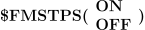
The second form of the $FMSTPS function enables or disables custom tool path styling. When enabled (ON), VM will output tool path tracing in the style last defined. When disabled (OFF), VM will output tool path tracing in the default style as defied in the dialog Tool path tab.
The $FMSCMRA Function
|
Set the simulation window viewpoint Returns: Numeric |

![\icamhsp{0.707mm}\bigl[\,\mathit{n}\,\bigr]](../../_images/math/b2782fc343aa60072eda375fc5ae58a34c61f137.svg)
![\icamhsp{0.707mm}\;\icamrange{0.66}{0}\,\bigl[,\mathtt{\char39}\mathit{property}\,\mathtt{\char39},\mathit{value}\,\bigr]\icamhsp{0.707mm}\textbf{)}](../../_images/math/7056ab15fe0e1e462de68547434fa20f30e553a7.svg)
The $FMSCMRA function can be used to set the simulation window viewpoint to a predefined model camera position, equivalent to selecting one of the CTRL 0 through CTRL 9 hot-key combinations. Specify the camera position using a whole number n in the range 0-9. No camera motion is taken if the predefined position has not been defined.
This function can also be used to set various simulation window display settings, by optionally specifying a series of display property names and desired property values. Property name keyword(s) are case insensitive strings that can be abbreviated to the bolded text as shown in the table below. Property values with a few exceptions are numeric. Names and values can be specified as any combination of variables and/
or constants, including sequences.
Menu setting
Property name
Values(s)
CAMERA.FIT
-1:as-is, 0:default, n:$FMSID of object(s) to fit in view (multiple IDs permitted)
CAMERA.CENTER
-1:as-is, 0:default, n:$FMSID of object(s) to center in view (multiple IDs permitted)
CAMERA.PIVOT
-1:as-is, 0:default, n:$FMSID of object(s) to pivot around (multiple IDs permitted)
CAMERA.ATTACH
-1:as-is, 0:default, n:$FMSID of object to attach camera to
CAMERA.PERSPECTIVE
-1:as-is, 0:orthogonal, 1:perspective
CAMERA.FRONT
-1:as-is, 0:unlock, 1:lock
CAMERA.BACK
-1:as-is, 0:unlock, 1:lock
CAMERA.TOP
-1:as-is, 0:unlock, 1:lock
CAMERA.BOTTOM
-1:as-is, 0:unlock, 1:lock
CAMERA.LEFT
-1:as-is, 0:unlock, 1:lock
CAMERA.RIGHT
-1:as-is, 0:unlock, 1:lock
CAMERA.LOAD
-1:as-is, 0-9:predefined, n:$FMSCMRA return value
WIREFRAME
-1:as-is, 0:off, 1:on
TOOL.PATH
-1:as-is, 0:off, 1:on
TOOL.VECTOR
-1:as-is, 0:off, 1:on
TOOL.OVERLAY
-1:as-is, 0:off, 1:on
FILTERS.MACHINE
-1:as-is, 0:off, 1:on
FILTERS.TOOLS
-1:as-is, 0:off, 1:on
FILTERS.FIXTURES
-1:as-is, 0:off, 1:on
FILTERS.SSTOCK
-1:as-is, 0:off, 1:on
FILTERS.PARTS
-1:as-is, 0:off, 1:on
FILTERS.ISTOCK
-1:as-is, 0:off, 1:on
FILTERS.CHECKPOINTS
-1:as-is, 0:off, 1:on
GRID.XYPLANE
-1:as-is, 0:off, 1:on
GRID.YZPLANE
-1:as-is, 0:off, 1:on
GRID.ZXPLANE
-1:as-is, 0:off, 1:on
na
GRID
-1:as-is, 0:off, n:$FMSID of grid reference
AXES
-1:as-is, 0:off, 1:on
KINEMATICS
-1:as-is, 0:off, 1:on
REFERENCE.WORKPIECE
-1:as-is, 0:off, 1:on
REFERENCE.TOOL
-1:as-is, 0:off, 1:on
SAFETY
-1:as-is, 0:off, 1:on
DISPLAY
-1:as-is, 0:off, 1:on, or scheme name (string)
Hide
HIDE
-1:as-is, 0:hide all, n:$FMSID of object(s) to hide (multiple IDs permitted)
Show
SHOW
-1:as-is, 0:hide all, n:$FMSID of object(s) to show (multiple IDs permitted)
BACKGROUND.TOP
-1:as-is, 0-255:RGB (3 values), or $FMSCOLR name (string)
BACKGROUND.BOTTOM
-1:as-is, 0-255:RGB (3 values), or $FMSCOLR name (string)
BACKGROUND
sets both TOP and BOTTOM
TOOL.TRACE
-1:as-is, 0:Tool tip, 1:SCP
TOOL.MODE
-1:as-is, 0:off, 1:all, 2:seconds, 3:tools, 4:operations; optional 2nd parameter specifies seconds|tools|operations value (-1:as-is)
If successful, this function returns a positive numeric value identifying the camera position and state before changes were applied. This returned value can be used in place of the predefined position n in a later call to $FMSCMRA, to reset the camera position and display settings back to their original settings.
The $FMSPIC Function
|
Takes a picture of the simulation window Returns: Numeric |

![\icamhsp{0.707mm}\bigl[\,\mathit{width},\mathit{height}\,\bigr]](../../_images/math/cc77974ca429d0ed10926721738707604c3c7750.svg)
![\icamhsp{0.707mm}\bigl[,\mathtt{\char39}\mathit{file}\,\mathtt{\char39}\,\bigr]](../../_images/math/76ae9f41f5048f6fb12687d91dfd97c685ecfc4e.svg)
![\icamhsp{0.707mm}\bigl[,\textbf{TIME},\mathit{s}\,\bigr]](../../_images/math/694d5c7425fffc20dbe34931410bd79d936e0615.svg)
![\icamhsp{0.707mm}\bigl[,\textbf{CAMERA},\ldots\,\bigr]\icamhsp{0.707mm}\textbf{)}](../../_images/math/9f291e34c123c4929ae32386d4f523acd93c2d62.svg)
The $FMSPIC function takes a picture of the simulation window. All parameters are optional, but if specified they must be in the order shown above.
If an optional width and height are specified and both are positive values, then the image will have the specified dimensions in pixels. The simulation window will not be affected nor need it be visible when picture dimensions are specified.
An optional file parameter (string variable or constant) can be specified to override the default directory and/
or file name for the resulting PNG formatted picture. If file is omitted or does not specify a directory, then pictures will be saved in the folder identified by the vm_picture_dirconfiguration (i.e., DEF file) variable. If this variable is not defined or is blank, then pictures will be saved in the user's “Pictures\” folder. If file is omitted or does not specify a file name, then pictures will be saved in “picnnn.png” files where “nnn” is a unique 3-digit value.ICAM\ 270 An optional TIME,s couplet can be specified to take a picture of the simulation at an earlier moment time (where s is measured in seconds from the start of the simulation).
An optional CAMERA parameter list can be used to temporarily set the camera and display settings to desired values before taking the picture. The original camera and display settings will be restored after the picture is taken. See the $FMSCMRA function for a list of available settings.
This function returns a value of 1 if a picture was taken; otherwise a value of 0 (zero) is returned to indicate failure.