The Dialog Editor
The Dialog Editor is used to build dialog boxes, which are then used at run-time to query the user for any information that is necessary during simulation. You can create many different dialogs, each with a unique name, which are then activated using the $FDIALOG macro function call.
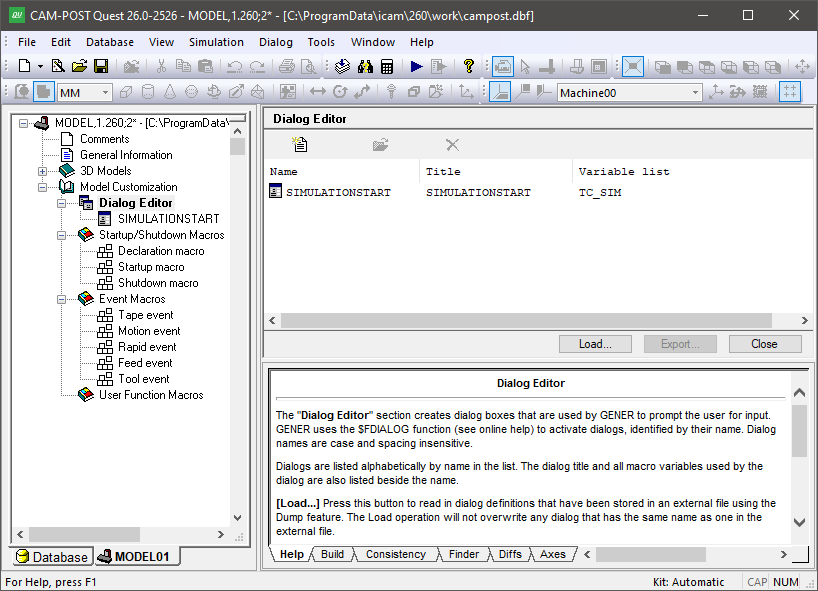
The Dialog Editor Facility
Press the Add button to create a new dialog. You will be prompted for the dialog’s name, which is how the dialog will be identified in the $FDIALOG function call. Spacing and letter-case are not significant in dialog names. Dialogs are listed alphabetically by name. For each dialog, the listing includes its name, the caption title that will appear at the top of the dialog window and a list of all macro variables referenced by the dialog (dialogs operate by getting and setting macro variables). Note that a single dialog containing all user input requirements is generally preferable to the user (if properly constructed) than a series of smaller dialogs.
Select an existing dialog from the list and press the Modify button (or double click on a list entry) to make changes to an existing dialog. Select one or more dialogs and press the Delete button to remove them from the model. This function cannot be undone.
There are also Load and Export buttons that can be used to read
and write dialog definitions from/
The Finder utility includes a “Dialogs” option to include dialog definitions when searching through a model for matching text. The Diffs utility also checks for differences in dialogs when comparing models. Dialogs are listed in XML format in the Finder and Diffs tabs.
The Dialog Template Editor
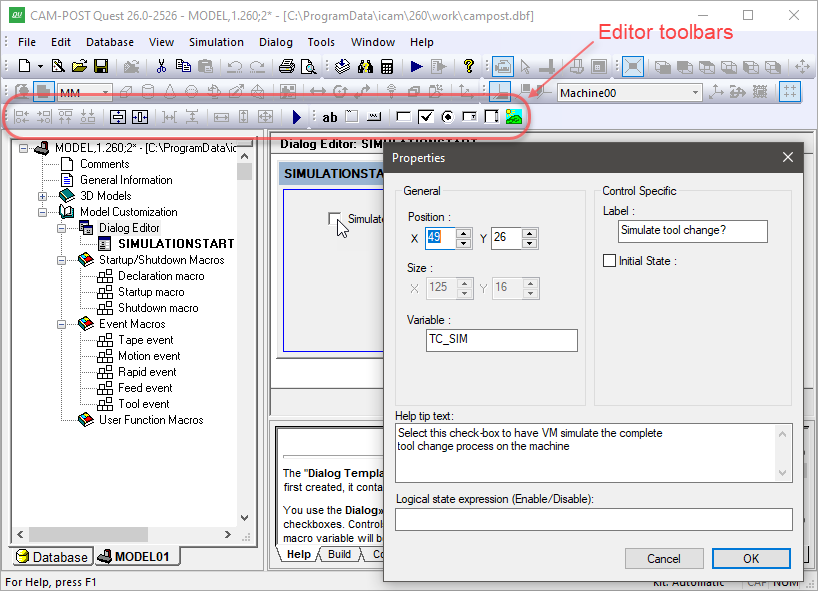
When a dialog is first created it consists of a single window frame and two buttons: OK and Cancel. The image below shows an example of the dialog template editor.
The Dialog Template Editor
The window frame can be resized by selecting it and then dragging (with the left-mouse button held down) one of the three resize points on the exterior of the window. You can also double-click on the window to edit the window's “Properties”, which include: its caption title, name, size in screen pixels and margin (like the margins of a printed page). Similarly, the OK or Cancel button can be selected and resized using the mouse, or double-clicked on to edit its button properties. This behavior is true for all dialog “controls”.
Dialog Controls
Dialogs can contain a number of different types of window controls, which can be selected from the Controls toolbar or from the menu. To create a new control, select the control type and then interactively place it on the window frame. After placing the control, you will be prompted for the control’s properties. The following control types are available:
Text: Use this control to add text to your dialog. Properties include the position and the text itself. You can use line breaks in the text input field to show multi-line text in the dialog. The text control is automatically sized to the required text width and height.
Frame: Use this control to visually group related dialog controls. Properties include the text label that appears at the top-left corner of the frame and the position and size of the frame.
Button: Use this control to create buttons, such as the OK and Cancel buttons. Properties include the text label that appears inside the button, the type of button and the position and size of the button. Buttons with an “OK” type cause the dialog to close when they are pressed, returning the button label text (e.g., “OK”) as the return value to the $FDIALOG function and all dialog macro variables set as shown in the dialog. Buttons with a “Cancel” type cause the dialog to close, returning the button label text (e.g., “Cancel”) and leaving all dialog macro variables unchanged (but initialized if necessary). Buttons with a “Reset” type don’t close the dialog; instead, they reset all controls to their initial state. Buttons with a “Call Dialog” type activate the specified dialog when pressed. A dialog called in this manner must reside in the same model or external file as its caller. You can choose to display (and return) any text you want for a button.
Edit: Use this control to create a field that will optionally accept user-typed input. Properties include the default value for the field, its associated macro variable, the position and size of the edit box field, an “Editable” flag indicating if the field can be changed by the user and a “Numeric only” flag with optional minimum/
maximum range limits to force user input to be numeric. When the $FDIALOG function is called, the edit box field will initially be set to the macro variable value. The edit box field will instead initially be set to the default value if the macro variable does not exist, or is $NULL, or is an empty string. The macro variable will be set to the contents of the edit box field when an OK type button is pressed. Check: Use this control to accept logical True/
False type input from the user. Properties include an optional text label that will appear to the right of the check box, the default set/ clear state for the check box, its associated macro variable and the position of the check box control. When the $FDIALOG function is called, the check box field will initially be set if: the variable is logical and is true; or the variable is numeric and non-zero; or the variable is text and is $TRUE. The check box field will initially be cleared if: the variable is logical and is false; or the variable is numeric and zero; or the variable is text and is $FALSE. The check box field will instead initially be set to the default value if the macro variable does not match any of the preceding, or does not exist, or is $NULL. The macro variable will be set to one of the true/ false conditions, based on the macro variable type, when an OK type button is pressed. Radio: Use this control to present the user with a series of exclusive choices. Properties include an optional text label that will appear to the right of the radio button, an optional alternate return value, an initial state setting, its associated macro variable and the position of the radio button control. When a radio button is selected, the macro variable will be set by default to the label text. You can choose to return something different for the variable by specifying an alternate return value (e.g., a number). You must have two or more radio button controls sharing the same macro variable. You can choose which one is the default state (setting the default state in one control clears this flag in the others). When the $FDIALOG function is called, the radio button that first matches the current macro variable is the one that will be shown selected. The default radio button will be shown selected if no match was found. When an OK button is pressed, the macro variable will be set to the label text or alternate return value text of the selected radio button.
Combo: Use this control to present the user with a number of listed choices, available in a drop-down menu. Properties include the list of valid choices and/
or a macro variable that will define the acceptable choices, the default value for the combo box, its associated macro variable and the position and size of the combo box field. If you choose to use a variable to define the list of choices, this variable must either be declared as an array or created as a sequence. It must be initialized before calling the $FDIALOG function. The default value will be used if the macro variable does not match any of the choices. The macro variable will be set to the selected choice type when an OK button is pressed. List: This control is similar to the combo box control, except that the choices are visible in a scrolling list.
Picture: Use this control to display an image in the dialog. Supported image formats include BMP, GIF, JPG, and PNG.
Browse: Use this control to create a text field with a browse button that can be set to browse for a file or a folder. The associated macro variable will hold the absolute path of the selected file or folder. The control is set to browse for files by default. Folder browsing can be selected in the property dialog.
All dialog controls (except for Picture) include a
“Logical state expression (Enable/
All dialog controls accepting input include a “Help tip text” property, which can be used to provide helpful information to the user in the form of a tool-tip that will appear when the mouse pointer hovers over the control.
Dialog Utilities
Controls are initially placed inside the dialog using the mouse. Once created, they can be repositioned, aligned and sized relative to other controls using the arrow keys and the functions available from the Utilities toolbar, or from the menu. Hold the Ctrl key when resizing a control to retain its current aspect ratio. To reposition two or more controls, select each in turn with the left-mouse button while holding the Ctrl key, then use the arrow keys or press and hold the left-mouse button to reposition the selected controls.
Align Left: Align the left edges of the selected controls with the dominant control.
Align Right: Align the right edges of the selected controls with the dominant control.
Align Top: Align the top edges of the selected controls with the dominant control.
Align Bottom: Align the bottom edges of the selected controls with the dominant control.
Center Vertically: Center the selected controls vertically within the dialog.
Center Horizontally: Center the selected controls horizontally within the dialog.
Space Vertically: Evenly space the selected controls vertically.
Space Horizontally: Evenly space the selected controls horizontally.
Same Width: Resize the selected controls to have the same width as the dominant control.
Same Height: Resize the selected controls to have the same height as the dominant control.
Same Size: Resize the selected controls to have the same size as the dominant control.
Dialog Tab Order
The menu function specifies the order in which controls are visited when you press the Tab key. Each control is shown with a numbered box indicating its position in the tab order. Using the left-mouse button, click the boxes in the order in which focus should advance when the dialog is running. To keep the current order up to a given control, hold down the Ctrl key while clicking its numbered box; the boxes up to and including that number are then accepted, and you continue by clicking the remaining boxes in the order desired. Click anywhere outside a numbered box to complete the tab-ordering operation.
Dialog Test
The menu function lets you try out how dialogs will behave when used at run-time.