Selecting a Virtual Machine Model
Virtual Machine models are stored in an Icam database, typically along with associated post-processors and control emulators. A model must be selected either explicitly or through association in order to simulate the part program. In addition, simulation must be activated in GENER and CERUN, either by launch panel settings (described below) or by command line options.
Detailed information on CERUN specific launch panel settings and command line options can be found in the “Icam Control Emulator V27 User Guide”. Similarly, GENER specific launch panel settings and command line options can be found in the “Icam Post V27 User Guide”.
Selecting a Model from the Launch Panel
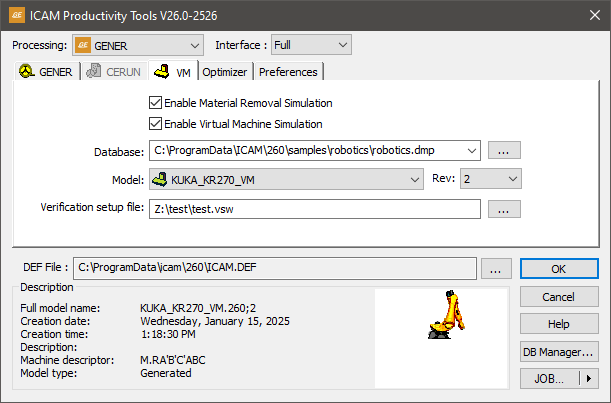
The VM tab of the launch panel is used to associate a Virtual Machine model with the selected control emulator (CERUN) or post-processor (GENER). With PSE processing, the same model is used for both GENER and CERUN, which can be run together in parallel or one after the other in series. The description box shows a preview of the model that was taken when the model was generated.
To see the Virtual Machine simulation, use the “Full” interface display setting (set at the top of the launch panel). When the full-display window appears, you may have to enable the simulation windows using the menu selection. GENER and CERUN remember global display settings in the Windows Registry, and remember part program specific display settings in the vsw file. Once the display is set to your satisfaction, you normally will not need to perform any special steps to see the same display on a subsequent run of the same part program.
Enable Material Removal Simulation
Select this checkbox to enable the simulation of the material removal process with respect to the stock model. Material removal simulation (MRS) shows the effect of the cutting action of the tool on the stock model. MRS also improves the collision detection process when used with a model (see below), using the in-process stock for collision testing. If this checkbox is not checked, it will not be possible to start MRS once the program has started.
MRS is an add-on licensed option to VM. This checkbox will only be available for selection if you have an xmr270 product license.
Enable Virtual Machine Simulation
Select this checkbox to enable the simulation of the CNC machine using a Virtual Machine model. Machine simulation shows the effect at the CNC machine as the MCD is read, and it also provides axes over-travel checking and collision detection. If this box is not checked, it will not be possible to start machine simulation once the program has started.
Database
This input field is used to select the database that contains the model to use. You can browse for a database using the square browse button [...] located immediately to the right of the text window, or you can drag and drop a database (.dbf, .dmp, .dp) file onto the launch panel VM tab pane. The last four database selections are remembered. They can be re-accessed by selecting them from the drop-down list. The browse database panel remembers the last directory browsed for a database, unless the icam_dbf environment variable is set.
Model and Rev
Use these input fields to choose a model from the selected database. The model drop-down presents a list of all models in the selected database. The revision field lists the latest revision of the selected model and the drop-down lists other revisions, if any. Information about the selected model will appear below the input field.
One of the available model choices is “Use associated”, which when selected will use the model associated with the selected control emulator (CERUN or PSE processing) or post-processor (GENER processing). You cannot choose a specific revision of a model that is selected by association.
Verification setup file
This file contains part program specific setup information such as tooling, part, stock, fixture, compensation, lighting adjustments and a variety of other settings unique to each NC program. This field is automatically set to the same name as the MCD file, with a file extension of “.vsw”. You can change the name for a single execution of the control emulator; either by typing a file name, using the [...] browse button or dragging and dropping a vsw file into the launch panel VM tab, but the settings will not be remembered the next time GENER or CERUN is launched.
A verification setup file that has been created with GENER during post-processing can later be reused by CERUN during MCD verification, and vice versa.
Selecting a Model from the Command Prompt
VM can also be activated using the following GENER and CERUN command
line options. These options can appear in any order on the GENER or
CERUN command line. To see the simulation, use the “/

Specifies the database file name (.dbf) that contains the Virtual Machine model definition. If this qualifier is not specified, the model will be loaded from the same database as the control emulator (CERUN or PSE processing) or post-processor (GENER processing).
![\begin{array}{l}
\rule{0pt}{2.5ex} \textbf{/model}\big[\mathtt{=}\mathit{model\text{-}name} \,\big]\\
\rule{0pt}{2.5ex} \textbf{/nomodel} \hspace{2.0in} {\small \textnormal{(default)}}
\end{array}](../../_images/math/e7116808155994cc5d7c5fc95dd35f75d7c86783.svg)
Specifies the name of the Virtual Machine model to use. This option is necessary to activate VM. If a model name is not explicitly given then the model associated with the control emulator (CERUN or PSE processing) or post-processor (GENER processing) will be used. If a name is given, it must match the responses given for the model name and identification number in the “General Information” section in QUEST. It can be specified explicitly in the form:
AAAAAA,
NN;VV where AAAAAA is the 1-32 character case insensitive name of the model. The “,
NN” portion specifies the model identification number in the range 1-999999. Omit this for models that do not have an identification number. The “;VV” portion can be used to specify a particular revision of the model to use. If omitted, the most recent revision will be used. For example, if the model was saved in QUEST under the name “MYMODEL, 3”, then specify the model name as follows: /
model= mymodel, 3 Specify /
nomodel to inhibit Virtual Machine processing (this is the default).

Enables or disables the use of MRS (material removal simulation) during processing. MRS requires an xmr270 license option. MRS can be used by itself to simulate just the cutting actions of the tool vs. stock, or it can be used with a Virtual Machine model for a complete simulation.
Specify /
nomrs to inhibit MRS simulation (this is the default).

Optionally specifies the name of the verification setup (.vsw) file. On startup, Virtual Machine reads the setup file to obtain tooling, part, stock, fixture, compensation, lighting adjustments, and a variety of other settings. On exit, VM saves this information back to the setup file. By default, the setup file has the same name as the input file with a file type of “.vsw”. The setup file need not exist.