Selection Groups
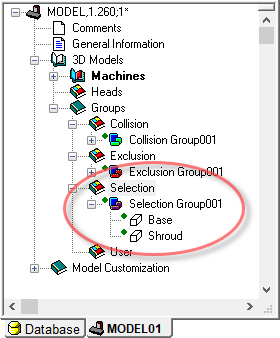
Selection groups are used to combine various objects into a group, so that selecting any one object in the group has the same effect as selecting all of the objects in the group. Grouping related objects in selection groups makes it easier in GENER and CERUN to select and hide (or unhide) a component of the machine.
For example, in the sample machine created to this point, the Shroud and Base objects could be grouped together into a single selection group, so that at run-time the entire base of the machine could easily be hidden by a single click followed by a (Ctrl B) menu selection.
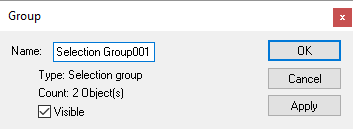
Selection groups can be found in the navigator window under the header. You create a new group by dragging an object to the header. You add objects to an existing group by dragging them to the group header. You can also drag an entire collision or exclusion group to the selection group header to create a new selection group. You can create as many selection groups as are necessary to best represent the grouping of objects of your model. Note though that the same object cannot appear in multiple selection groups. Objects and entire groups can be deleted to remove the selection relationships. Finally, you can open the Properties of a selection group and disable the visibility property of the group, so that the group starts off hidden in GENER and CERUN.

The grouping of objects can make it impossible to select and edit the properties of a particular object in the simulation window if it is grouped with other objects. For that reason, in QUEST only, selection grouping can be toggled on and off using the menu bar function (and also using the Group button shown circled above on the VM Construct toolbar).