Controlling Virtual Machine from the Part Program (GENER only)
GENER can use VM in a proactive fashion, to detect potential collisions and optimize the generated MCD, where possible, by taking corrective action to avoid these collisions. GENER provides a post-processor command interface to VM, primarily to define a collision avoidance plane, but also to control other aspects of the VM simulation.
GENER provides post-processor commands to control VM for the following purposes, each of which is described in the sections that immediately follow:
GENER and CERUN can also control the simulation with macro functions. CERUN does not provide a collision avoidance function because CERUN is used only to verify an MCD program; CERUN does not change the MCD program in any way.
It is important to note that VM post-processor commands and macro
functions will have no effect if VM was not activated when GENER was
first started. VM can be activated by selecting the “Enable Simulation”
checkbox on the launch panel VM tab, or by specifying the “/
Enable/
The ADAPTV post-processor command can be used to enable or disable simulation of the model. This global command setting takes precedence over all other settings that control simulation behavior.
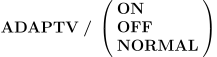
ON enables simulation, which is the default. OFF disables simulation.
While disabled, the simulation windows will no longer be updated by the
post-processor, and most importantly, simulation diagnostics and
collision avoidance motions will no longer be output. Running with
ADAPTV/
NORMAL enables simulation during regular post-processing, and disables
simulation during $FLOOK and $FINFO macro function look-ahead
processing. This speeds look-ahead processing, but should only be used
if the look-ahead functions of the post-processor are not affected by
collision testing. Alternatively, specify the ADAPTV/
IF/$FLOOK(1,…).EQ.0
  ADAPTV/OFF
  …
ENDOF/IF
The ADAPTV command will have no effect if VM was not activated when GENER was first started.
Enable/
The following ADAPTV command controls collision and overtravel detection and avoidance:
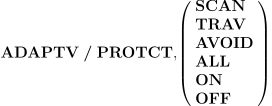
SCAN diagnoses collisions and overtravel conditions. TRAV avoids
overtravel conditions if possible during path-planning. AVOID
avoids collisions if possible during path-planning. ALL avoids both
overtravel and collisions during path planning. OFF disables collision
and overtravel reporting and testing altogether. ON re-enables the last
specified ADAPTV/
Error #1409008: Simulation reported collision between object1 and object2.
Error #1409009: Simulation reported overtravel: axis_name.
Path-planning based overtravel avoidance is automatically enabled in
GENER during 5-axis machining whenever LINTOL/
Error #1409012: Simulation feedback reports that it is not possible to avoid collision or overtravel.
From the perspective of the post-processor, running with
ADAPTV/
Enable/
Positioning collision avoidance can be enabled under program control to avoid collisions that occur during RAPID positioning motions. When enabled, a positioning collision avoidance motion will be attempted when a collision occurs somewhere during a positioning motion, while at the same time both the start-point and end-point of the positioning motion are collision free. The collision avoidance motion includes an initial rapid retract along a specified machine linear axis to position clear of the work, followed by a rapid motion along the other two linear axes to the end-point position, and finally a rapid plunge of the tool to the end-point position.
Positioning collision avoidance is controlled with the ADAPTV command as follows:


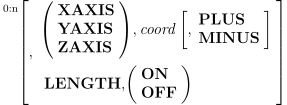
The clearance avoidance plane is established along the named machine
axis (XAXIS, YAXIS or ZAXIS) at the specified machine coordinate
position (not part coordinates). The first motion of a collision
avoidance sequence will be in the specified direction (PLUS or MINUS) to
the named axis position. PLUS is assumed if the direction keyword is
omitted. No automatic clearance avoidance will be attempted if the named
axis is already at or beyond the clearance position. If LENGTH,
Positioning clearance avoidance is not active by default. A clearance axis and coordinate must first be specified to activate this feature. Once this is done, the feature can be disabled (OFF) and re-enabled (ON) as required using the following command:

The ADAPTV/
Message #1409013: Simulation adjusted the RAPID positioning sequence to avoid a collision.
Error #1409012: Simulation feedback reports that it is not possible to avoid collision or overtravel.
The ADAPTV/
Enable/
Flute length optimization (FLO) can be enabled under program control to determine the maximum required flute length of cutting tools. When enabled, material removal simulation (MRS) will perform additional calculations to determine the maximum penetration of the tool into the in-process stock. The maximum required flute length is displayed in the GENER or CERUN listing file when the tool is unloaded, and in the summary at the end of processing.
The following ADAPTV command controls flute length optimization:

![\icamhsp{0.707mm}\bigl[,\textbf{OPTION},\mathit{n}\,\bigr]](../../_images/math/7e78b0eebad53e1e5aa0d59bf2bdb59e24512739.svg)
![\icamhsp{0.707mm}\bigl[,\textbf{ADJUST},\mathit{value}\,\bigr]](../../_images/math/45cd52a2cca0da2d5eeee988ac325da138fa2b19.svg)
The OPTION value n selects the method used for FLO calculations.
OPTION,
OPTION,
Flute length optimization is not active by default. The feature can be disabled (OFF) and re-enabled (ON) as required using the following command:


The ADAPTV/
Message #1329030: Tool tool, nominal flute length value, maximum flute length value recorded at VM time hh:mm:ss.
Warning #1329031: Tool tool, nominal flute length value exceeded, maximum flute length value recorded at VM time hh:mm:ss.
The ADAPTV/
Camera Positioning under Program Control
The following CAMERA command will position the camera to one of 10 predefined positions:

Predefined camera positions are described here.
The CAMERA command will have no effect if VM was not activated when
GENER was first started, or if ADAPTV/
Load Predefined Setup
The following LOAD command will load the specified or next setup:
![\textbf{LOAD}\;\textbf{/}\;\textbf{SETUP}\,\bigl[,\mathit{n}\,\bigr]](../../_images/math/7b0bee86fc6b274fb165305545e19deb5134c568.svg)
Setups are defined in the Simulation Manager, as described here. If a setup identifier n is given, then the simulation session will change to match the specified setup. If the setup identifier n is omitted, then the next sequential setup will be selected, as listed in the Simulation Manager. Setups can be loaded in any order and the setup identifiers do not have to be sequential.
The LOAD/
Adjust Model Axes Travel Limits
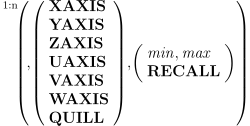
The following LIMIT commands will adjust axes travel limits of GENER and CERUN controllable axes that are defined in the model. Model travel limits can also be adjusted using the $FMSLIMIT function. See here for a table correlating axes name keywords with machine axes.


![\icamhsp{0.707mm}\raise0.31ex\hbox{$\icamrange{6.1}{1}\!\begin{pmatrix}\!,\!\begin{pmatrix}\!\begin{array}{l}\textbf{AAXIS}\\\textbf{BAXIS}\\\textbf{CAXIS}\\\textbf{AAXIS},\textbf{TABLE}\\\textbf{BAXIS},\textbf{TABLE}\\\textbf{CAXIS},\textbf{TABLE}\\\textbf{RAM}\,\bigl[,\mathit{n}\,\bigr]\end{array}\!\end{pmatrix}\!,\!\begin{pmatrix}\!\begin{array}{l}\mathit{min},\mathit{max}\\\textbf{ON}\\\textbf{OFF}\\\textbf{RECALL}\end{array}\!\end{pmatrix}\end{pmatrix}$}](../../_images/math/f46cc65c48e08845caaf7c4cc5801f002414948e.svg)
The minimum and maximum travel can be set for named axes. OFF can be specified for rotary axes to remove travel restrictions; ON enables the previously specified rotary limits (if any). RECALL resets the travel limits to those defined by the model developer.

The above command resets the travel limits of all GENER and CERUN controllable axes to those defined by the model developer.
Adjust Model Axes Travel Limits for SmartPATH
The following LIMIT/

The SMARTP option activates the specified limits only during SmartPATH analysis. There are two additional conditions for applying the specified limit:
The start and goal points of the positioning sequence being optimized must be within the specified limit. This condition allows the tool to be located outside the specified limit when at the tool change or home position.
The post processor-VM combination must have $KINENG=
1 specified.
This command is primarily intended for machines with large travel ranges. It increases the optimality of generated positioning motions by reducing the travel range solely for SmartPATH analysis. The command is modal, so it only needs to be specified once, for example, in the machine startup macro. The specified travel range should be larger than the bounding box of the stock and related fixtures. The size of the bounding box can be determined using the undocumented $FMSMSHR function (contact Support for details).
The SmartPACK Family of Commands
The SMARTP command provides access to the SmartPACK family of
advanced optimizations. These use Virtual Machine and/
Optimize Positioning with SmartPATH™
The SmartPATH add-on (sph270 license option) optimizes part program positioning motions. It can replace unsafe or inefficient CAM generated positioning motions, with safe optimized motions based on the machine’s kinematics, physical travel limitations and axes positioning rates. SmartPATH ensures the generated multi-axis motions do not cause collisions with dynamically changing in-process stock and all other surroundings, such as the fixtures and moving as well as non-moving components of the machine.
SmartPATH is activated using the following command:
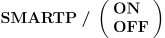
ON and OFF enable or disable positioning motion optimization. When
activated, RAPID and high feed positioning motions
(as defined via the FEDRAT/
SmartPATH uses Virtual Machine simulation to test for collision and overtravel conditions during post-processing. SmartPATH relies on Material Removal Simulation (xmr270 license option) to test for collisions between the in-process stock and all other components in the simulation (e.g., machine, fixtures, tooling).
Positioning Clearance
There are various commands that can be used to specify minimum clearance distances to respect when generating positioning tool paths:

The SAFE parameter specifies a minimum safety distance to apply between the tool and all other components in the simulation during positioning motions. The tool will be positioned at the cutting feed rate when approaching or disengaging from the cut within this distance to the stock. This can be used to ensure the tool is always moving at feed when cutting stock. Specify a distance of 0 (zero) to inhibit this safety test.

The WALL parameter specifies a minimum safety distance to apply between the side of the tool and the stock at the start and end of positioning motions. The tool will be positioned laterally at the cutting feed rate when within this distance to the stock. This can be used to ensure the tool does not leave dwell marks due to contact along the side of the tool. Specify a distance of 0 (zero) to inhibit this safety test.

The CLEAR parameter specifies a minimum axial safety distance to apply at rapid when approaching or disengaging from the cut. This ensures a “squared-off” style of motion, with the last positioning approach motion being a plunge and the first positioning clearance motion being a retract. Specify a distance of 0 (zero) to inhibit additional axial positioning clearance.

![\icamhsp{0.707mm}\bigl[\,\textbf{BACK},\mathit{bdist}\,\bigr]](../../_images/math/36e752fee62b933a173658535abce6196d9dbf67.svg)
![\icamhsp{0.707mm}\bigl[,\textbf{FEDTO},\mathit{fdist}\,\bigr]](../../_images/math/a43ac2e041925285f0418626ba4db37164c488b8.svg)
The BACK parameter specifies a minimum axial safety retract distance to apply at cutting feed when disengaging from the cut. This is applied before any CLEAR axial clearance retract, but after any WALL lateral clearance. The FEDTO parameter specifies a minimum axial safety plunge distance to apply at cutting feed when engaging to the start of the cut. This is applied after any CLEAR axial clearance plunge, but before any WALL lateral clearance. Specify a distance of 0 (zero) to inhibit additional axial feed clearance.

The CYCLE parameter determines where in a cycle that SmartPATH can connect positioning motions. RETURN uses the higher of the cycle return or clearance planes. CLEAR (the default) uses the cycle clearance plane, ignoring any RETURN value coded in CYCLE commands.
Positioning Velocity
There are various commands that can be used to specify the velocity to use when approaching or disengaging from the cut:
![\textbf{SMARTP}\;\textbf{/}\;\textbf{RAPID}\,\bigl[,\textbf{OFF}\,\bigr]](../../_images/math/630fddf947759fdb003842843a51011eb4c38232.svg)
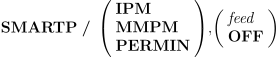
By default SmartPATH uses RAPID positioning when replacing CAM generated RAPID positioning motions, or uses high feed positioning if the CAM generated positioning path includes one or more high feed moves. The RAPID qualifier (alone) forces all rapid positioning; alternately a positioning feed can be specified. The OFF qualifier selects the default behavior.

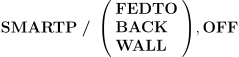
By default SmartPATH uses the programmed feed for final approach (FEDTO), initial retract (BACK) and wall clearance (WALL) motions. An alternate feed can be individually specified for each of these types of motions. The OFF qualifier selects the default behavior.
Reference Home Positioning
SmartPATH can optionally compute the positioning path to and from the
machine reference home and/

ON and OFF enable or disable positioning motion optimization to and from machine reference positions.
OFF is the default, which requires that the NC programmer include one
clearance positioning motion following each tool change and another
just before the next tool change or end of program. When OFF, it is
the NC programmers responsibility to safely position between these
clearance points and the machine reference frame. When ON, the
Virtual Machine model must contain the reference home and/
Additional SMARTP/


The TOOL parameter specifies a minimum safety distance to apply between the cutting tool and other objects, specifically when moving to or from the machine reference home. This additional safety can help account for any uncertainty involved when making the transition between workpiece and machine frames. The OFF qualifier disables additional tool safety distance; the ON restores the last specified safety distance.
![\icamhsp{0.707mm}\textbf{GROUP}\,\bigl[,\mathtt{\char39}\mathit{name}\,\mathtt{\char39}\,\bigr],](../../_images/math/9929d6ce524f5ad5bf5769e48b1807cbbcc5c862.svg)
The GROUP parameter specifies a minimum safety distance to apply between the named model component group (default name ‘smartpath’) and other objects, specifically when moving to or from the machine reference home. The OFF qualifier disables additional group safety distance; the ON restores the last specified safety distance.
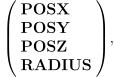

The above command provides the ability to tightly control the entry
and exit position when making the transition between workpiece and
machine reference frames. One axis of the machine can be constrained
to position to a specified machine value, where POSX, POSY or POSZ
define the X, Y or Z axis value of the positioning move. Alternately,
the machine can be forced to position to the surface of a sphere,
centered at the workpiece origin with a specified radius. The OFF
qualifier disables special entry/
Optimize Air-Cutting with SmartCUT
The SmartCUT add-on (sct270 license option) optimizes part program cutting motions. It uses material removal simulation to detect when the tool is not engaged with the material (i.e., is not cutting) while at the same time being programmed to move at a cutting feed. Where feasible SmartCUT changes these time wasting “air-cutting” motions to RAPID or high-feed.
SmartCUT also detects RAPID or high-feed motions that cut into the in-process stock and (in addition to generating warning diagnostics) automatically reduces the feed rate to the upcoming programmed feed to avoid tool breakage. Similarly, when leaving the material, SmartCUT detects RAPID motions that cut the stock when leaving the part, and automatically slows down these cutting motions to the last programmed feed.
SmartCUT is activated using the following command:

ON and OFF enable or disable air-cut optimization. When active, SmartCUT uses Material Removal Simulation (xmr270 license option) to detect when material is being removed by the cutting tool.
SmartCUT and SmartPATH when used together can significantly improve NC programs containing time wasting air cuts. SmartCUT will detect the start point and subsequent end points of air-cut segments as normal, but instead of increasing the velocity along the programmed path will instead use SmartPATH to compute the fastest path to the start of the next cut. SmartPATH takes into account the current state of the in-process stock as well as part, fixtures and machine components, when computing the shortest path to the start of cut.
Combining SmartPATH with SmartCUT is controlled with the following command:
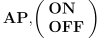
ON and OFF enable or disable SmartPATH optimization of air-cutting motions. When set to ON (default), SmartPATH is applied to all air-cutting motions. When set to OFF, SmartPATH does not modify air-cutting motions.
Where desired, SmartCUT optimization can be restricted to air-cutting motion segments meeting a basic length requirement:

The LENGTH parameter specifies the minimum length of an air-cutting tool path that can be a candidate for SmartCUT optimization. Air-cutting tool paths less than this length are left unchanged. Specify a distance of 0 (zero) to remove the minimum length restriction (the default).
Air-cut Clearance
The following commands that can be used to specify minimum clearance distances to respect when performing air-cut optimizations:

The MINDST parameter specifies a minimum safety clearance distance that must exist between tool and in-process stock, before the motion is considered air-cutting. Specify a distance of 0 (zero) to inhibit this safety test.

![\icamhsp{0.707mm}\bigl[,\textbf{BACK},\mathit{bdist}\,\bigr]](../../_images/math/2f67998d4e189f3a727325c8e36afb03aff4bfd7.svg)
The BACK parameter specifies a minimum safe disengage distance to use
when making the transition from cutting feed to air-cut positioning;
the FEDTO parameter specifies a minimum safe engage distance to use
when making the transition from air-cut positioning to cutting feed.
These are the distances to continue interpolating at feed, despite
being in an air-cut condition. Specify a distance of 0 (zero) to
inhibit additional disengage/
Air-cut Positioning Velocity
![\icamhsp{0.707mm}\textbf{RAPID}\,\bigl[,\textbf{OFF}\,\bigr]](../../_images/math/43587d4ae9254ef0e554fd8b8c0328db424d2e34.svg)
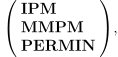

By default, the maximum machine feed is assigned to all air-cut motions. This can be changed by specifying a different feed value. Specify the RAPID qualifier (alone) to replace air-cut feed motions by rapid positioning options. The OFF qualifier resets air-cut positioning to use the default maximum machine feed.
Air-cut and SmartPATH
In most cases, air cutting motions are optimized out by SmartPATH. However, there
are instances where feed motions are carefully planned and should not be removed by
SmartPATH, regardless of whether they are cutting in the air or not. The AIRCUT,
The ON option enables for air cutting motions to be automatically replaced by the SmartPATH generated motions. This is the default behavior.
The OFF option prevents automatic replacements of SmartCUT detected air cuts
with SmartPATH generated positioning motions. Instead, if needed, the user can
define and utilize FEDRAT/
Optimize Cutting Feed with SmartFEED
The SmartFEED add-on (sfd270 license option) optimizes part program cutting motions. It uses material removal simulation to automatically recalculate the best machining feed rate based on the machine tool capabilities, tool reference cuts, and the real-time volume of in-process stock removed by the tool.
SmartFEED is activated using the following command:


This command enables (ON) or disables (OFF) feed-rate optimization. When enabled, SmartFEED uses Material Removal Simulation (xmr270 license option) to compute the volume of material being removed by the cutting tool. This information is then used to optimize cutting feed rates, with a graphical analysis displayed in the Controller window Time Line tab (see here). The SIMUL option performs the same feed rate analysis and display, but leaves the programmed feed rates unchanged in the NC program.
SmartFEED relies on reference cut information to perform material removal rate (MRR) based feed optimization. A reference cut defines the spindle speed, feed rate and material removal rate of a successful cut, which the software then uses to determine the feed to use for the cutting motions present in the NC program. Reference cut information can be provided in the following ways:



Feed, width and depth values are in units as specified on the last UNITS command. The material removal rate (MRR) value is the volume of material removed in cubic units per minute. A reference cut must be specified using either of the above two formats for feed optimization to occur. Reference cut information is modal.
SmartFEED permits limitations to optionally be enforced on the calculated feed, speed and spindle power:
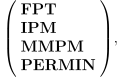


![\icamhsp{0.707mm}\raise0.05ex\hbox{$\begin{pmatrix}\!\begin{array}{l}\bigl[\,\textbf{WATTS},\bigr]\,\mathit{limit},\mathit{power}\\\noalign{\vskip 0.5ex}\textbf{OFF}\end{array}\!\end{pmatrix}$}](../../_images/math/fc3de61531816331fb7e5bbb8bd6587f38bf0449.svg)
The OFF qualifier individually removes any limitations that were previously imposed. The spindle power limit can be specified either in horsepower (the default) or in watts. The power parameter is the horsepower (or watts) required to remove one cubic unit of material.
SmartFEED provides various other settings that affect optimization, as follows:

Feed optimization uses material removal simulation to compute the amount of material being removed. The sampling distance can be set using the STEP,dist couplet, where dist is the maximum distance between any two samples. The default sampling distance is 5 mm or 0.2 inches, depending on output units.

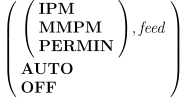
By default, the maximum machine feed is assigned to all moves where the calculated material volume removal rate is insignificant. This can be changed by specifying a different feed value. The AUTO keyword generates a high feed value calculated using the reference cut MRR and the maximum possible “insignificant” volume. The OFF qualifier resets to the default maximum machine feed.
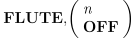
The number of flutes for the current tool is normally defined in the Virtual Machine tooling information, which is automatically set by the appropriate CAM Extractor when setting up the simulation session. This can be overridden by specifying the FLUTES,n couplet, where n is the number of flutes. The OFF qualifier (the default) uses the Virtual Machine tool definition.

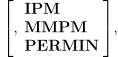


The RETAIN qualifier specifies the minimum change in feed necessary to warrant a change in feed being output to the NC program. Calculated changes in feed that are less than the specified minimum will be ignored. If the feed type qualifier is omitted, then the min value is the percentage change in feed. The OFF qualifier will result in the calculated feed being output on every NC block, if different.


The CUTS,n qualifier limits the increase in number of motions of the feed optimized tool path to be no larger than n for any given input block. Specify n as a whole number greater than zero. A value of 1 does not permit an increase. This is a local limit applied to individual motions.
The CUTS,
The OFF qualifier (the default) does not limit the number of additional motions that can be added to optimize the feed rate.


The STRVTM qualifier specifies a minimum block processing time limit in seconds to be applied when SmartFEED subdivides motions, which guards against NC block processing queue starvation on the machine. ON enables the last specified starvation time; OFF disables starvation time limit checking. The starvation time can also be set using the $SCSTRV macro system variable.

The ACCEL qualifier specifies feed acceleration (and deceleration) limits to be applied when changing feed rates in the output NC program. ON enables feed acceleration analysis, which adjusts the calculated optimal feed downwards if necessary to avoid accelerating the axes of the machine beyond their physical limits. These limits can be specified in the QUEST Control Description / High Speed Machining section and overridden using the command below. OFF disables feed acceleration analysis. Feed acceleration analysis will be on by default if QUEST defined limits are specified.

![\icamhsp{0.707mm}\raise0.88ex\hbox{$\icamrange{17.1}{1}\!\begin{pmatrix}\!,\!\begin{pmatrix}\!\begin{array}{l}\textbf{ALL}\\\textbf{LINEAR}\\\textbf{REV}\\\;\\\textbf{XAXIS}\\\textbf{YAXIS}\\\textbf{ZAXIS}\\\textbf{UAXIS}\\\textbf{VAXIS}\\\textbf{WAXIS}\\\textbf{QUILL}\\\textbf{AAXIS}\\\textbf{BAXIS}\\\textbf{CAXIS}\\\textbf{AAXIS},\textbf{TABLE}\\\textbf{BAXIS},\textbf{TABLE}\\\textbf{CAXIS},\textbf{TABLE}\\\textbf{RAM}\,\bigl[,\mathit{n}\,\bigr]\end{array}\!\end{pmatrix}\!,\mathit{value}\end{pmatrix}$}](../../_images/math/e39ba0d380f9a239bb1f672f9970e8b7f1834ad0.svg)
This command specifies the earth acceleration limit to be applied to various axes of the machine. ALL sets the same earth acceleration limit value for all axes, LINEAR sets the same limit for all linear axes and REV for all rotary axes. Limits can also be set for individual axes. See here for a table correlating axes name keywords with machine axes.