(CERUN & GENER only)
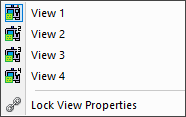
Provides access to up to four individual Virtual Machine simulation windows — through — each of which can be shown or hidden by toggling its corresponding menu item. Selecting a view window displays it if hidden or minimized, or hides it if already visible. The option determines whether view-related settings (such as projection mode or camera orientation) are shared across all visible windows. When locked, changes to one window are applied to all; when unlocked, each window can be configured independently.
The visibility of the “” simulation window can also be toggled from the View toolbar.
It is important to note that collision/
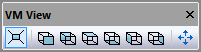
Simulation windows support both Perspective and Orthogonal projection, selectable by the leftmost button in the VM View toolbar. The middle six buttons of the VM View toolbar orient the camera to face the Front, Back, Top, Bottom, Left and Right views of the machine. The camera can only be panned but not rotated while one of these standard views is selected. At the start of processing, standard views are with respect to the stock mount point, but this can be changed by selecting a different component (e.g., the machine origin) in the VM Grid toolbar or by attaching the camera to an object in the scene (more on grids and attaching the camera to components later). The rightmost button in the VM View toolbar adjusts the camera aim and zoom (in that order) to fit the currently selected object so that it is fully visible in the simulation window (if no object is selected, then the camera is adjusted so all objects can be seen). All of these toolbar functions are also available from the menu.
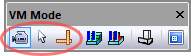
The three buttons on the left side of the VM Mode toolbar select the primary function of the left-mouse button (this can also be set from the menu). When in “Camera mode”, holding the left-mouse button down while moving the mouse changes the orientation of the camera. The cursor appears as a four-way arrow when in Camera mode. When in “Selection mode”, pressing the left-mouse button selects the object under the mouse pointer. The cursor appears as a simple arrow when in Selection mode. When in “Measurement mode”, pressing the left-mouse button either starts or completes a measurement function using the selected object under the mouse pointer. The cursor appears as an arrow with calipers when in Measurement mode.
When in Camera mode, press and hold the Ctrl key to temporarily switch to Selection mode. This can be used to quickly select objects to rotate about or to attach the camera to. When in Selection or Measurement mode, press and hold the Ctrl key to temporarily switch to Camera mode. This can be used to get a better view of the object you are trying to select or measure.
It is important to remember that with VM, you are moving (or flying) a camera through a three dimensional scene. Changing your viewpoint typically involves some combination of panning, rotation and roll.
Panning moves the camera up, down, left, right, as well as in and out of the scene. When in perspective mode, you can pan the camera through an object to see beyond it. When in orthogonal mode, panning in and out instead acts like a typical zoom lens.
Rotation changes where the camera is pointing, by angling it to the left, right, up or down (i.e., pitch and yaw). Camera rotation is similar to the actions of turning your head to the left or right and up or down. Camera rotation is only possible when a standard view (e.g., front, back) is not selected, since views lock out camera rotation.
Roll tilts the camera so that objects can be viewed from a different angle. Camera roll is similar to the action of tilting your head to the left or right.
The dialog Misc tab has a “” setting that can be used to change the selection, pan, zoom and rotation functions described below, to those of popular software such as VERICUT, GibbsCAM, CATIA, NX, and Mastercam.
Camera panning
The following is a list of panning navigation functions. Hold the
Shift key while panning to reduce the distance the camera moves to
1/
Pan
Key
Mouse
Up
Page Up
Middle-mouse, move forward
Down
Page Down
Middle-mouse, move backward
Left
Left arrow
Middle-mouse, move left
Right
Right arrow
Middle-mouse, move right
In
Up arrow
Mouse wheel forward
Out
Down arrow
Mouse wheel backward
Camera rotation
Move the mouse while holding down the left-mouse button to change the viewing direction of the camera. There are two types of camera rotation.
The default rotation is to keep the camera position fixed but to change where the camera is aimed. This is similar to how we rotate our head to look around a scene.
You can hold the Shift key to change how the camera rotates. When Shift is pressed, the camera rotates around a fixed point in space. By default this pivot point is the center of the world, but you can change it to a specific object vertex by choosing (Ctrl P), or to the center of the currently selected objects by choosing the same menu item while holding Shift (Ctrl Shift P). As a quick shortcut, double-clicking an object in a simulation window sets that object as the pivot and fits it in the window.
If you prefer the second form of camera rotation by default, clear the Default to Look-Around camera checkbox in the dialog Misc tab.
You can quickly orient the camera to point at the center of the currently selected object using the (Ctrl Shift Space) menu function. Select the (Ctrl Space or Ctrl Decimal) menu function to both orient the camera towards the selected object and pan in or out so that the object fits within the simulation window.
The following is a list of camera rotation functions available when in Camera mode. Note that camera rotation is not available when a VM View filter is enabled (e.g., Front, Side…).
Rotate
Mouse
Up
Left-mouse, move forward
Down
Left-mouse, move backward
Left
Left-mouse, move left
Right
Left-mouse, move right
Camera roll
The camera is oriented so that “up” is along the positive Z direction (of the selected VM Grid object) in all views except Top and Bottom, where “up” is instead along the positive Y direction. The following keys can be used to roll (i.e., tilt) the camera clockwise or counterclockwise.
Roll
Key
90° cclw
Ctrl Left arrow
1° cclw
Ctrl Shift Left arrow
90° clw
Ctrl Right arrow
1° clw
Ctrl Shift Right arrow
Camera origin and attachment
You can attach the camera to an object in the scene. If the object moves, so will the camera. This can be done using the right-mouse context menu selection, which will show a check mark to indicate that the camera is attached to an object. To detach the camera, right-mouse in the background and again select Attach Camera to reset the camera back to the world origin.
The menu selection can also be used to attach the camera to the last selected object, or to detach the camera if no objects are selected. Left-mouse clicking on the background will ensure that no objects are selected.
Camera viewpoint
The creator of the machine model can (and should) define a series of predefined views (not to be confused with the standard perspective, front, rear, etc. views described earlier) to simplify viewing the model during simulation. These might show a full view of the machine, a detailed view of the table, perhaps a view from the tool’s perspective and so on. In the absence of any view information, VM will show the machine with the camera placed well back in the negative machine Y-axis direction.
To switch between predefined views, press one of the keyboard number keys 0 through 9 while holding down the Ctrl key. If the display does not change, then that view number is undefined. You can define your own viewpoints by holding down the Ctrl and Alt keys before pressing a number key. Default views are stored with the model; personal viewpoints are stored in the vsw file where they override those of the model. Predefined views can also be activated and set using the and menu selections. Select in GENER and CERUN to reset the predefined views to those defined and saved in the model by QUEST. Select in QUEST to clear the predefined views from the model.
The transition between views can be abrupt or smooth, depending on the camera animation setting in the dialog Misc tab. Smooth transitions are only possible between predefined viewpoints sharing the same base view (e.g., two perspective views or two orthogonal views, but not between a perspective and orthogonal view).
To summarize
The dialog Misc tab “” setting may affect the actions listed in this summary.
Left-mouse controls camera rotation.
Middle-mouse and mouse wheel control panning.
Right-mouse brings up a context sensitive menu.
Left / Right / Up / Down arrows and Page Up / Down also control panning.
Ctrl Left / Right arrows roll the camera cclw and clw.
Shift modifies all of above functions.
Left-mouse double-click does a Fit (Ctrl Space) and Pivot (Ctrl P) on the selected object.
Ctrl P sets the camera pivot origin to the selected object.
Ctrl Space (or Ctrl .) reorients and zooms the camera to “fit” the object in the window.
Ctrl Shift Space reorients the camera to point at the selected object.
Ctrl 0 through Ctrl 9 selects one of 10 prerecorded camera positions.
Ctrl Alt 0 through Ctrl Alt 9 saves prerecorded camera positions.
(Ctrl Alt O) sets camera animation and look-around properties.