User Function Macros
This section allows you to define your own macro functions, which can be called by other macros in the model. To do this, create macros that specify a function name, its parameters, and optionally a return type. Functions defined here are automatically available to other macros and functions in the model — no separate declaration is needed. This section does not cover the macro language itself; see :ref:“The Macro Language”<macro_language> for details on how to write macros.
Double-click on the “User Function Macros” selection in the Navigator to open the main macro view in the working window. This view shows all user function macros. An image of the User Function Macros main view is shown below.
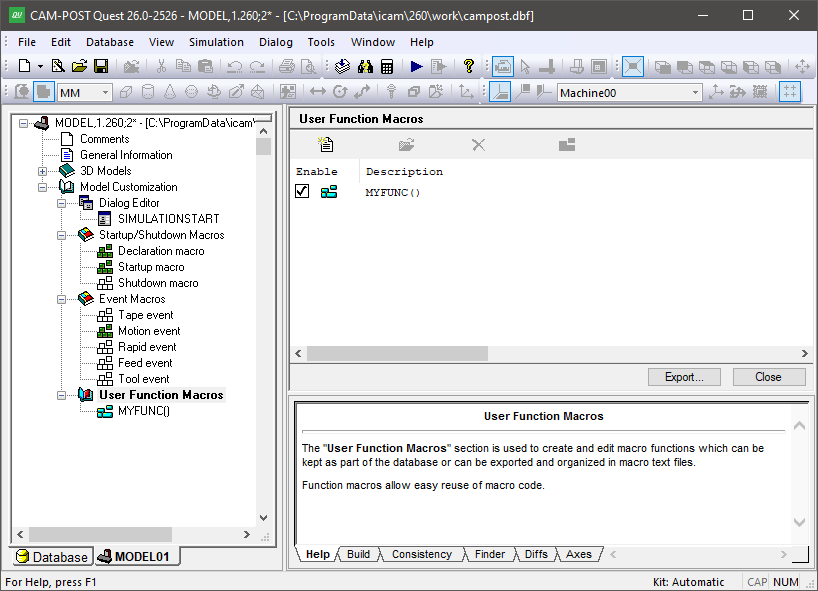
The User Function Macros Facility
The navigator lists function macros alphabetically by name. You can open a function macro for editing by double-clicking on the macro definition in the navigator or in the working window. You can also edit a function macro by selecting it in the working window and then pressing the Modify button. Only a single function macro can be edited at a time.
Create User Function Macro
Press the Add button to add a new function macro. You will be asked to enter a function name, which must start with an alphabetic character and consist of only letters, digits and the underscore character. The name cannot be longer than 32 characters. It also cannot be the same as any function name that is already defined.
When a new function macro is added, the macro editor occupies the
main work space. The first line of the macro will contain the string
“MACRO/( ). This first line of the macro is called a Syntax
Definition Line, or just SDL for short. The SDL defines the name of
the function, its parameters and optionally the function return value
type. More details of function macro SDLs can be found in
“User Function Macros”.
The remaining lines of the macro (i.e., the body) define the actions
to perform when the function macro is called. The macro processor
first copies the variables and/
User function macros are ordered alphabetically, with no duplicates allowed, so there is no concept of ordering macros to affect how they are matched.
The User Function Macro Editor
The User Function Macro editor is identical to the Startup/
Macro function names can be changed (i.e., renamed) simply by editing
the macro function, modifying the function name in the SDL, and
compiling and/
Delete or Disable User Function Macros
To delete a user function macro, open the User Function Macros section header in the Navigator, select one of the user function macros listed in the upper right main working window and then press the Delete button at the top of the window (or the Delete key). A deleted macro cannot be recovered, so be careful when deleting.
User function macros cannot be disabled.
Export User Function Macros
Press the Export button to select the function macros to be written in ASCII format to the selected file. Each macro is followed by an ENDMAC command in the generated file.
There is no corresponding Import function.