(Ctrl Alt L)
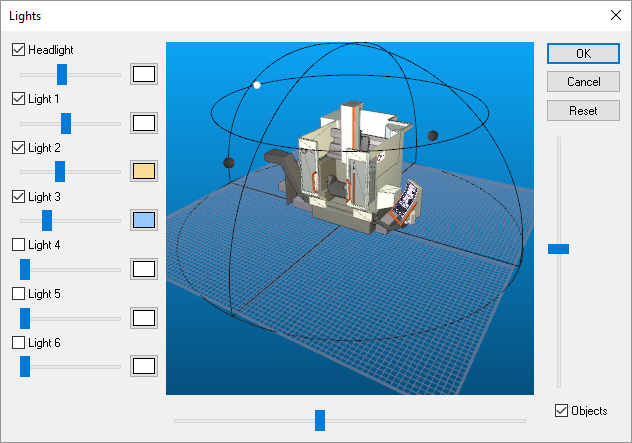
Activates the Lights dialog, which is used to control one headlight and
up to 6 separately movable light sources. VM lights are not affected by
solid objects. Lights shine through objects, do not cast shadows and the
lights themselves are not visible in the simulation window (but they are
visible in the Lights dialog to simplify placement). The Reset button
sets all lights to default positions around the extremity of the grid.
Lights should be reset whenever the underlying grid is reset (see
“Simulation»
The Headlight is located behind the camera and is directed into the scene. This optional light source makes it easier to view the workpiece or machine from the rear of the model; areas of the simulation environment where typical light placement does not reach. Because this light is mounted behind the camera, you cannot use it to differentiate the edges of identically colored and aligned faces. Two or more movable light sources must be placed around the model to be able to differentiate object edges.
Moveable lights appear as small spheres, but you may have to hide the machine (clear the Objects checkbox) to see them. Lights are positioned on a hemisphere using the left and right-mouse buttons. The left-mouse button controls the position on the hemisphere. The right-mouse button controls the size of the hemisphere. To adjust the light, place the mouse pointer over the light and then press and hold either the left or the right-mouse button. Move the mouse to change the lighting position or distance. Light intensity is controlled by the individual sliders associated with each light. The color of each light can be adjusted by first selecting the box to the right of the intensity slider and then choosing a color from the color chart. Using different colors for your light sources will improve depth perception.
If a light appears immovable, the distance may have been set to a very small value. In this case, use the right-mouse button to increase the lighting distance. It is also possible to position a light so far away that it can no longer be selected. In this case, the Reset button can be used to set all lights to their default positions.