Startup/
Customization is done using the Icam Macro language (see “The Macro Language”). Macros can extend or replace built in Virtual Machine functionality. Startup and Shutdown macros, in particular, enable customization of model processing at the start and end of key events, as follows:
Macro Type
When Executed
Start of macro processing
Called when the model is loaded
Called at the end of the program
Double-click on the “Startup/
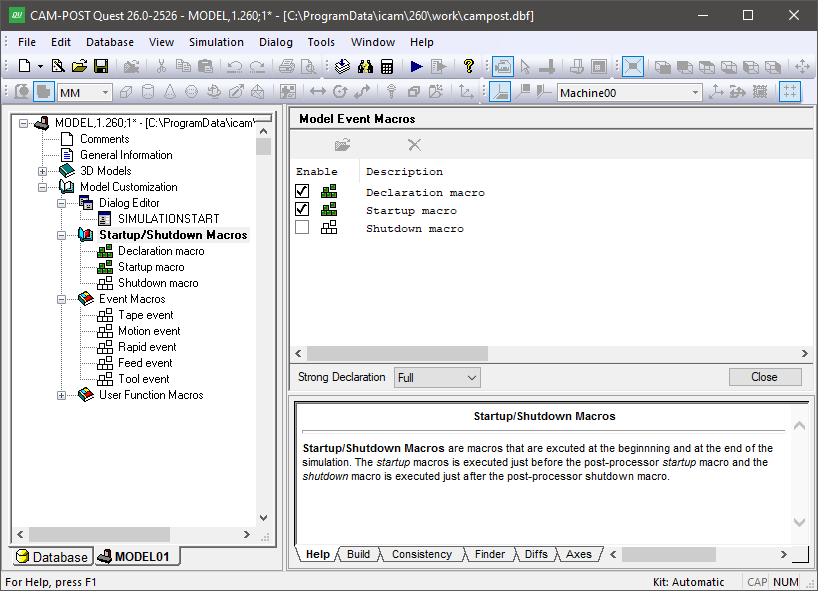
The Startup/
Select a macro name and press the Modify button to create or edit it. Macros can also be opened for editing by double-clicking on the macro name in the Navigator window. To ignore a macro during model processing, either uncheck the Enable box to disable it, or select the macro name and press the Delete button to remove it. The “Strong Declaration” setting is used in concert with the Declaration macro.
Startup/
The Declaration Macro
The declaration macro is executed at the start of macro processing. The sole purpose of a declaration macro is to provide a standard place where GLOBAL, OBJECT and FUNCTION variables can be declared and optionally assigned an initial value. No other commands are permitted in a declaration macro.
The declaration macro is used in combination with the “Strong Declaration” macro setting that appears at the bottom of the macro editor. There are 3 settings that control how strict the macro processor is concerning where and when variables are declared.
- OFF:
Variables can be declared when and wherever desired. The Declaration macro can be used, but it is not mandatory.
- PARTIAL:
GLOBAL, OBJECT and FUNCTION variables can only be declared in the Declaration Macro. LOCAL variables do not have to be declared before being used.
- FULL:
Same as PARTIAL, but LOCAL variables must be declared in a macro before being used.
The strong declaration setting can be changed at runtime using the GENER or CERUN menu. A run-time setting is also available to warn when variables are referenced before being set (which can be a potential source of error). can be a potential source of error).
The declaration macro and strong data typing features are designed to help developers create more stable macro code and catch misspellings and improper use of variables in QUEST instead of at run-time (if at all).
There are no $P variables associated with a declaration macro.
The Model Startup Macro
The model startup macro is called once only at the start of processing, before any other startup macros associated with the post-processor or control emulator. You should use the model startup macro to setup additional channels, close doors, perform pallet changes, initialize tools into tool pockets, activate dialogs (by calling the $FDIALOG function), etc.
There are no $P variables associated with a model startup macro.
The Model Shutdown Macro
The model shutdown macro is called at the end of processing, after any other shutdown macros associated with the post-processor or control emulator.
There are no $P variables associated with a model shutdown macro.
Create or Modify Startup/
To create or modify a startup/
The lines of the macro define the actions to perform when the macro is called. These lines can contain any combination of variable assignments, logic statements, loops, function calls and control emulator commands. The macro processor executes the macro starting from the first line and working down line by line, except when the flow of processing is changed by loops and conditional or unconditional branching. Some model functions can cause a macro to “call” (i.e., execute) another macro. There is no practical limit on how deeply macros can be nested. Processing of the current macro picks up from where it left off after a call. See (see “The Macro Language”) for more information concerning the content of a macro.
The Macro Editor
A common macro editor interface is used for all macro editing
requirements, whether they be for startup/
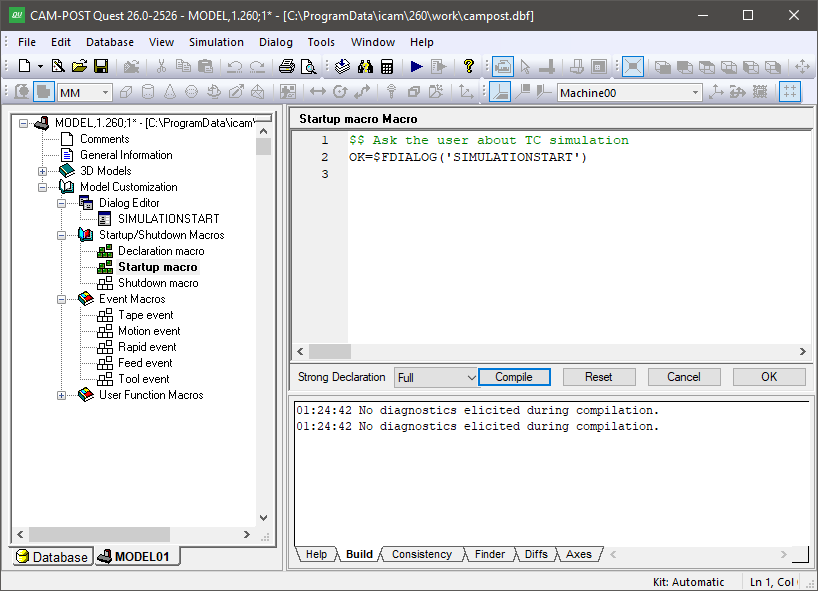
The Macro Editor
The macro editor colorizes the macro code as you type it, with comments in green, macro commands in blue, et cetera. The colorization scheme can be changed from the “Macro Editor” tab of the menu-bar selection. The editor also provides the following right-mouse button pop-up features:
: Use this feature to create, modify and test $FEDIT and $FMATCH macro function calls. Place the input cursor over the function name and select this function to edit an existing call. If the cursor is not on a $FEDIT or $FMATCH call, a new call will be created.
: Enables the display of line numbers to the left of each line.
: Shows a ‘·’ in place of blanks and an arrow in place of tabs.
: Use this feature to have the macro editor display a list of possible system variables or function names that match the text typed so far. Type any punctuation to accept the highlighted name; press the Esc key to ignore the suggestion.
: Use this function to add comments or remove comments from a block of selected macro lines. If all macro lines in the selected range have comments, then one layer of comments will be removed from the entire block. If any or all lines in the selected range are not already commented, then a new layer of comments will be added to the entire range.
: This gives you the option to preserve the original spacing and letter case of your macro code, or to have it formatted and auto-indented each time the macro is opened in the editor. There are two styles of formatting available: The “Standard” format uses uppercase and ANSI standard logical operators (e.g., IF/
X.GT.0.AND.X.LE.10) whereas the “C” format uses lowercase and C style logical operators (e.g., if/ x>0&&x<= 10). The choice of formatting style and whether or not to apply it when opening a macro for editing can be made from the “Macro Editor” tab of the menu-bar selection.
Pressing the F1 function key while the cursor is placed over a system variable or function name will bring up the on-line help with more information about the selected item.
You can select your own editor (called an “external” editor) to use instead of the default editor provided by QUEST. This is done from the “Macro Editor” tab of the menu-bar selection. You must define the full path and filename of the editor executable and include any necessary command line arguments. You must also choose the name of a file to be used as a placeholder for macros that you will edit. The macro file name must be unique to your own personal file space, to avoid interference with anyone else running QUEST.
Compiling and Saving Macros
When in the macro editor, you can use the “Compile” button to check that your code has been written correctly. Macros are always automatically compiled when you press the “OK” button after you have finished editing. The “Cancel” button ignores all changes made since you entered the macro editor for the current command. The “Reset” button ignores all changes, but keeps the macro editor active, showing the original macro code.
If a macro has compilation errors, the error diagnostics will be listed in the lower right-hand Build tab. A macro must compile without errors in order for it to be used by CERUN. You can force QUEST to exit a macro that has errors, but in this case the macro will be marked as non-executable. This means that the macro cannot be used by VM but remains available, as written, for editing at a later date with QUEST.
The “Strong Declaration” setting defines how strict the macro compiler is concerning the timing and location of macro variable declarations (see the Declaration macro).
Delete or Disable Startup/
To delete a startup/
You can also disable a macro instead of deleting it. A disabled macro remains defined in QUEST, but VM will not process it by default. You can also enable or disable macros at run-time for testing purposes using the GENER or CERUN debugger.