Activating the Simulation Windows
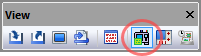
GENER and CERUN must be started using the “Full” interface display
setting on the main launch panel in order to see the machine simulation
(this is equivalent to specifying the “/
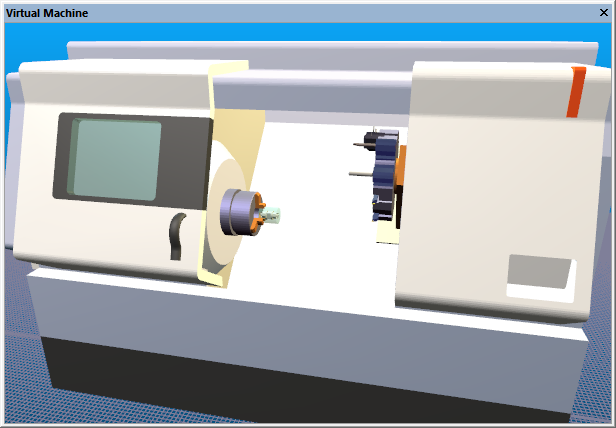
Simulation windows can display the machine model, tools and their holders (and heads), fixtures and chucks, finished part and corresponding rough stock. There are various settings and toolbars that affect the amount and types of information shown in a simulation window. The menu is a toggle that when selected will apply changed settings to all of the simulation windows. When is not selected, changes are only applied to the currently selected simulation window, which is identified by a green border.
Note
It is important to note that collision and overtravel detection (GENER and CERUN) and collision avoidance (GENER) are not affected in any way by the state of the simulation windows.
Pressing the right-mouse button in a simulation window will pop up a context-sensitive menu with various actions available depending on the object under the mouse pointer when the button was pressed, including the ability to view and in some cases change the object’s properties.
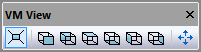
The VM View toolbar buttons let you toggle between perspective and orthographic projection, snap the camera to standard machine views (Front, Back, Top, etc.), and automatically fit either the selected object or the entire scene for optimal visibility. See Simulation»
Virtual Machine for details on using the mouse and keyboard to navigate and control the camera in the simulation window.
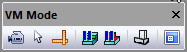
The VM Mode toolbar buttons control the selection mode (camera vs. select vs. measure), inhibit material removal simulation and tool vs. part collision testing, select wireframe vs. solid display of objects, and enable a “heads up display” that appears overlaid in the simulation window.
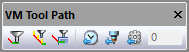
The VM Tool Path toolbar buttons enable the tracing of the tool-path and the tool-axis vectors in the simulation window, as well as the extent of the trace (showing the last n seconds, tools or operations).

The VM View Filter toolbar buttons toggle the visibility of the machine, tooling, fixtures, initial stock, design part, in-process stock and stock checkpoints, gouged material and excess material.
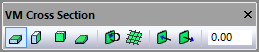
The VM Cross Section toolbar buttons section the in-process stock for better visibility and measurement purposes. The stock itself is not affected.

The VM Grid toolbar provides selectable datum-plane grids, coordinate frame references, various kinematics markers, a safety-zone visibility toggle and a snap-to-grid setting.