(Ctrl Alt M)
Activates the Material dialog, which can be used to define standard
material visual properties. Material properties are saved by default
in a materials.m3d file in the application data directory. Select the
[…] button to choose an alternate materials file.
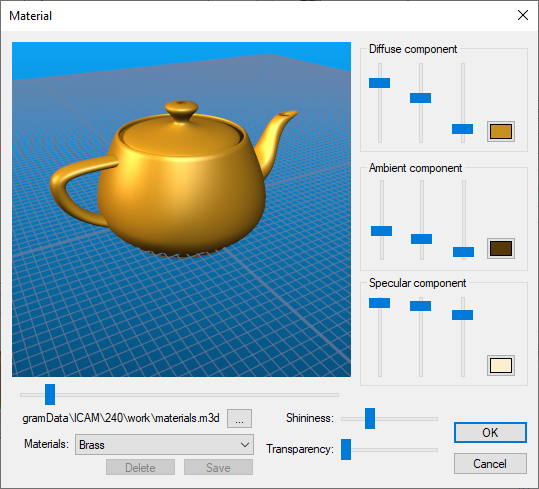
The following controls affect how material appears:
The Diffuse component is the color of the object.
The Ambient component is the color of light that indirectly strikes the object (for example, the color of the walls). For simplicity, the ambient component should be set to the same color as the diffuse component.
The Specular component is the color of the light given off by the main light source.
The Shininess slider determines how reflective the material’s surface is. A shiny object reflects more of the specular light component back to the viewer.
The Transparency slider can be used to set material properties for plastics and glass. Set “stock” components transparent to have an unobstructed view of the tool path trace.
The five material property values are assigned to each component when
it is created or modified. The material name is also saved, for
informational purposes only. Changing the properties of an existing
material will not affect the model or any stock/