
Integration Utility Kit Return to previous
 Icam to Creo Integration
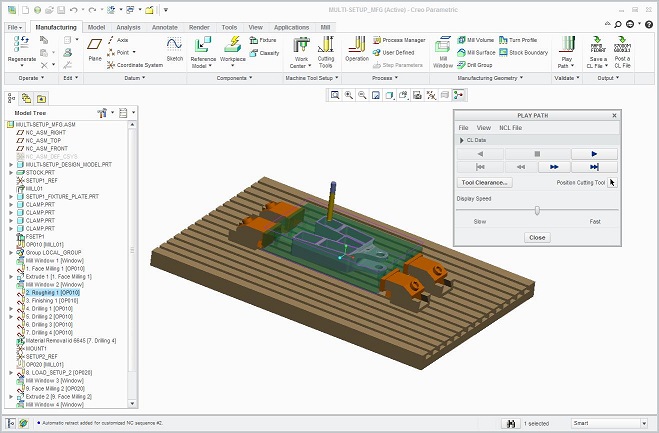
- CAM System: PTC Creo 1,2,3,4,5,6,7
- Company: PTC, Inc.
- Website:www.ptc.com
- Release: 22.0-1702
Icam Post to Creo Integration Documentation
Overview
Thanks for choosing Icam Post, the NC post-processing product from Icam Technologies Corporation.
Icam Post is a post processor generator embedded within the Creo architecture to generate NC Data output. It can accommodate a wide variety of machine types having multiple axis path control.
This integration document is addressed to Creo end-users to help organize post-processor usage through Creo; Describes the steps to install, upgrade and configure Icam Post to run in an integrated Pro/NC CREO environment.
Icam to Creo Integration Setup Utility
The integration setup utility can be found in the Tools section of the Portal
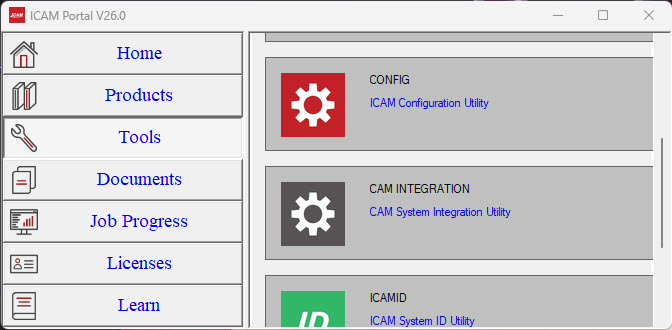
Choose Creo system(s) to setup
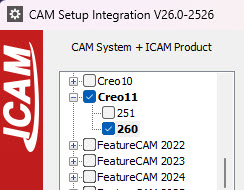
Select CAM system by checking the check-box or double-mouse-click on the already checked CAM system will redirect the focus to the corresponding CAM
setup page.
Or, select the CAM system setup page for modifying. Check the latest Icam Post revision if multiple instances exists.
Creo Setup Page
Note: You may need admin priviledges.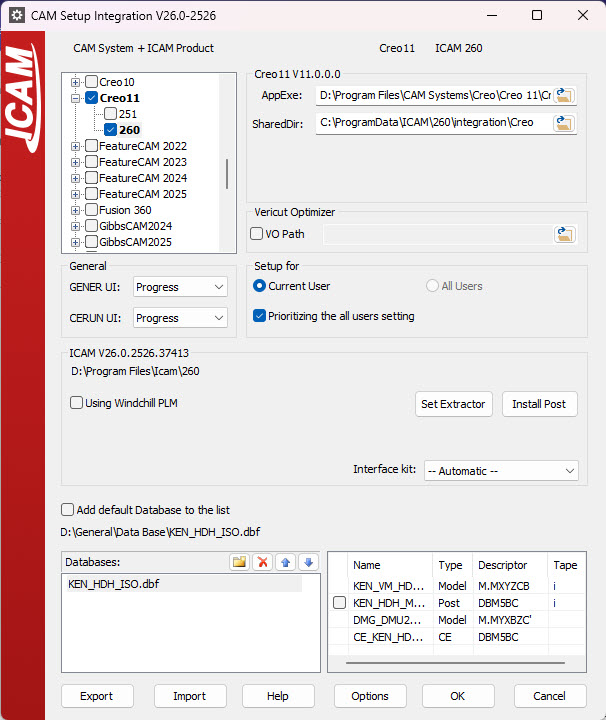
Several integration options are available.
- Using Windchill PLM is used when the user uses Windill PLM to load Creo manufacturing parts.
- GENER UI & CERUN UI affect how the sofware is launched. 'Full' will launch the complete runtime interface.
- Setup for this user. is used to setup the installation folder for this user only. (Recommended)
- Setup for any user of this machine. is used to setup the installation folder for all users.
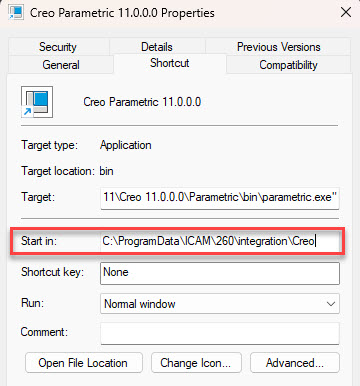
- CREO system need to start from StartIn folder. It is recommended to choose ProgramData location for this folder so that Icam Post integration with mutilple Creo version is easily supported.
The StartIn folder should be the same as the one indicated in Creo executable properties.
- Set Extractor is used to install the Extractor for simulation purposes.
- Install Post to create the selected Icam post processor into Creo.
- Interface kit should be selected based on your CAM system, except if you have a custom kit. Creo is recommended.
- Use default database will be the database use when launching Icam within the CAM software. The default database depends on the answer for the setup. If unchecked, you can select your own database location.
Creo CAM Setup
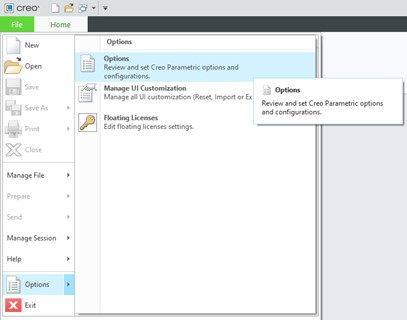
- Within Creo startup window, go to File -> Options -> Options
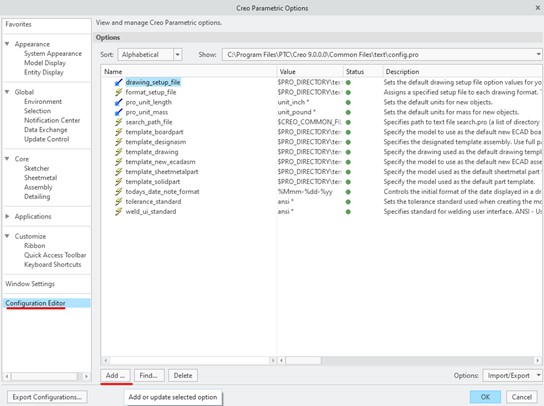
- Click on the Configuration Editor and press Add.
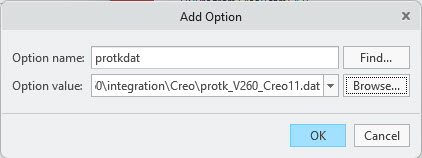
- In the Option name, write protkdat, and for the Option value, browse for the protk file created during the integration step in the previous chapter. If you used the path recommended, you will find it in the ProgramData\ICAM directory.
Press OK to accept the new option.
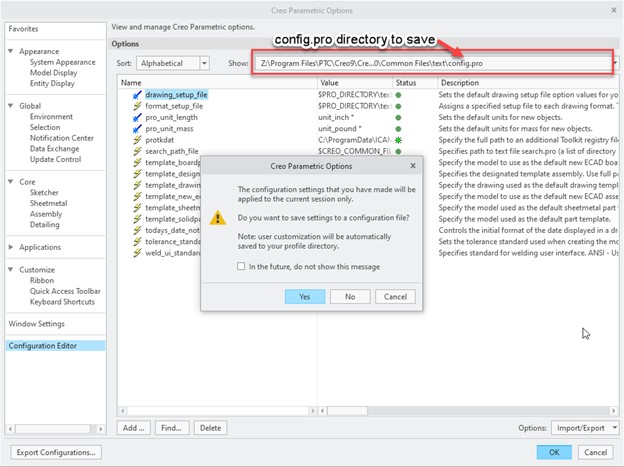
- Press OK to exit the Options window. Creo will ask to update the Configuration file as shown in the following picture.
Press Yes, and browse to the config.pro file in the directory shown below at the top of the Creo Parametric Options dialogue.
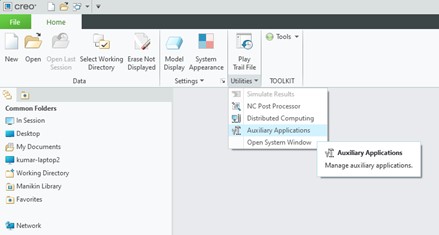
- Open the Auxiliary Applications from Home tab -> Utilities -> Auxiliary Applications.
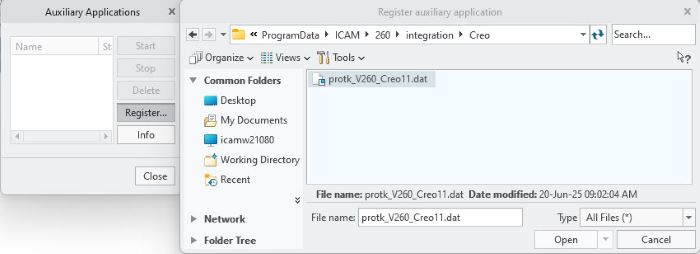
- Click the Register button and browse for the protk file created previously.
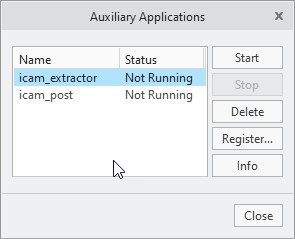
- Two options will appear: icam_extractor & icam_post. Select each one and press the Start button.
Launch Icam Post-processor from Creo
In a manufacturing session, the Icam Post-processor application will be available under the Tools -> TOOLKIT. 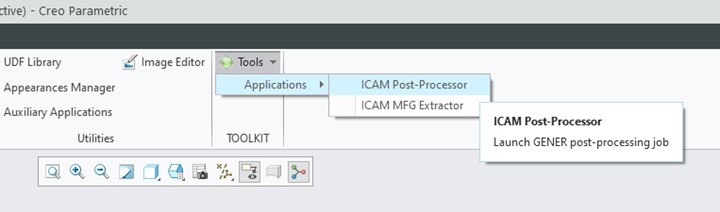
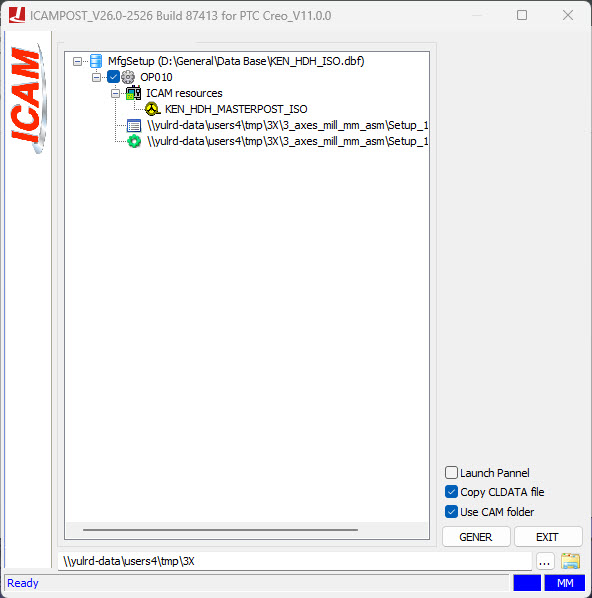
Post-processor Nodes
- Setup Root: Shows the full path and filename of the Icam database set during integration.
- Operation Nodes: Same as the program nodes in Creo which is the parent to all subsequent manufacturing data.
- Icam Resources Group:
- Post-processor
- Cutter Location Source File: The default path and filename used when generating CL data.
- Icam Resources Group:
- Operation Nodes: Same as the program nodes in Creo which is the parent to all subsequent manufacturing data.
Using the Post
If multiple post-processors are available in your database, you can right-click the post-processor name in the Icam resources node and select another post-processor.
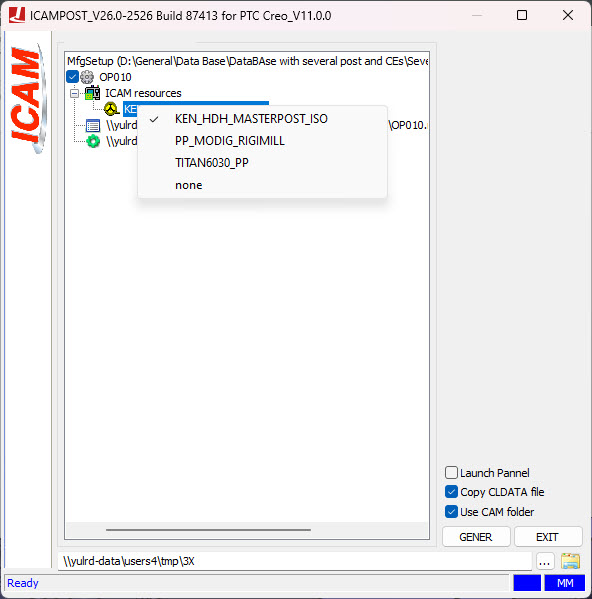
If you prefer to place the CL and NC files at a different location than the folder containing the Creo manufacturing assembly and related files, uncheck Use CAM folder and press the  next to the field at the bottom to select another directory.
