(Ctrl Alt D)
Activates the Display dialog, which is used to change the HUD “heads-up” display settings. The heads-up display is a small status screen that floats above the simulation window. The position, content and appearance of the heads-up display are controlled from the Display dialog.
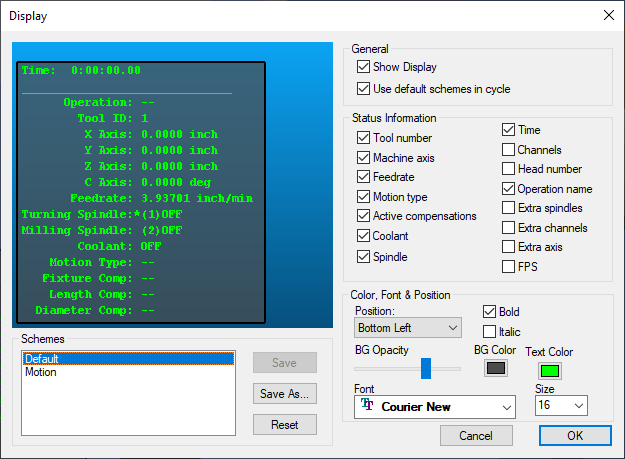
Individual layout schemes can be saved in the Windows Registry by selecting Save As and entering a name. Changes to the currently listed scheme (in the Schemes drop-down) are saved when OK is pressed. A scheme can be removed from the registry by selecting the name in the scheme drop-down and then selecting Delete. The “Default” scheme cannot be changed or deleted.
Select the Show Display checkbox to activate the heads-up display in the simulation window (Ctrl D does the same when the Display dialog is not active). Select the Use default schemes in cycle checkbox to include the Default display when using Ctrl D to cycle through each of the schemes in sequence. The following status information can appear in the heads-up display.
Tool number: The current tool ID or tool pocket number.
Machine axis: The linear and rotary axes controlled by CERUN.
Feedrate: The current feed interpolation rate or the keyword RAPID.
Motion type: A keyword describing the type of motion, e.g., LINEAR, CIRCULAR.
Active compensations: Fixture, length and diameter compensation settings.
Coolant: The current coolant status.
Spindle: The current spindle status and rpm.
Time: Elapsed machining time.
Channels: Current active channel and time.
Head number: The current head ID or head pocket number.
Operation name: The current operation name if defined in the program.
Extra spindles: Additional information about spindles.
Extra channels: Additional information about channels.
Extra axis: Additional axes in the model.
FPS: The simulation window display rate in the form “a / b”. The value “a” is the redraw speed in frames/
second and is an indicator of graphic performance. The value “b” is actual screen updates/ second and is an indicator of total model performance.
The Position input field specifies in which corner the heads-up display will appear. The text appearance is controlled by the Font, Size, Bold, Italic and Text Color input fields. The heads-up display will appear directly over the simulation window contents. You can experiment with various frame background colors (BG Color) and vary the background opacity (BG Opacity) to obtain the best contrast.