The settings only take effect while in measurement
mode, as set using the  measurement mode button on the VM Mode
toolbar or menu bar. Once in measurement
mode, clicking with the left-mouse button causes measurements to be
taken between the selected objects. Press the ESC key to undo
selections. Press and hold the Ctrl key to manipulate the camera with
the mouse while taking measurements.
measurement mode button on the VM Mode
toolbar or menu bar. Once in measurement
mode, clicking with the left-mouse button causes measurements to be
taken between the selected objects. Press the ESC key to undo
selections. Press and hold the Ctrl key to manipulate the camera with
the mouse while taking measurements.
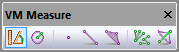
Within VM, objects are constructed of triangles. The menu-bar functions and matching VM Measure toolbar provide the following measurement options.

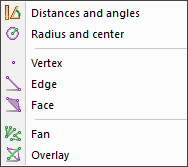
The Distances and angles selection measures the distance and angle between subsequently selected entities, as well as the xyz offset between entities.

The Radius and center selection measures the radius and xyz
center of a circle constructed through 3 subsequently selected points
and/

The Vertex selection enables or disables the picking of points on the boundary of the triangles that make up the object.

The Edge selection enables or disables the picking of edges of the triangles.

The Face selection enables or disables the picking of faces of the triangles.

The Fan selection switches between chained (one to the next) and fanned (one to many) measurements. In fanned mode, the first selection is the primary object, which is then measured against each subsequent selection.

The Overlay selection, when enabled, ensures that the objects selected for measurement will always be visible, no matter how the camera is oriented.
If none of the Vertex, Edge or Face selections is active, then all objects can be selected.
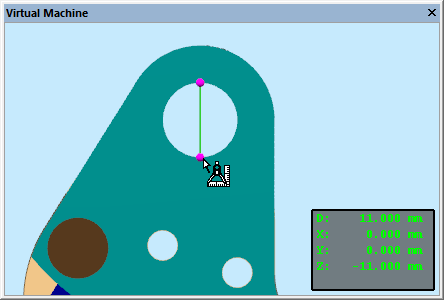
The xyz information in the above measurements is with respect to the frame selected in the VM Grid toolbar. Measurement information appears in the form of a small HUD (heads-up display) in the simulation window.
When measuring in-process stock, the function can be used to section the stock for better visibility or to obtain measurements in the cross section plane.