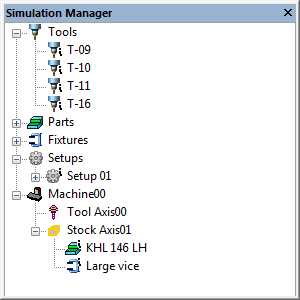
Enables the display of the Virtual Machine Simulation Manager window if hidden or minimized. Hides the Simulation Manager window if already active. This window can be toggled from the View toolbar. The Simulation Manager window lists all of the components included in the simulation (i.e., tools, parts, fixtures) and where they are attached to the model. E.g., parts and fixtures will be shown attached to stock mount points.
Double-clicking on a component or group header will activate a dialog that permits modification of the selected component. As well, pressing the right-mouse button on any component or group header will bring up a context menu listing the actions that are available with the selected entry.
Tools: Lists the tools defined in the simulation. Double-click the header to activate the dialog (see here). Double-click a tool to view or modify it. Use the right-mouse context menu to change where tools are attached to the model.
Parts and Fixtures: Lists the parts and fixtures defined in the simulation. Double-click the header to activate the Simulation»
Parts/ Fixtures dialog. Double-click a part or fixture to view or modify it. Use the right-mouse context menu to change where parts and fixtures are attached to the model. Setups: Lists the setups defined in the simulation. Double-click a setup to view it. Use the right-mouse context menu to add, copy or delete setups. Within each individual setup, use the right-mouse context menu to add or remove components from that setup as well as to modify the properties (e.g., position and orientation) of those components. Setups are activated by calling the $FMSSETUP() macro function.
Model name: Lists the components currently attached to the model tool and stock axes. Double-click a component to view or modify it. Use the right-mouse context menu to unload a component.