Menu
The visual debugger menu options are described below.
Debug»
The Source window shows the MCD input source file, including subprograms. The Source window also shows the contents of code and other macros. Any macro can be examined in the window, regardless if active or not. A marker in the left margin shows the next MCD block or macro line to be processed. Breakpoints can be seen, set and cleared by clicking in the margin. Once a variable has been set, it can be examined by hovering the cursor over the variable; a tool-tip will appear showing its value. Four buttons in the Source window single-step through the macro or CL file in various ways.
runs to the next macro/MCD record shown in the current window. runs to the very next line of macro code or MCD in the program.runs past the end of the current macro.runs to the currently selected macro/MCD record. The right-mouse context sensitive menu provides quick access to various debugging features of the source window. This includes the ability to set and toggle breakpoints on the selected block, to set or toggle breakpoints on the selected code (if any), to clear all breakpoints, to run to the selected line, and to jump to the selected MCD block. The context menu also provides the ability to synchronize the trace and simulation windows to their corresponding positions when the source record or line was last processed.
The “Edit Source” button in the Source window toolbar enables editing of the input MCD data. Edits can be made at any time, but are only effective if made before the edited block is processed by CERUN. If file permissions do not permitting editing of the MCD file, then edits can still be made in an “in-core” copy of the file, but you will be warned that any changes cannot be saved. You will be prompted at the end of control emulation, whether exiting or rewinding, to save all files that were edited.
When debugging a control emulator that supports multiple independent kernels, the Source window will show only those MCD files and macros that are associated with the “active” kernel. The active kernel can be set using the menu selection or Multi-Kernels toolbar.
Debug»
The Variable window is used to examine local, object, global and macro system variables, as well as CNC variables (if using a pre-processor). The window is organized into left and right halves.
The left half of the window has a series of tabs. The leftmost Auto tab lists recently referenced variables to simplify debugging. The Globals and guilabel:Object tabs list all global and object scope variables that have been defined. Similarly, the Locals tab lists all local variables defined to the current point in the active macro. The contents of the Locals and Object windows depend on the macro selected in the Call Stack window (see below). A guilabel:CNC tab will be present when using a pre-processor, which will list all CNC variables defined to the current point in the program.
The right half of the window also has a series of tabs, which you can use to organize and view local, object, global or macro system variables of interest. Local, object and global variables are only listed once they are declared (DECLAR command) or used.
Each time CERUN is paused, it will identify changed variables with a different color.
The right-mouse context sensitive menu provides quick access to various options and features of the variables window. This includes the option to list variables either alphabetically or in the order they were defined, to omit undefined ($NULL) variables and even to export a listing of the current state of each variable (there is no corresponding function to import variables).
Variables can also be viewed by placing the cursor over a variable name where it appears in the Source window. Variables can be “dragged” into the right-hand watch window from the Source window or from the list of Global, Object and Local variables in the left-hand half of the Variable window. Once there, variables can be easily traced using the right-mouse context sensitive menu.
The value of read/
write variables can be changed by clicking on the value (to assign the focus) and then typing a new value. When debugging a control emulator that supports multiple independent kernels, the Variable window will show only those variables associated with the “active” kernel, as well as CNC variables and any global or object variables defined in the main controlling kernel. The active kernel can be set using the menu selection or Multi-Kernels toolbar.
Debug»
The Call Stack window lists the macro and subprogram call nesting order, bottom up starting with the MCD file. Each currently active matched macro or subprogram is listed above its caller, in the order called. When you double-click on a macro in the Call Stack window, you can view the macro’s local variables in the Variable window and the macro source in the Source window. Double-click on a subprogram entry in the stack window to view the MCD file source of the subprogram in the Source window. Double-click on the lowest line in the stack window to view the MCD file source in the Source window.
When debugging a control emulator that supports multiple independent kernels, the Call Stack window will show only the call nesting order associated with the “active” kernel. The active kernel can be set using the menu selection or Multi-Kernels toolbar.
Debug»
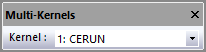
Use this menu selection to set the active kernel for debugging purposes when running a control emulator that supports multiple independent channels (e.g., a merging mill-turn lathe) or when running a PSE with merged GENER processing enabled. The active kernel can also be selected from the Multi-Kernels toolbar shown at left.
In a multi-kernel environment, the Source window will show only those MCD files and macros that are associated with the selected kernel. Likewise, the Variable and Call Stack windows will only show the variables and calling structure of the selected kernel. Single-stepping functions will only step through MCD and macro code processed by the selected controller. The Breakpoint Manager and Macro Manager will only show those breakpoints and macros that are associated with the current controller.
When debugging a merged PSE process, the menu selection can be used to switch between the GENER and CERUN kernels, allowing debugging of the post-processor or control emulator as described above.
When a breakpoint is triggered, the active kernel is automatically switched to the one that encountered the breakpoint.
Debug»
(F10)
Used during debugging to process the next MCD block or macro line, pausing after the record or line has been processed. Compare this with Step Into below.
Debug»
(F11)
Used during debugging to process the next MCD block or macro line, pausing at the very next block of MCD or macro line to be processed. When Step Into is selected on a block of MCD or macro line that invokes a macro, processing will pause at the first executable line of code in the macro.
Debug»
(Shift F11)
Used during debugging to process the remainder of the current macro, pausing at the next block of MCD or macro line to be processed after the current macro has completed.
When debugging a control emulator that supports multiple independent kernels, the Step Over, Step Into and Step Out functions operate with respect to the MCD and macro code of the “active” kernel, as set using the menu selection or Multi-Kernels toolbar.
Debug»
(Ctrl F10)
Used during debugging to run to the currently selected MCD block or macro line, provided no other breakpoint is activated before reaching the selected block or line.
Debug»
(Ctrl Shift F10)
Used during debugging to jump to the currently selected MCD block, which allows the same MCD block to be processed again or allows MCD blocks to be skipped over.
Debug»
(F9)
Used during debugging to set or clear a breakpoint on the Source window line that currently has been selected. A solid red circle appears in the margin of the Source window next to any MCD block or macro line that has a breakpoint set. CERUN pauses processing when it encounters a breakpoint.
Debug»
(Ctrl F9)
Used during debugging to enable or disable a breakpoint on the Source window line that currently has been selected. A disabled breakpoint appears as a hollow red circle. CERUN does not pause processing when it encounters disabled breakpoints.
Debug»
(Ctrl Shift F9)
Used during debugging to quickly remove (delete) all breakpoints in all kernels.
Debug»
(Ctrl Alt F9)
The Breakpoint Manager dialog is used to define places in the program where processing should pause. Breakpoints can be set, removed or temporarily disabled. Breakpoints can also be saved and restored from a file using the “File Open” and “File Save” buttons on the dialog. Breakpoints can be remembered from one run of CERUN to the next by selecting the “Remember breakpoints” checkbox at the bottom of the dialog.
When CERUN encounters a breakpoint, it outputs a message that identifies the breakpoint (since there can be many) and gives you the option to either pauses the control emulator or to continue to the next breakpoint or end of program. If you choose to pause processing, select or when you are ready to continue processing. Breakpoints can be set for the following:
On a macro line, to break before executing the macro command.
On a block of MCD identified by its block or sequence (e.g., N register) number.
After a selected macro variable is assigned a new value.
When a selected code or data identifier is processed.
When a particular diagnostic or diagnostic matching a selected severity occurs.
When a Virtual Machine collision or over-travel event occurs.
It is easier to set macro line and MCD block breakpoints using the Source window. First select the MCD file or macro using the drop down list in the upper right corner of the Source window. Then click with the mouse in the left-hand border beside the MCD block or macro line where a breakpoint is desired. A solid red circle will appear to show that a breakpoint has been set. Hollow red circle symbols indicate breakpoints that are disabled. Click on the circle icon to delete an existing breakpoint. The right-mouse pop-up menu can also be used to set or toggle line and CODE type breakpoints as well as to clear all breakpoints.
When debugging a composite control emulator with multiple independent kernels, macros from different kernels can be differentiated from each other by the control emulator name, which will appear in parentheses beside the macro name.
Debug»
The Macro Manager dialog provides debugger functionality to enable or disable any macro, to enable or disable the tracing of a macro when “stepping”, as well as to view or change the settings of system variables that enable or disable the processing of startup and shutdown macros (these variables are grayed out if their corresponding startup/
shutdown macros are not defined). Enabling or disabling macros and/ or changing the macro variable settings may affect the results of the control emulator. Changing the trace settings does not affect the results of the control emulator. The Macro Manager also has checkbox options to hide or show composite control emulator component macros that do not belong to the currently active component, external before/
after macros, macros belonging to the current control emulator and Virtual Machine macros associated with the machine model. Hiding or showing macros does not affect the results of the control emulator. When debugging a composite control emulator with multiple independent kernels, macros from different kernels can be differentiated from each other by the control emulator name, which will appear in parentheses beside the macro name.